
Camera Is Being Used by Another Application! Why?
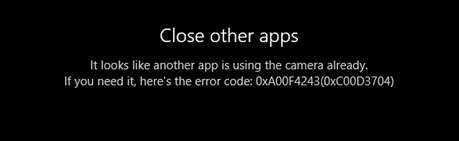
When you want to use your camera on your computer to record video or make a video communication via FaceTime, Skype, or Google Meet, you may receive an error saying the camera is being used by another application or another app is using the camera already, or your webcam is being used by another application, or similar errors.
Why does this issue happen?
- The camera can only be used for one application once. When you see this error, you’d better quit all programs that are using the camera and then only open the application you need to use.
- The camera is blocked by Windows Firewall.
- There is something wrong with your camera.
- Some related apps are outdated.
- The camera privacy setting is not correct.
Focusing on these situations, we collect some corresponding solutions and show them in this post.
![[Fixed!] Can’t Find Webcam in Device Manager on Windows](https://images.minitool.com/minitool.com/images/uploads/2021/04/cant-find-webcam-in-device-manager-fix-thumbnail.png)
What to Do If Camera Is Being Used by another Application?
- Quit all programs that are using the camera.
- Disable your Windows Firewall.
- Troubleshoot the camera.
- Update apps on your computer.
- Change camera access setting.
Fix 1: Quit All Programs that Are Using the Camera
The camera on your computer can not be used for two or more applications at the same time. If can use the camera because it is being used by another app, you need to close all programs that are using the camera. Then, you can only open your needed application to use the camera.
Fix 2: Disable Your Windows Firewall
You can use this method in case the camera is blocked by Windows Firewall:
1. Open Control Panel.
2. Select Category for View by.
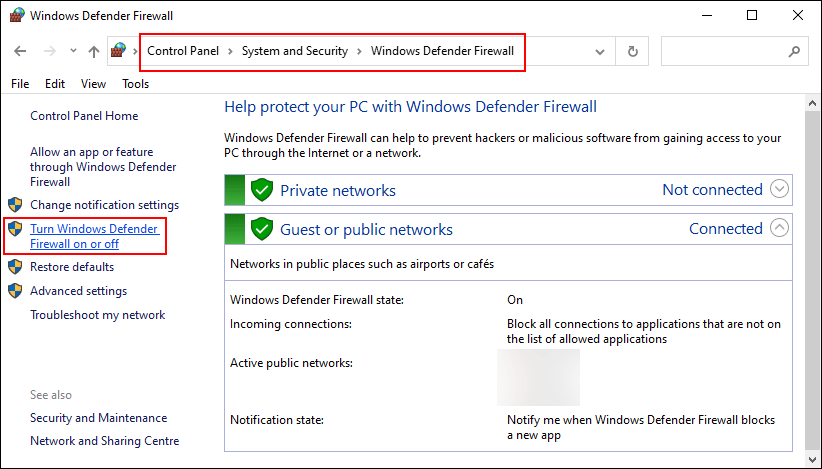
3. Go to System & Security > Windows Defender Firewall.
4. Click Turn Windows Defender Firewall on or off from the left menu.
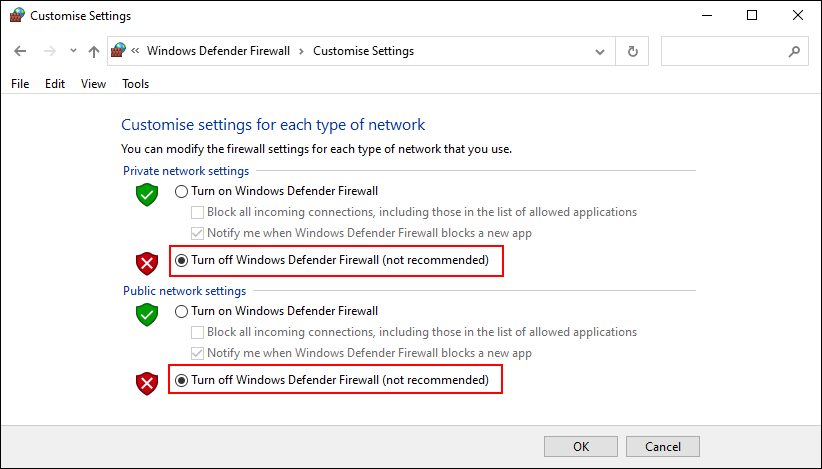
5. Select Turn off Windows Defender Firewall for both Private network settings and Public network settings.
6. Click OK to save the changes.
Fix 3: Troubleshoot the Camera
You can go to Device Manager to troubleshoot the driver issues for the camera. For example, you can update or roll back the driver according to the situation you are facing.
Fix 4: Update Apps on Your Computer
You also need to make sure that the apps on your computer are up-to-date. You can go to Windows Store to check for updates.
You can also directly upgrade your Windows to do the same job. You can go to Start > Settings > Update & Security > Windows Update to check for updates.
Fix 5: Change Camera Access Setting
If all of the above methods can’t solve your issue, you need to consider whether you have allowed your device to access the camera.
Here are the things you should do:
- Click Start.
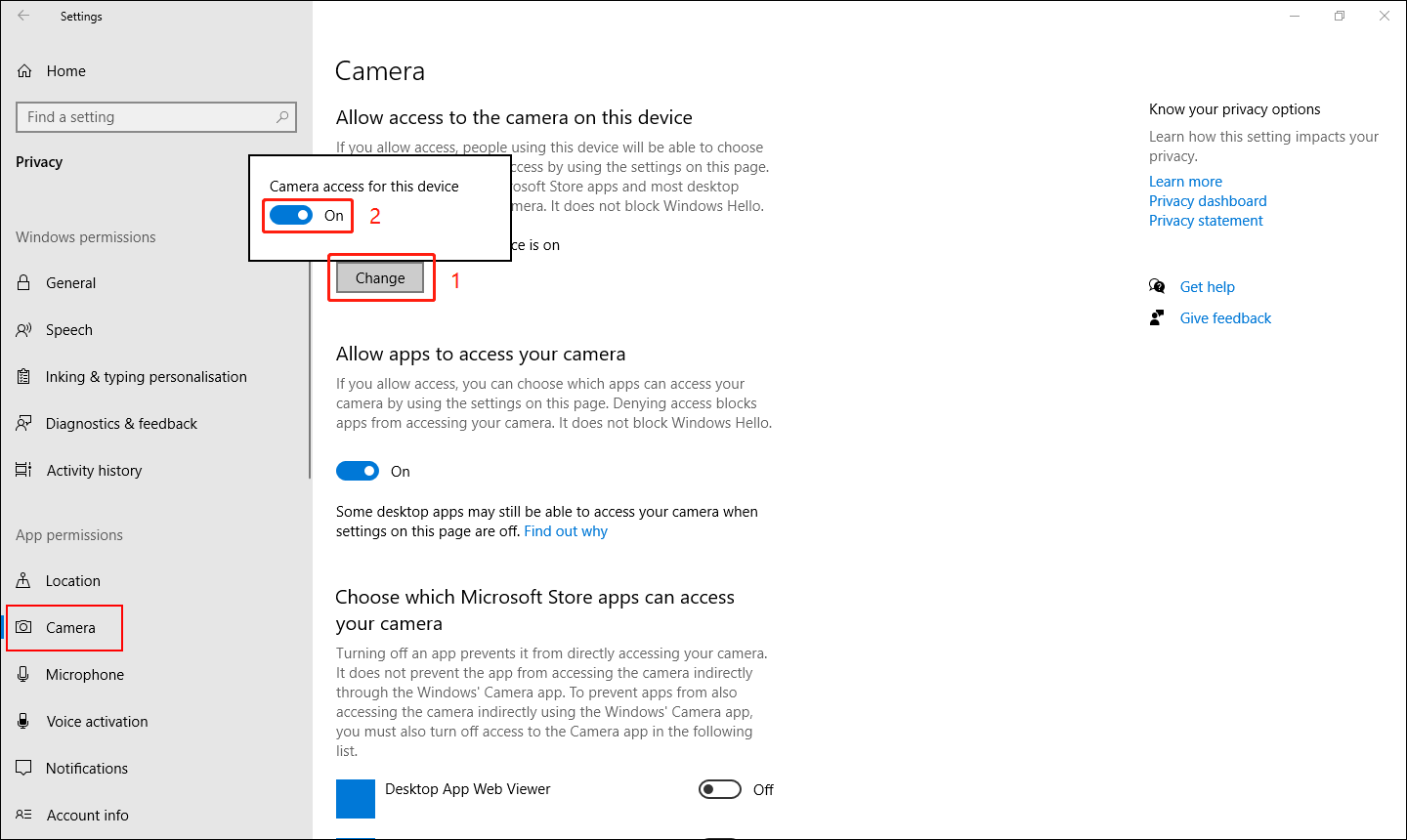
- Go to Settings > Privacy > Camera.
- If the status shows that camera access for this device is off under Allow access to the camera on this device, you need to click the Change button and turn on the button for Camera access for this device.
These are the solutions to the issue of the camera is being used by another application on Windows 10. We hope you can find a workable method from this post. Should you have other related problems, you can let us know in the comments.
About The Author

Position: Columnist
Stella has been working in MiniTool Software as an English Editor for more than 8 years. Her articles mainly cover the fields of data recovery including storage media data recovery, phone data recovery, and photo recovery, videos download, partition management, and video & audio format conversions.
User Comments :