
If you meet the constrained delegation for CIFS fails access denied error in Windows 10, check the possible ways in this tutorial to fix this error. FYI, MiniTool software provides you free data recovery software, hard drive partition manager, system backup and restore software, video maker and video downloader, etc.
CIFS (Common Internet File System) is a network file-sharing protocol that provides access to files and printers between machines on the network.
If you try to access a service that uses network shares, and encounter the constrained delegation for CIFS fails with ACCESS_DENIED error in Windows 10, you can try the tips below to fix this issue.
How to Fix Constrained Delegation for CIFS Fails Access Denied Error
You can configure the constrained delegation by following the instructions to see if it can fix this error in Windows 10.
- You can click Start -> Administrative Tools -> Active Directory Users and Computers.
- Click Domain and click Computers folder to expand it.
- Right-click the computer name for the webserver in the right window, and select Properties.
- Click Delegation tab and check “Trust this computer for delegation to specified services only”.
- Select “Use Kerberos only”and click OK.
- Next you can click Add button to open Add Services dialog. Click Users or Computers and enter the name of file server that receives the user’s credentials from IIS. Click OK.
- Then you can select the CIFS service in the Available Services list, and click OK.
Best Free Data Recovery Software for Windows 10
Data loss sometimes occurs no matter how careful you are to protect your data. Loss of data can happen because of sudden system crash, power outage or other computer problems. Hard drive failure of corruption can also cause data loss. Is there a free and easy way to recover lost data from Windows 10 or other storage devices?
MiniTool Power Data Recovery, best free data recovery software for Windows 10, helps you recover any deleted/lost files from Windows 10 computer, as well as external hard drive, SSD, USB pen drive, SD memory card of phones and cameras, etc.
This best data recovery software helps you tackle various data loss situations. It is 100% clean and safe, and extremely easy to use, even novice users can handle it.
Download and install MiniTool Power Data Recovery on your Windows computer, and check how to use it to recover deleted/lost files from storage devices below.
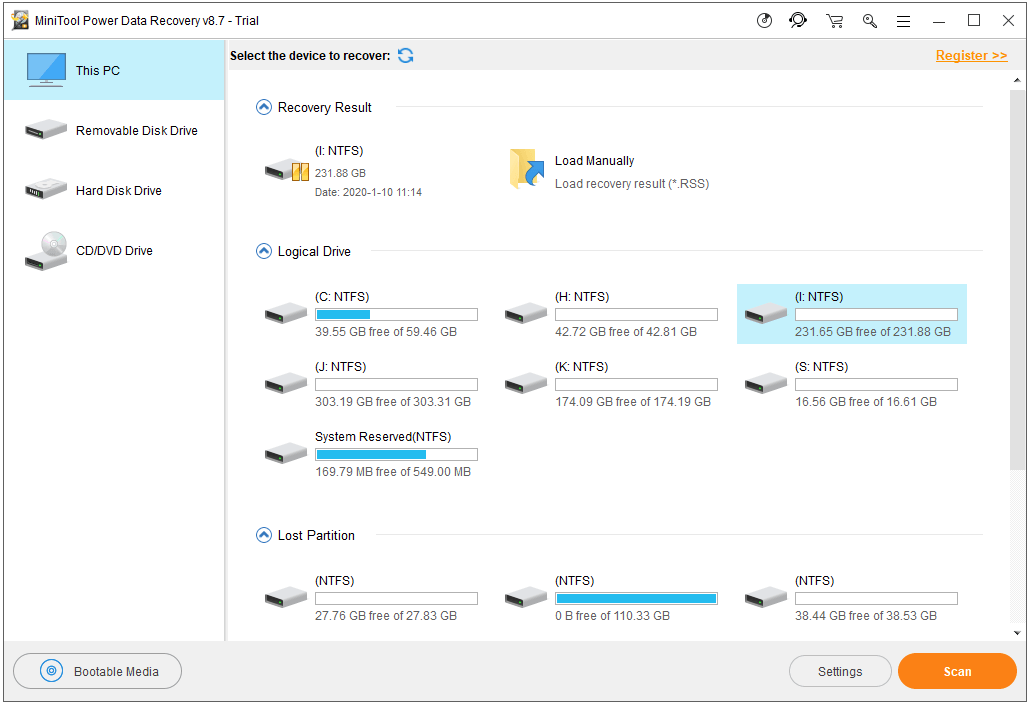
Step 1. If you try to use MiniTool Power Data Recovery to recover data from external devices, you should connect the device with your computer at first. Then run MiniTool Power Data Recovery and you will see its main interface.
Step 2. In the main UI, you can choose the main device category from the left pane. MiniTool Data Recovery Software can recover data from four types of devices: This PC, Removable Disk Drive, Hard Disk Drive, CD/DVD Drive.
After you choose the main device category, you can choose the target partition or device from the right window. After that, you can click Scan button, and this smart data recovery application will automatically scan all data on the device.
Step 3. Once the scanning process is completed, you can browse the scan result to find wanted deleted/lost files, check them and click Save button to choose a new destination path to save them.
User Comments :