
When you’re using some devices (such as speakers and printers) on your computer, the certain network of your system will be used. At this time, if the network profile needed is damaged or lost, the system will show you this error: Windows doesn't have a network profile for this device. You have to solve this problem so as to continue to use your device.
MiniTool Software provides you with wonderful solutions.
Error: Windows Doesn’t Have a Network Profile for This Device
It’s a very common move to connect network devices like speakers and printers to your computer. However, you may encounter an error during this process: Windows doesn’t have a network profile for this device. So today’s topic is how to fix this wireless connection issue; it can also happen to non-network devices.
First of all, let’s dive into the possible causes for this error:
- The device is not compatible with system.
- The network drivers are not updated.
- There is no network profile found (it is damaged or lost).
If you encounter the request failed due to a fatal device hardware error after connecting an external device to your computer, please read this to know how to cope with it:
The most important thing is how to fix the problem, so I summarize 5 fixes in the following content.
Fix Windows 10 Doesn’t Have a Network Profile for This Device
The Windows doesn’t have a network profile for this device error is mainly a wireless connection issue for printer and other devices. You have several ways to fix no network profile Windows 10 effectively.
- Check compatibility.
- Configure computer as discoverable.
- Run Windows troubleshooter.
- Update drivers.
- Check SNMP status.
Fix 1: check the compatibility.
You should contact the device manufacturer or visit its website to check whether the device is compatible with your system or not.
Fix 2: set the computer to be discoverable.
- Click on the Start button in the lower left corner of your computer screen.
- Click on the Settings icon (it’s like a gear) on the left sidebar.
- Select Network & Internet from the Settings window.
- Shift to WiFi from the left-hand panel.
- Click the network listed here to open the Network window.
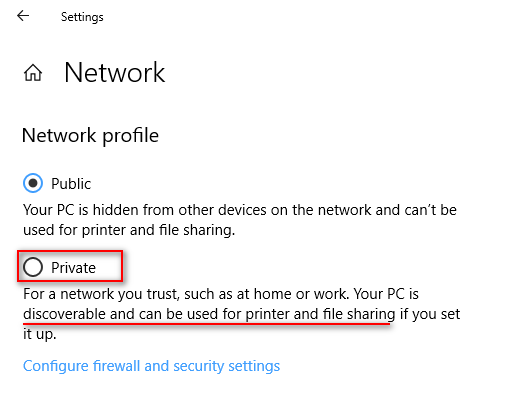
- Find Network profile section and check Private (instead of Public) to make your PC discoverable and can be used for printer and file sharing.
- Restart your PC.
Fix 3: run the Troubleshooter.
- Open Cortana’s search box by clicking on the taskbar.
- Type troubleshoot and choose Troubleshoot System settings from the result.
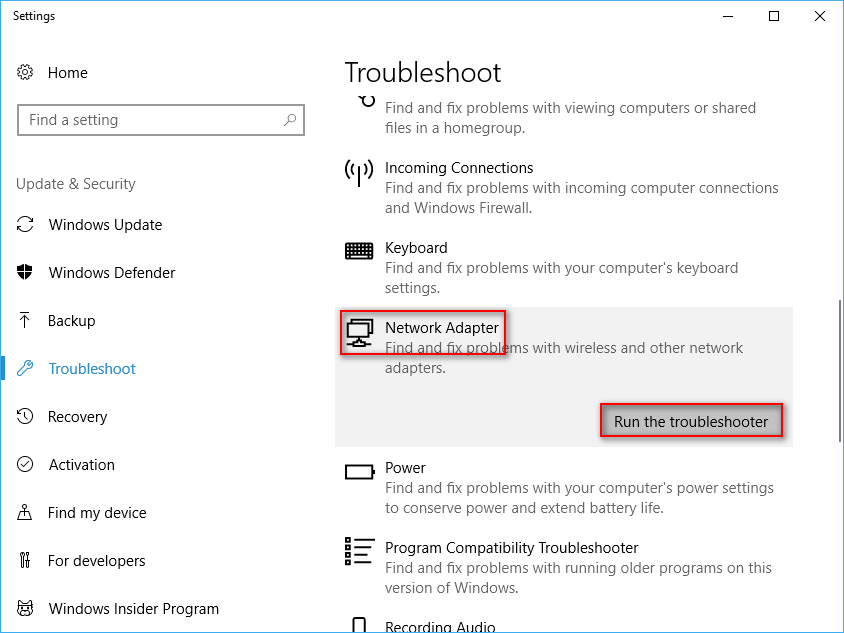
- Find and select Network Adapter from the right-hand panel.
- Click Run the troubleshooter, which appears after you finished the previous step.
- Confirm the required network adapter option.
- Click on the Next button to continue.
- Wait for the detecting process to finish and follow the suggestions given by Windows.
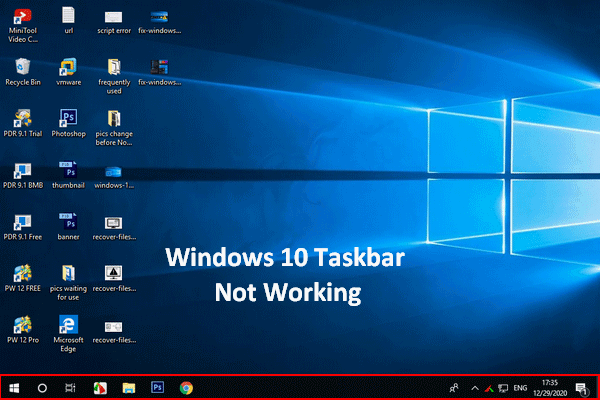
If you find your taskbar is not working, you’d better fix the problem first before run the troubleshooter:
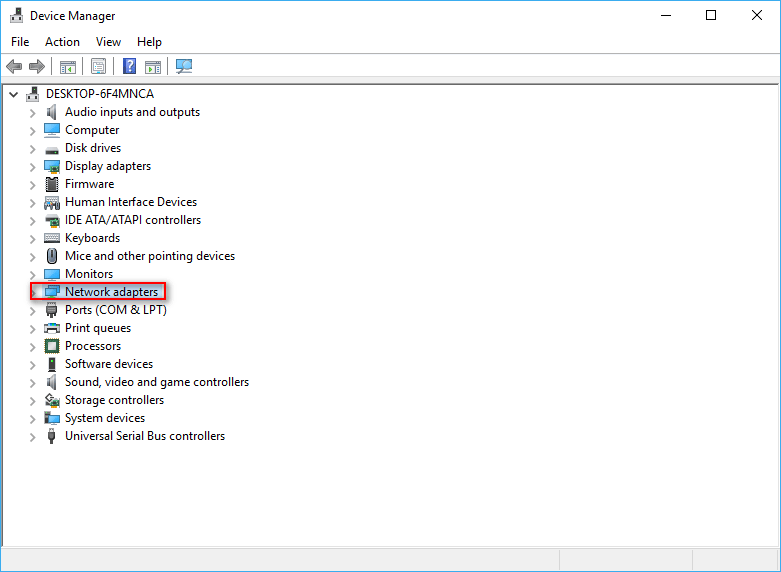
Fix 4: update the drivers.
- Right click on the Start button.
- Choose Device Manager from the list.
- Find Network adapters and expand it.
- Identify the driver you want to update.
- Right click on it and choose Update driver.
- Decide How do you want to search for drivers and wait for it to complete.
Fix 5: check SNMP status.
- Click Start button and scroll down to find Windows System folder.
- Expand the folder and select Run from it.
- Type the command msc.
- Click OK button or press Enter on the keyboard to continue.
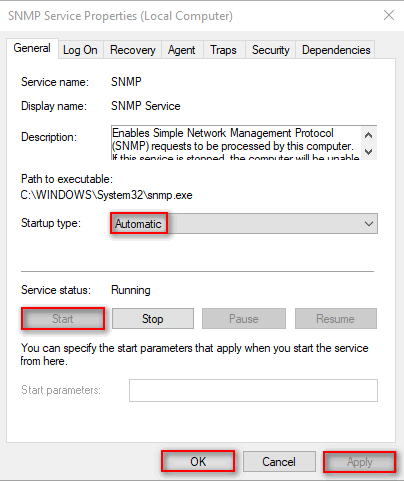
- Find SNMP Service from the list and double click on it.
- Find Startup type section in the General tab.
- Open the drop-down menu and select Automatic.
- Click the Start under Service status.
- Press Apply and click OK at the bottom to save changes.
In addition, you can also try to fix Windows doesn’t have a network profile for this device error by configuring the printer’s port and unchecking SNMP Status Enabled option.
User Comments :