
Forever Skies Crashes at Startup
Forever Skies is a first-person action survival game launched by Polish developer Far From Home. The official version 1.0 of the game was released on April 14, 2025, adding new ecological areas and giant creatures. If you like doomsday survival games, you have probably heard of or played this game. What if the Forever Skies crashing issue occurs when you play it? Before fixing it, you can learn about the factors first.
- Graphics driver problem: Outdated graphics drivers can prevent the game from starting.
- Damaged save files: Loss or damage to save files for some players may cause the game to crash.
- Hardware or system requirements are not met: The computer does not meet the system requirements of the game, or there are some turned-on devices that interfere with the operation of the game.
- Game file problems: Game files play a big role in the operation of the game. Once they are damaged or lost, they will cause various problems.
After having a better understanding of this issue, let’s fix it using the following methods.

How to Fix Forever Skies Crashing
At the beginning, you can try restarting Steam and the computer and verifying the integrity of game files. If that doesn’t work, try the following ways one by one.
Fix 1: Run the Program as an Administrator
Sometimes, insufficient permissions to run the game can cause a crash. By running as an administrator, you can ensure that the program has the permissions it needs to perform its functions. Here are the steps.
Step 1: Type the game name in the Windows search box, right-click on it, and choose Open file location.
Step 2: Right-click on the game exe file and choose Properties.
Step 3: Switch to the Compatibility tab and tick the box for Run this program as an administrator.
Step 4: Finally, click on Apply > OK to make the change take effect.
Fix 2: Run the Game in Compatibility mode
You can try enabling compatibility mode. This allows you to run the game in a simulated older version of Windows, which can improve game stability and reduce crashes or errors.
Step 1: Find the game exe file, right-click on it, and choose Properties.
Step 2: Go to the Compatibility tab. Under the Compatibility mode section, tick the box for Run this program in compatibility mode for.
Step 3: Click on the box below to choose Windows 8.
Step 4: Finally, click on Apply > OK to confirm the change.

Fix 3: Update Graphics Card Manually
Outdated graphics card drivers can also cause game crashes. Graphics card manufacturers may release the latest drivers to support new games or optimize performance. Manual updates can allow you to experience these improvements as soon as possible and solve some problems.
Step 1: Open the Device Manager and double-click on Display adapters.
Step 2: Right-click on your card and choose Update driver.
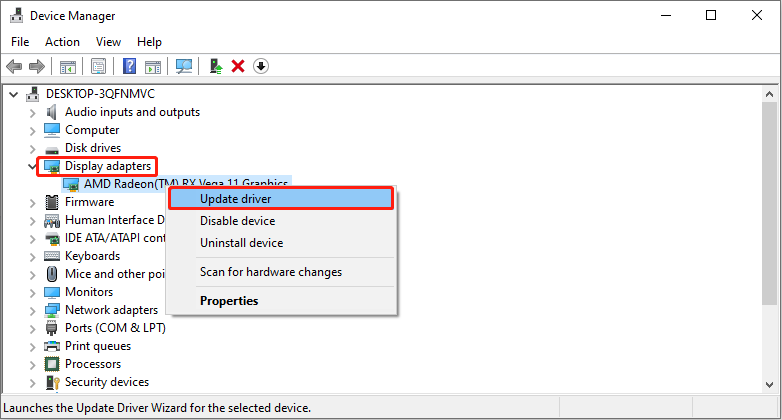
Step 3: In the new window, select Search automatically for drivers.
When the new update shows up, follow the wizard to complete the whole process.
Fix 4: Delete the Saved Game Files
If your save game files become corrupted, it may cause the game to crash or not run properly. Deleting these files may resolve the issue. Before deleting your save files, it is recommended to back up important game saves to avoid losing valuable game progress.
Step 1: Find the Forever Skies save file location, which is usually located in the following path:
For Windows: C:\Users\username\AppData\Local\ProjectZeppelin\Saved\SaveGames
Step 2: Once you have found the save files, select and delete the ones you don’t need.
After deleting the files, launch the game to confirm that the save files have been cleared
MiniTool Power Data Recovery FreeClick to Download100%Clean & Safe
Fix 5: Install Microsoft Visual C++
Many games rely on runtime libraries provided by Microsoft Visual C++ to run properly. If these libraries are not installed, some programs may fail or fail to start. To fix this, you can try installing Microsoft Visual C++.
Step 1: Visit the Microsoft Visual C++ Redistributable page, and scroll down the list to the Latest Microsoft Visual C++ Redistributable Version section.
Step 2: Select the corresponding installation package according to your system architecture (such as x64 or x86).
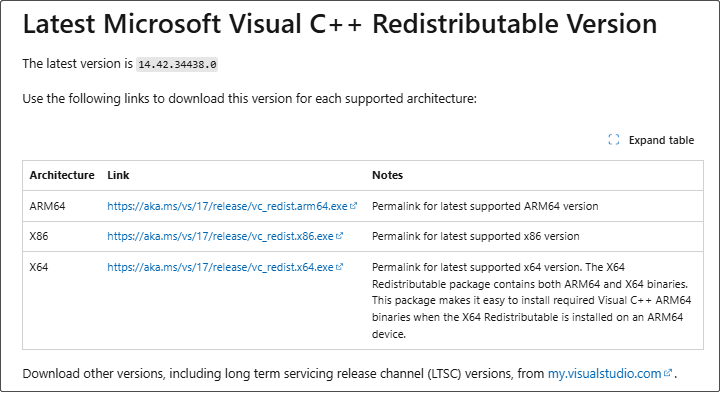
Step 3: Click on the link to download the installation package.
Step 4: Double-click on the installation package, check I agree to the license terms, and then click on Install.
After the installation is complete, it is recommended to restart the computer to ensure that the runtime library is loaded normally

Bottom Line
Several ways are listed above to help you fix the problem of Forever Skies not launching. Try them one by one. Hope they can work for you.
User Comments :