
In some cases, GyStation.exe may harm your computer. Therefore, please read the following post to learn some information about the GyStation file. This post from MiniTool will introduce what GyStation is and how to fix the GyStation.exe issue.
What Is GyStation
What is GyStation? GyStation.exe is an executable exe file that belongs to the Gyazo Station process, which is provided with Gyazo Station Software developed by Nota software developers. The location of the file is C:\program files (x86)\Gyazo\.
Gystation.exe is used to take screenshots and make GIFs when you browse the time online, and it also manipulates other programs and processes running in the operating system. It can easily record the keyboard and mouse input being.
Is GyStation Safe
If you get it from the manufacturer (CD, manufacturer’s website), the risk is relatively low. If you download gystation.exe from an untrusted anonymous website or hacker website, the risk is high. If your computer has been infected, some viruses may infect other executable files.
How to Uninstall GyStation
If you download GyStation from an untrusted website, it’s recommended to uninstall GyStation. Here is how to do that:
Step 1: Type control panel in the Search box to open the Control Panel application.
Step 2: Navigate to the Programs and Features part and click it.
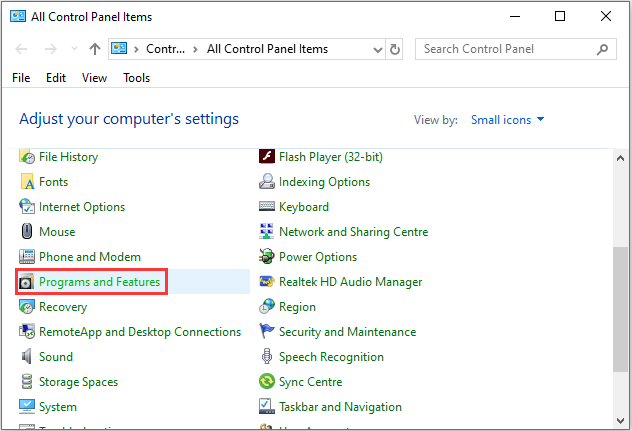
Step 3: Then, you need to find GyStation and right-click it to choose Uninstall/Change to uninstall it. After that, you just need to follow the on-screen instructions to uninstall it.
You can also uninstall it in Services. Follow the guide below:
Step 1: Press the Windows key + R key to open the Run dialogue box. Type services.msc and click OK to open the Services screen.
Step 2: Navigate to Gyazo Station, then right-click it and choose Properties.
Step 3: Under the General tab, you should change the Startup type from Automatic to Manual.
Then reboot your system and you should no longer be able to see GyStation.exe in Task Manager.
How to Fix the Issues with GyStation.exe
This part is about how to fix the issues with GyStation.exe.
Turn on Windows Defender Firewall
It’s recommended to turn on Windows Defender Firewall or third-party antivirus software to fix the GyStation issue. You can try to turn on Windows Defender Firewall with the following steps.
Step 1: Open the Run dialogue box by pressing the Windows +R keys and input firewall.cpl in the Run box. Then, click OK to open Windows Defender Firewall.
Step 2: Click Turn Windows Defender Firewall on or off to open the Customize Settings.
Step 3: Check the Turn on Windows Defender Firewalloptions in the Private network settings and Public network settings parts and click the OK button.
Download and Install Updates for the Operating System
Regardless of the operating system version you are using, it is always considered good practice to install the latest security updates.
Step 1: Press the Win + I keys at the same time to open Settings and then choose Update & Security.
Step 2: Click Windows Update and then click Check for updates on the right side of the screen.
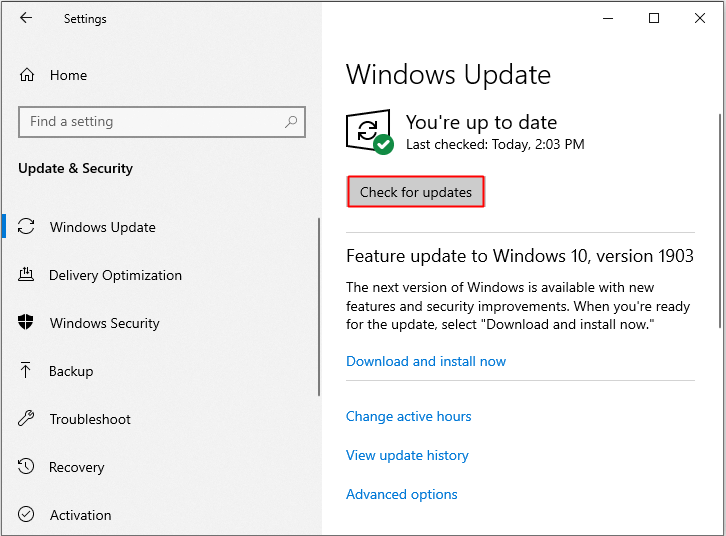
Step 3: If there are updates available, Windows will start to download them automatically. Then restart your computer to perform the installation process.
Step 4: After your operating system is up-to-date, then reboot your computer to see whether the error with GyStation.exe is gone. If not, try the next methods.
Final Words
After you read this post, you may know the information on GyStation.exe. Hope this post will be very helpful for you. If you have any related issues, you can comment on our post to let us know.
User Comments :