
What is Windows Print Spooler Service? When it improperly performs privileged file operations, a remote code execution vulnerability will exist. In this case, disabling Windows Print Spooler Service will be an effective fix for that. This post on MiniTool Website will introduce three methods on how to disable Windows Print Spooler Service, please look them through carefully.
Windows Print Spooler Service
Print Spooler is an inbuilt Windows software that stores the print tasks temporarily in the computer’s memory until the printer is ready to print them. However, Windows Print Spooler is so vulnerable that hackers can exploit it to execute codes for manipulating your data, installing malware, or creating accounts with system privileges.
Therefore, you can disable Windows Print Spooler Service to protect your system if you don’t need to print for a long time.
If you disable Windows Print Spooler Service, you will not be able to print or fax anything from your computer.
How to Disable the Windows Print Spooler Service?
We provide you with three methods of disabling Windows Print Spooler Service on Windows 10/11 – using Services, Local Group Policy Editor and Command Prompt. If you need to print something after disabling this service, you just need to re-enable this service.
Disable Windows Print Spooler Service via Services
You can disable Windows Print Spooler Service via Services especially when your use word processors or similar apps.
Step 1. Press Win + R to open the Run dialog.
Step 2. Type services.msc and hit Enter to open Services.
Step 3. In Services, scroll down to locate Print Spooler and double-click on it to open its properties.
Step 4. In the General tab, change the Startup type to Disabled. If the Service status is Running, hit Stop to disable it.
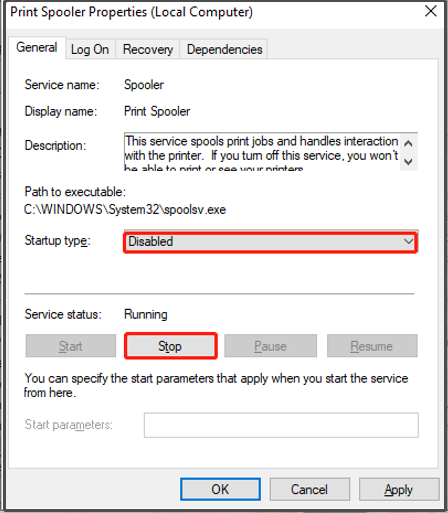
Step 5. Hit Apply to save the changes.
Disable Windows Print Spooler Service via Group Policy Editor
You can also disable a printer policy that bars all incoming remote connections via Local Group Policy Editor.
This method doesn’t work in Windows 10 Home because you cannot access Local Group Policy Editor.
Step 1. Press Win + S to evoke the search bar.
Step 2. Type gpedit and hit Enter to open Local Group Policy Editor.
Step 3. Expand Computer Configuration > Administrative Templates > Printer.
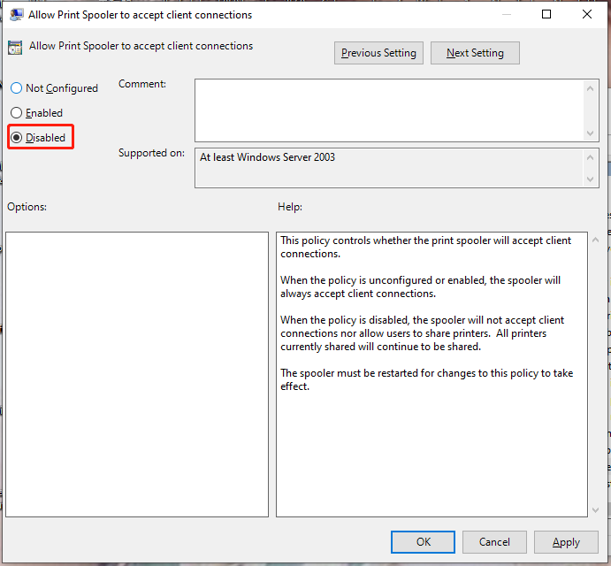
Step 4. On the right pane, locate Allow Print Spooler to accept client connections and double-click on it to open its setting.
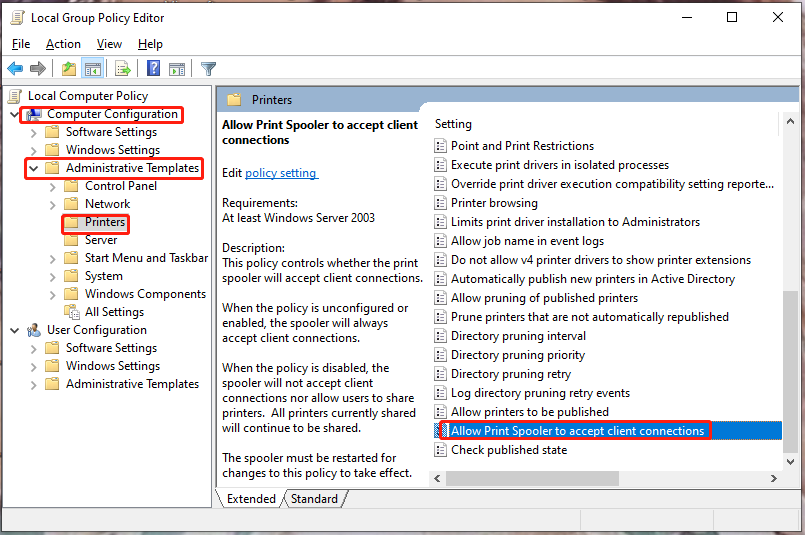
Step 5. Tick Disabled from the policy window and hit OK.
Disable Windows Print Spooler Service via Command Prompt
The third method of disabling Windows Print Spooler is using the commands in Command Prompt.
Step 1. Press Win + R to open the Run box.
Step 2. Type cmd and press Ctrl + Shift + Enter to open Command Prompt with administrative rights.
Step 3. Type net stop spooler and hit Enter to disable Windows Print Spooler.
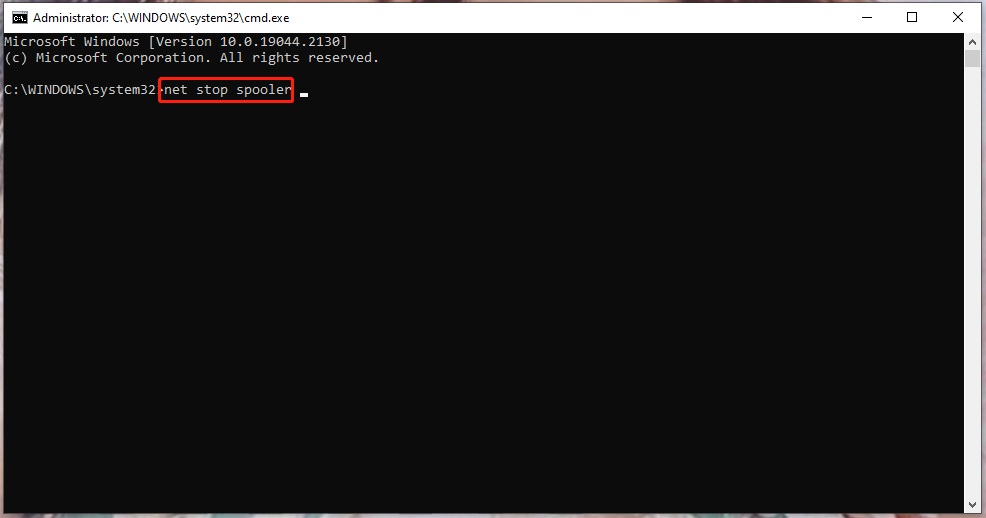
Step 4. If you want to enable it in the future, run this command: net start spooler.
User Comments :