
Is iMessage not working on Mac? Why is the app not sending messages? How to fix this annoying issue? Don’t worry and you can follow these simple tips collected by MiniTool Solution to easily get the messages app sending and receiving again on your Mac.
iMessage on Mac Not Working
iMessage, Apple’s proprietary chat platform for macOS and iOS users, allows sending messages, documents, texts, videos, photos, etc. to other users on the Internet.
But sometimes iMessage stops working, especially on Mac. The common situations include:
- After iMessage idles too long on a sleeping Mac, Images are not loading properly.
- Messages are not sending or taking too long to get delivered.
- iMessage refuses to work on the desktop.
- More…
Why is my iMessage not working on Mac? You may ask this question. The possible reasons are an issue with the Messages app or Apple’s iMessage server, the settings problem, and more. Just ignore the causes and take action to fix this issue.
How to Fix iMessage Not Working on Mac
Ensure Your Mac Has an Internet Connection
iMessage requires an Internet connection to work and it can be a personal hotspot, Wi-Fi, or Ethernet. Thus, make sure your Mac is connected to the Internet that can work properly. You can browse a webpage to test the connection.
Reboot Mac
Sometimes restarting your Mac can fix some common issues including the messages app not working on Mac. Just go to the Apple menu on the top left corner of the Mac screen and choose Restart. After that, open iMessages and see if you can use it to send messages again. If not, try another way to fix the iMessage on Mac not sending messages issue.
Check if iMessage Works on iPhone or iPad
Sometimes iMessage can work on your iPhone or iPad well but stops working on your Mac. Check if it is the case. If so, messages can be relayed to your Mac. But if this app fails to work on all the platforms, the Apple iMessage servers may be down at that time.
Enable Your Apple ID on Mac
iMessage requires an Apple ID and if it is not configured correctly, iMessage is not working on Mac. Just have a check.
- Choose System Preferences under the Apple menu.
- Check the Apple ID setting under the iCloud It should be the same as the one that you’re using on your iPhone to ensure iMessages can sync between the Mac and iPhone.
Disable & Re-Enable iMessage on Mac
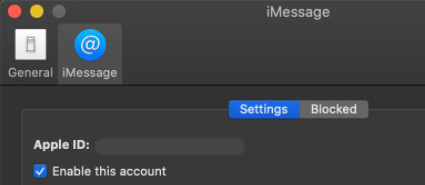
Sometimes re-enabling iMessage on your Mac is helpful to solve issues specific to iMessage. This can somehow reset the app to fix iMessage not delivered on Mac. See how to do it:
- Open iMessage on your Mac and go to select Messages in the menu bar.
- Choose Preferences.
- Under the iMessage tab, uncheck the option of Enable this account.
- Then turn it back on.
Sign out and Sign in to iMessage on Mac
To fix iMessage not working on Mac, you can sign out of this app and then sign in to it by following these steps:
- Go to Messages > Preferences.
- Choose Sign Out under the iMessage tab to quit this app.
- Launch this app again and use your Apple ID to sign back into it.
Other Tips
If the issue of iMessage on Mac not working is not fixed after trying these solutions above, you can try some other ways, for example, clear messages cache, check time-zone settings, check Keychain Access, check if a macOS or iOS update is available, etc. If nothing else works, try contacting Apple support.
About The Author

Position: Columnist
Vera has been working at the MiniTool Team for over 10 years as a technical editor and content writer. She mainly focuses on disk and partition management, data recovery, Windows backup and restore, and PC troubleshooting. Through in-depth software testing and hands-on experience, she has helped users solve a wide range of computer problems and better protect their data on Windows devices.
User Comments :