
Error: Insufficient Video Memory to Run the Game InZOI
InZOI is a life simulation game that was released in early access for Windows on March 27, 2025. Since its release, many players purchased and downloaded the game to enjoy its fantastic game graphics. However, there are still lots of users who cannot start the game because of the inZOI insufficient video memory error. When you start the game, the error appears and prevents you from loading the game.
Typically, the insufficient video memory error occurs because the video memory is insufficient and the system cannot allocate enough memory to load the graphics data. In addition, if your BIOS is not updated, the error may also occur, especially when you are using Intel 13th and 14th generation CPUs.
Now, use the approaches listed below to remove the insufficient video memory error with ease.

InZOI Insufficient Video Memory Fix
Fix 1. Make Sure Your GPU Meets the Game Requirements
InZOI is a game that requires high graphics resources. The minimum graphics card requirement for this game is NVIDIA RTX 2060 (6GB VRAM) or AMD Radeon RX 5600 XT (6GB VRAM). They are both dedicated graphics cards, which provide dedicated video memory and have more powerful graphics processing capabilities than integrated graphics cards.
Therefore, if your system is only equipped with integrated graphics, you may not be able to run inZOI. To play this game, you may need to consider upgrading to a dedicated graphics card that meets the game requirements. If conditions permit, upgrading to inZOI recommended graphics cards NVIDIA RTX 3070 (8G VRAM) and AMD Radeon RX 6800 XT (16GB VRAM) will help you get smoother game performance.
Fix 2. Update Graphics Card Driver
Graphics card drivers have a great impact on the management and allocation of video memory. So, an old or corrupted driver may cause the inZOI insufficient video memory error. In this case, you need to check if there is a newer version of your display card driver. If so, you need to install it on your computer.
Here are two ways to update the graphics card driver.
Way 1:
Open a browser and visit the official website of your graphics card manufacturer. Find and download the latest version and install it.
Way 2:
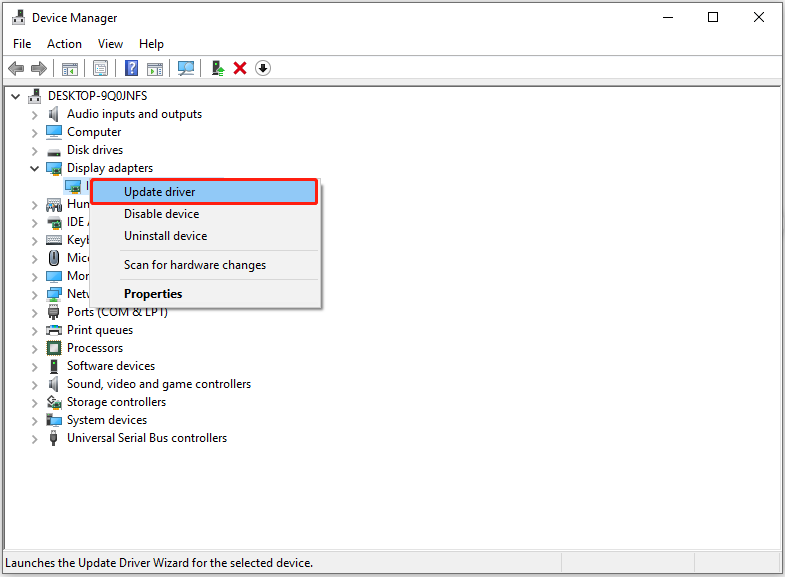
- Right-click the Windows logo button on the taskbar and choose Device Manager.
- Double-click on Display adapters to expand it.
- Right-click your display card device and choose Update driver. In the new window, choose Search automatically for drivers, and then follow the on-screen instructions to complete the driver update action.
Fix 3. Update BIOS
Based on user experience, updating the BIOS can sometimes resolve the insufficient video memory issue. This is likely due to improper firmware or BIOS settings that may have caused errors in the communication between the CPU and the graphics card. So, you can try updating the BIOS and check if it works.
2. Updating the BIOS is a critical process that can impact the normal operation of your system. Therefore, it is strongly recommended to back up your files or system before proceeding. If you are unsure how to back up your data, consider using MiniTool ShadowMaker, an easy-to-use Windows backup tool.
MiniTool ShadowMaker TrialClick to Download100%Clean & Safe
The steps for BIOS updates vary depending on your computer brand and model. Here I take ASUS for example to show you the steps.
Step 1. Go to the ASUS Download Center and download the latest BIOS file corresponding to your motherboard model to your USB drive.
Step 2. Unzip the downloaded file and there should be a .CAP file.
Step 3. Insert the USB drive into your computer and start your device. When the ASUS logo appears, press the Del key on your keyboard to enter BIOS.
Step 4. In the BIOS window, click Advance Mode in the lower right corner.
Step 5. Go to the Tool tab and click ASUS EZ Flash 3 Utility.
Step 6. Finally, click your USB drive and the BIOS file in it and follow the on-screen instructions to complete the BIOS update process.

Fix 4. Run the Game in GeForce Now
If your computer doesn’t have enough video memory and you do not want to upgrade the hardware, you can use GeForce Now to play the game and bypass this limitation. Through GeForce Now, inZOI runs on NVIDIA’s servers, and your computer only needs to stream the gameplay.
To play the game, simply purchase it on Steam, link your Steam account to GeForce Now, and start gaming. For detailed setup instructions, check the official GeForce Now website.
Summary
If you receive the inZOI insufficient video memory error message, do not worry. Check if your GPU meets the game requirements, update the graphics card driver, update BIOS, or turn to GeForce Now. Hope the information above can help you gain access to the game.
About The Author

Position: Columnist
Shirley holds a bachelor’s degree in English and has been an editor at the MiniTool Team for many years. She specializes in IT-related content, with a focus on data recovery, file backup, disk management, and other technical topics. She is committed to delivering clear, accurate, and practical solutions to help users resolve common computer issues.
User Comments :