
Computers have become an essential device for students, professionals, and others to complete daily work, study tasks, entertainment, and so on. However, many users, including my friends, often ignore small bad computer habits that may cause long-term computer damage. As a result, many users may be troubled by data loss, system damage, disk failure, and other problems.
In this article, I will focus on five common bad habits destroying computer and provide practical solutions to help you avoid these problems.
5 Bad Habits Destroying Computer
1. Ignoring Dust and Overheating Issues
As your computer is used for a long time, dust may accumulate inside your device, especially around the fan, radiator, and other hardware components. If there is a lot of dust accumulated, it may affect the computer’s performance, or even cause hardware damage. In addition, computer overheating caused by dust or long-term high-load operation can also affect computer performance, and even cause blue screens or black screens.
Solutions:
You can regularly use a compressed air can to clear the dust from your computer to prevent dust accumulation. Also, you should not place the computer in an airtight location such as a sofa or blanket to avoid blocking the heat dissipation holes. Avoiding long-term high-load tasks such as playing games and video editing can also effectively prevent overheating.
In addition, you can use professional and safe temperature monitors to monitor the CPU or hard disk temperature to avoid overheating.
MiniTool Power Data Recovery FreeClick to Download100%Clean & Safe
2. Never Updating OS and Drivers
Windows regularly rolls out system and driver updates to provide bug fixes, new features, and compatibility improvements. Many users may find it troublesome to install updates frequently or do not like the changes and do not update the system for a long time. This may cause a variety of problems, including system instability, security vulnerabilities, etc.
Solutions:
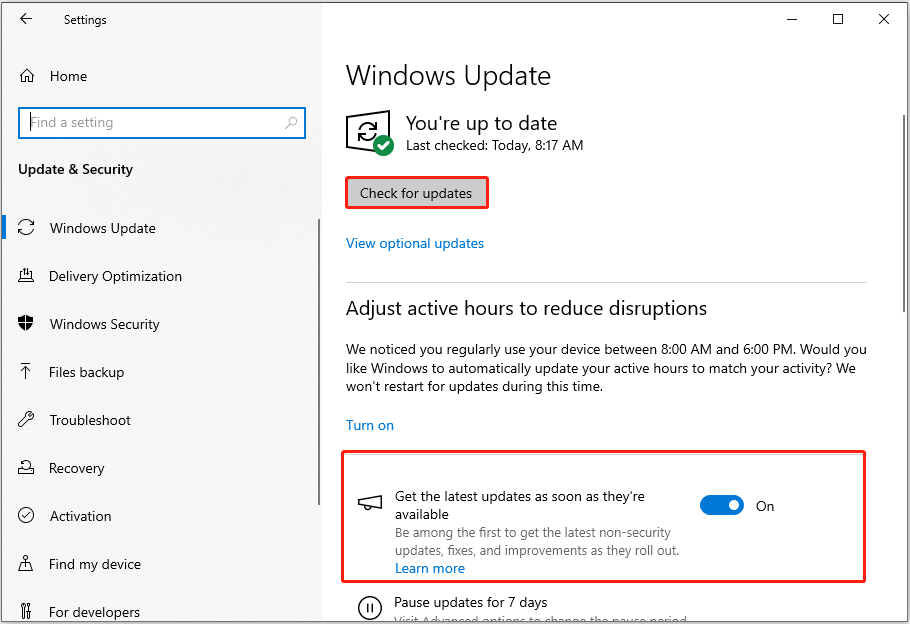
It is necessary to keep your Windows OS up-to-date for the security of the system. Open Settings, and go to Update & Security > Windows Update to check for and install updates. Moreover, it is recommended to turn on the option – “Get the latest updates as soon as they’re available”.
3. Running too Many Applications in the Background
A large number of programs running in the background will not only consume a lot of CPU and memory but also increase the read and write burden of the hard disk, causing the computer to respond slowly or even crash directly.
Solutions:
You can open the Task Manager and close unnecessary background apps. In addition, you can disable unnecessary startup programs from the Startup tab to prevent certain applications from automatically running when the computer starts to release memory and reduce boot time.

4. Disk Always Running out of Space
As time goes on, personal files and other data will gradually take up more and more disk space on the computer. If the disk space is insufficient for a long time, especially the C drive, it may cause the system to crash or run slowly. In this case, some programs may fail to update or install and the disk may get damaged.
Solutions:
The Windows built-in Disk Cleanup tool is used to delete temporary files, system cache, old update files, and other files. You can use it to free up the disk space. Uninstalling infrequently used software can also release some disk space.
If possible, consider upgrading your hard drive. If you are using an HDD, you can upgrade it to a larger SSD to increase storage space and disk performance. For convenience, you can use secure disk clone software – MiniTool ShadowMaker to clone HDD to SSD. It can help clone non-system disks for free within 30 days.
MiniTool ShadowMaker TrialClick to Download100%Clean & Safe
5. Never Enabling Windows Defender or Other Antivirus
Viruses, malware, and other attacks are pervasive and can quietly invade your computer, causing file loss, data leakage, and even system damage. Without the protection of antivirus software, your device is at great risk.
Solutions:
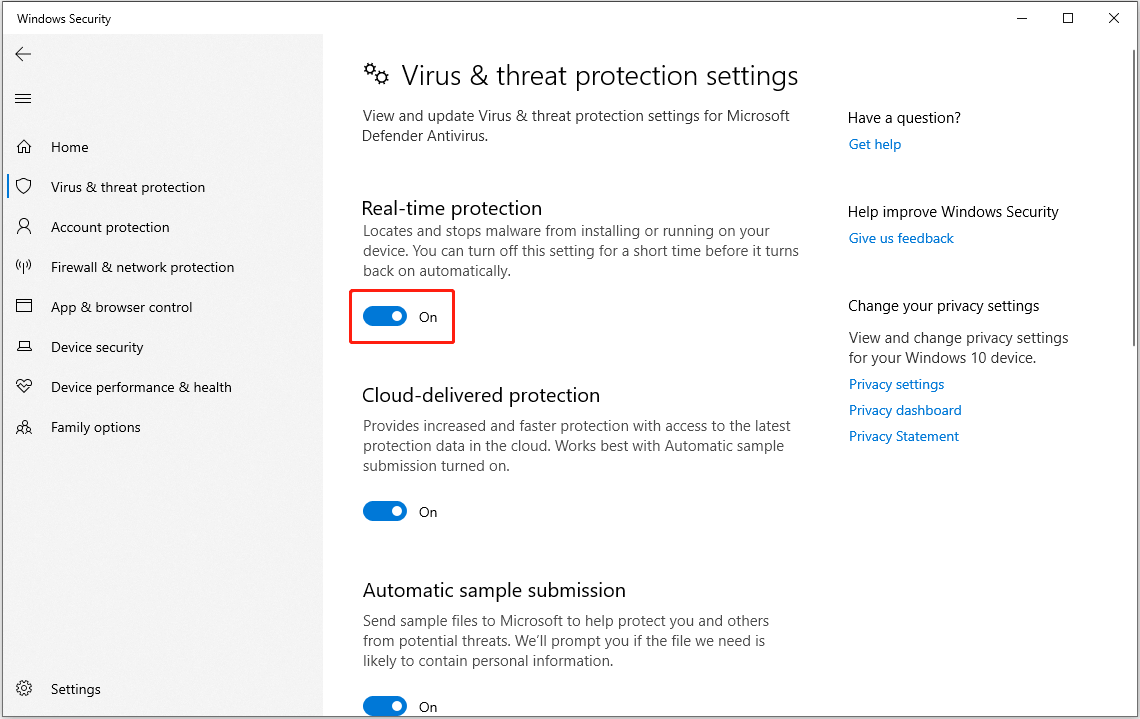
It is recommended to keep Windows Defender, the Windows built-in antivirus, enabled. Thus, it will automatically scan the files on your computer for viruses or other threats. Open Settings and navigate to Update & Security > Windows Security > Virus & threat protection > Manage settings. Then keep Real-time protection and other options enabled.
Alternatively, you can install other professional antivirus such as Kaspersky, Norton, or Avast on your computer to detect viruses.
Outlined above are the common things that can damage computer.
Necessary Tip: Back up Files/System Regularly
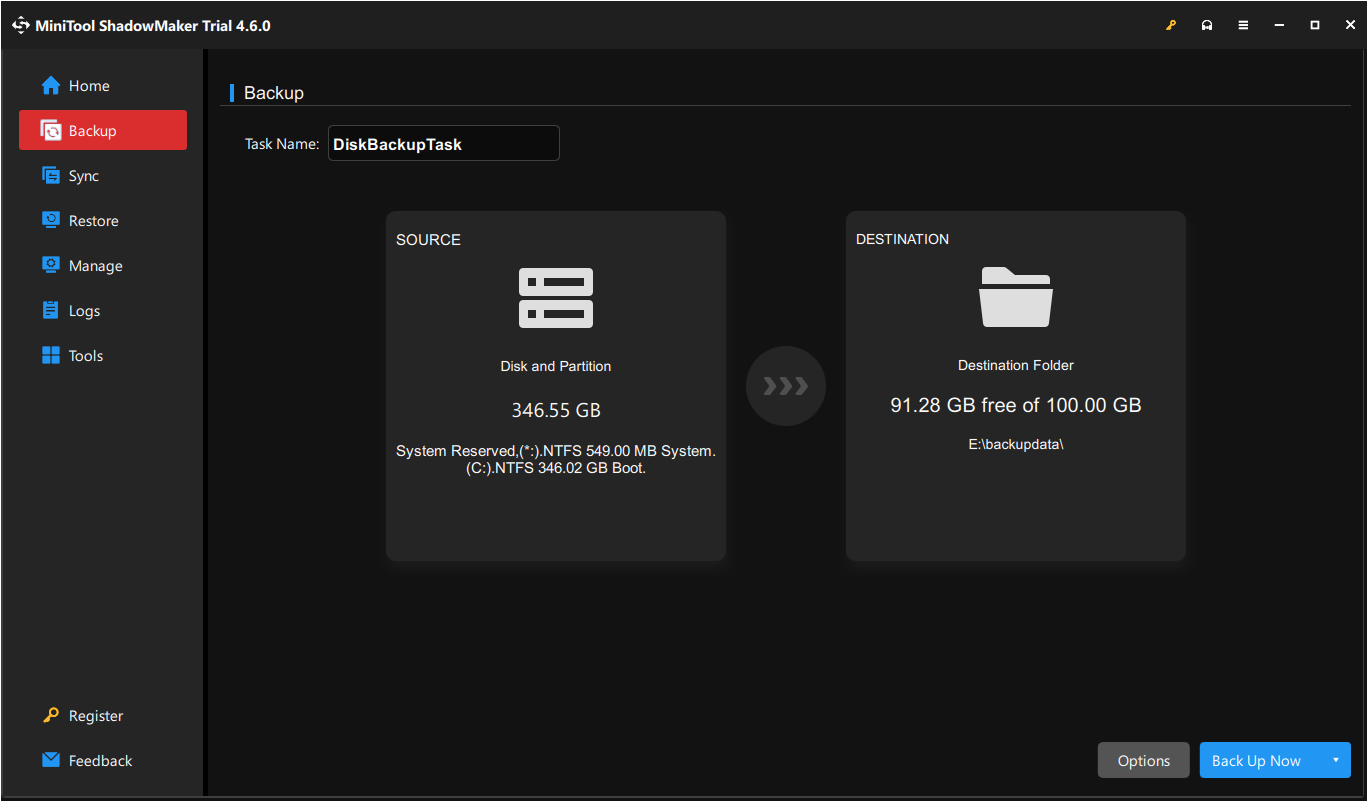
Although users usually do system maintenance with great care, it is not uncommon to lose important data due to sudden crashes, hardware failures, or other reasons. Therefore, it is very important to back up your files and systems. In this way, you can easily restore your files or systems when unexpected situations occur due to bad habits destroying computer.
MiniTool ShadowMaker supports file backup, folder backup, partition backup, disk backup, and Windows backup, providing you with comprehensive backup solutions. You can use it to protect your data for free within 30 days.
MiniTool ShadowMaker TrialClick to Download100%Clean & Safe
Bottom Line
Some common bad habits destroying computer and corresponding solutions are summarized above. Avoid these behaviors as much as possible to ensure computer security and stability.
About The Author

Position: Columnist
Shirley holds a bachelor’s degree in English and has been an editor at the MiniTool Team for many years. She specializes in IT-related content, with a focus on data recovery, file backup, disk management, and other technical topics. She is committed to delivering clear, accurate, and practical solutions to help users resolve common computer issues.
User Comments :