
How do I fix error 4000 on my iPhone? When asking this question, perhaps you have looked for solutions for a long time. Take it easy and MiniTool can help you. Here is a full guide of how to easily fix iPhone could not be updated error 4000.
iPhone Could Not Be Updated Error 4000
Apple keeps releasing updates with new features and bug fixes to users. But according to users, error 4000 often happens when updating to any iOS 14 version using iTunes. The pop-up says “The iPhone ‘xx’ could not be updated. An unknown error occurred (4000).”
iPhone update error 4000, also called iTunes error 4000, is a very basic error. The main reasons for it include:
- The iTunes version is outdated or older.
- The system or iTunes registries are corrupted.
- The iPhone has been updated with the latest iOS that is available to iTunes. That is, the current iOS on the iPhone may be newer than the one on iTunes.
- Your iPhone is locked and it needs to be unlocked for an update.
- iTunes installation is incomplete.
Fortunately, you can easily remove iPhone error 4000 by trying these solutions.
How to Fix iPhone Could Not Be Updated Error 4000
Fix 1: Check the iOS version on the iPhone
As mentioned above, if iOS has been updated on your iPhone, you are unable to update iOS 14 with error 4000. For example, if the phone is using iOS 14.2, it can’t use iOS 14.1 update from iTunes. So, you can check the iOS version firstly by going to Settings > General > About. If that’s the case, a new update is not required.
Fix 2: Update iTunes
Updating iTunes to the latest version is very helpful to solve iPhone update error 4000. Follow these steps:
- Launch iTunes on your computer.
- Navigate to Help > Check for Updates. Then, update to the new version by following the on-screen instructions.
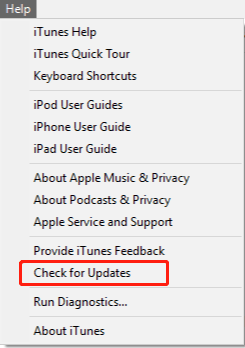
After that, check if iPhone could not be updated error 4000 is removed.
Fix 3: Check If Your iPhone Is Locked
If your phone is locked with a passcode, the update may fail with the 4000 error. And you need to unlock your iPhone. Just go to Settings of your iPhone, tap on Display & Brightness > Auto-Lock and then select Never.
Additional Solutions to Fix iPhone Error 4000
If these methods don’t work, there are some other tips you can try to remove iTunes error 4000:
- Try to uninstall iTunes and then reinstall it from the official Apple website if you are using a Windows PC.
- Restart your phone and iTunes to fix some temporary issues.
- If the battery level is lower than 50%, you may see iPhone could not be updated error 4000. Just charge your mobile more than 50%.
- Use a USB cable to connect your phone to the computer.
- Manually update iPhone iTunes.
- Fix damaged registry keys or corrupt files.
Bottom Line
Are you bothered by iPhone could not be updated error 4000? Don’t worry and you can easily fix it if you try these solutions. If you have any suggestions, tell us in the comment section.
About The Author

Position: Columnist
Vera has been working at the MiniTool Team for over 10 years as a technical editor and content writer. She mainly focuses on disk and partition management, data recovery, Windows backup and restore, and PC troubleshooting. Through in-depth software testing and hands-on experience, she has helped users solve a wide range of computer problems and better protect their data on Windows devices.
User Comments :