
What is ipoint.exe? What is ipoint.exe used for? How to remove the ipoint.exe from your computers? If you are looking for the answers to the above questions, this post is what you need. This post from MiniTool provides a full introduction to ipoint.exe.
What Is ipoint.exe?
What is ipoint.exe? IntelliPoint is a software driver for the Microsoft Intellimouse series. Ipoint.exe is the file to execute and install IntelliPoint software. Ipoint.exe is usually installed in the C:\Program Files\Microsoft IntelliPoint directory, but depending on your installation, it may be located in a different location.
What Is Ipoint.exe Used for?
Ipoint.exe was originally designed to allow you to better control the computer through the mouse. It was launched with Microsoft IntelliPoint and now consists of a series of mice made by Microsoft.
The software provides an interface where you can change the mouse settings. Ipoint.exe is a background process that assists the mouse. The standard mouse can provide a very limited set of instructions, but with ipoint.exe, you can make the mouse perform more operations.

How to Remove Ipoint.exe from Your PC?
Some users may wonder whether ipoint.exe is a virus. In most cases, the answer is no, ipoint.exe is neither harmful nor malicious. The original file is approved by Microsoft to benefit your computer.
If you don’t want to use it, you can choose to uninstall it. Here is how to uninstall ipoint.exe.
Option 1: Use Services
You can try to disable Vulakninfo in Services. Here is how to do that:
Step 1: Type services in the Search box to open it. Then, you need to click the Standard category.
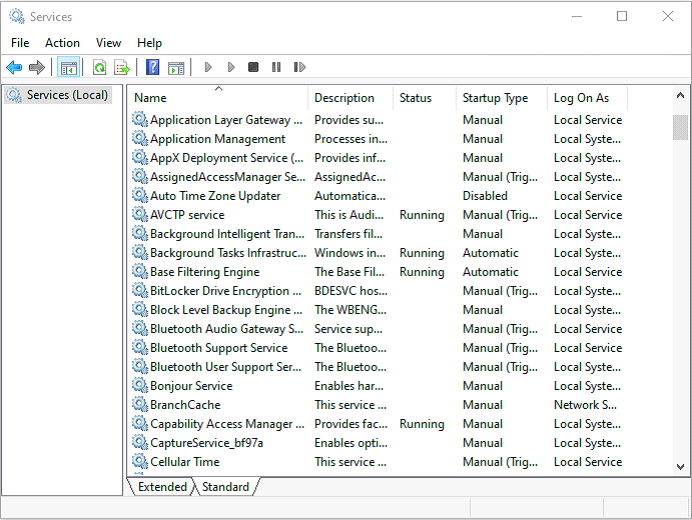
Step 2: Then, find Intellimouse and right-click it to choose Properties.
Step 3: Under the General tab, you need to change the Startup Type to Disabled and click the Apply button. Then, you have disabled ipoint.exe successfully.
Option 2: Use Control Panel
Then, you can try to use Control Panel to uninstall ipoint.exe. Follow the steps below to uninstall it:
Step 1: Search for Control Panel in the Search box to open it.
Step 2: Navigate to the Programs and Features section and click it.
Step 3: Find Intellimouse in the list and right-click it to choose Uninstall/Change.
Step 4: Follow the on-screen instructions to uninstall ipoint.exe.
Option 3: Use Third-party Software
You can also try to use the third-party program to uninstall ipoint.exe. Applications usually spread their files and settings in the whole system, put files in obscure locations and even populate your Registry with Settings that can be hard to track down. Though Windows built-in uninstall programs can finish the uninstallation task, they may be unable to complete it.
So, how to uninstall ipoint.exe? In this case, you need to utilize third-party software to uninstall it.
Final Words
After you read this post, you may know the information on ipoint.exe. Hope this post will be very helpful for you. If you have any related issues, you can comment on our post to let us know.
User Comments :