
At times, you may need to convert screenshot to PDF for some reason. Do you know how to do such a JPG to PDF conversion? MiniTool Solution tells you that you can do this job with the Microsoft application and third-party JPG to PDF tools. You can read this post to get more information.
Do You Want to Convert JPG/Screenshot to PDF?
Taking a screenshot is a very common action and the file is usually saved as the JPG format. For some specific purposes, you may want to convert the screenshot to PDF. For some of you, it may be an easy job. However, if you really don’t know how to convert screenshot to PDF, you will need to read this article.
In this post, we will show you two methods to convert screenshot/JPG to PDF. You can also use these two methods to convert any other forms of screenshot like JPEG, PNG, BMP, etc. to the PDF format.
Want to effortlessly edit your PDF documents? Give MiniTool PDF Editor a shot - it's intuitive and packed with useful tools.
Method 1: Use the Windows 10 Photos APP
Windows 10 Photos is an application that is introduced by Microsoft. By using this way, you don’t need to download and install any third-party tool on your computer.
Here, we will show you a step-by-step guide on how to save the screenshot as PDF with the Windows 10 Photos app:
1. Right-click on the target screenshot and then go to Open with > Photos.

2. The screenshot will be opened in Windows Photos. Then, you need to press the Print button on the top-right corner to continue.
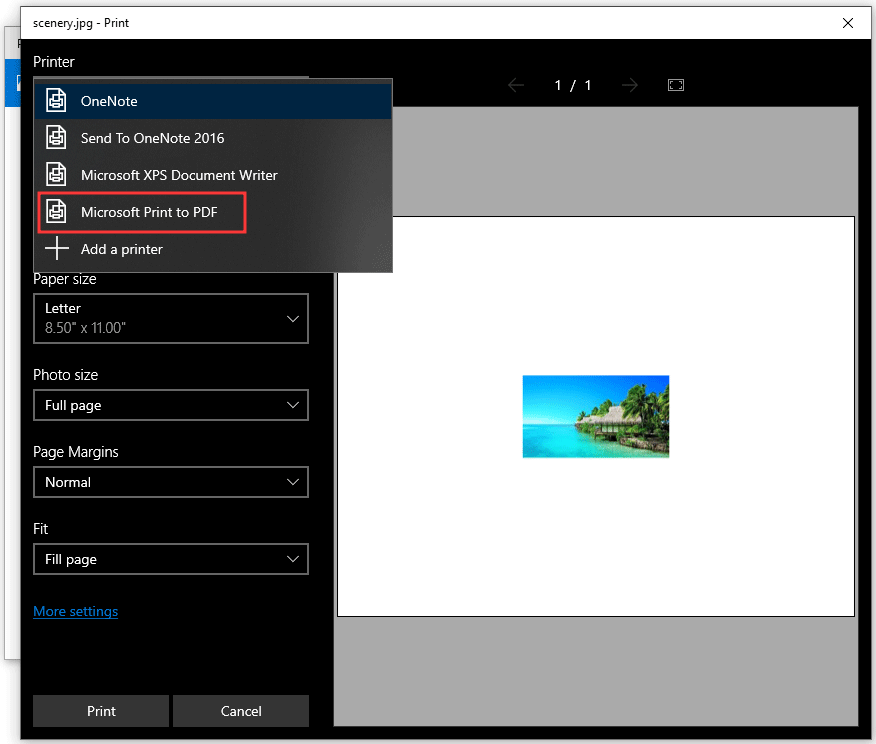
3. You will see the print interface as follows. Then, you can unfold the Printer option and then select the Microsoft Print to PDF option to continue.
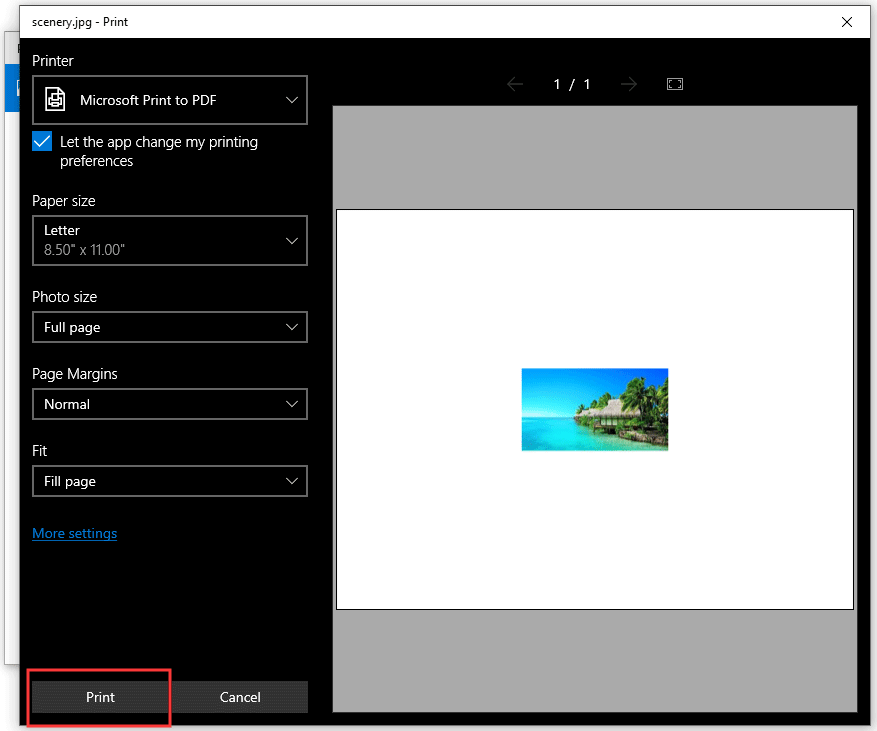
4. Press the Print button which is in the lower-left corner to continue.
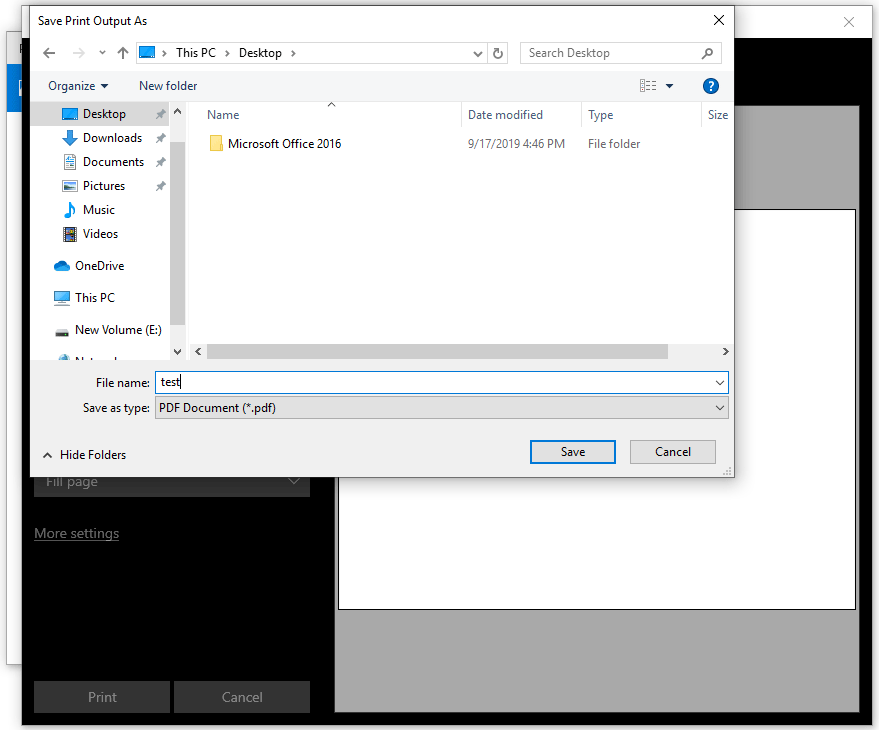
5. You will receive a Save Print Output As window where you can type a file name for the PDF and select a location to save the file. After that, you can press the Save button to save the file.
After these steps, the selected screenshot will be converted to PDF successfully. The original JPG/screenshot file is still kept on its original path.
Methods 2: Use Third-Party JPG to PDF Converters
Besides using the Windows Photos app, you can also choose to download and install third-party JPG to PDF converter on your computer to have a try.
When you search for JPG to PDF converter on the internet, you will discover many choices. Some of them are online converters and some of them are desktop converters.
Here, we will show you some of them that are simple to use.
Online JPG to PDF converters
- JPG2PDF
- iLove PDF
- JPG to PDF
- Smallpdf
- PDF Converter
When using the online JPG to PDF converter, you need to make sure the internet connection is enabled.
Desktop JPG to PDF converters
- JPG to PDF converter
- Icecream PDF Converter
- JPEG2PDF
- TalkHelper PDF Converter
- Apowersoft Image to PDF Converter
After installing the desktop JPG to PDF converter on your computer, you can use it any time and anywhere even there is no internet connection.
You can just choose one tool according to your own requirements.
Recommendation
If you lose your JPG or PDF files by mistake, you can use the professional data recovery software, MiniTool Power Data Recovery, to get these deleted files back. This software is very-easy-use. every oridianry user can opearate it well.
About The Author

Position: Columnist
Stella has been working in MiniTool Software as an English Editor for more than 8 years. Her articles mainly cover the fields of data recovery including storage media data recovery, phone data recovery, and photo recovery, videos download, partition management, and video & audio format conversions.
User Comments :