
Windows 11 KB5053657 has come out to fix some issues including the USB printer issue. However, you may encounter the issue of KB5053657 not installing when installing this update via Windows Update. To resolve this problem, try the methods in this guide from MiniTool.
Windows 11 KB5053657 Released But Failed to Install
Every month, Microsoft releases its Preview optional updates to the stable version. On March 25, 2025, KB5053657 was rolled out to all Windows 11 23H2 and 22H2 users. It includes some quality improvements and bug fixes, for example, USB printer outputting incorrect or unwanted text.
Windows 11 KB5053657 is an optional update, so you need to check for updates on the Windows Update page and install it. Later, the build number becomes 22621.5126 (22H2) and 22631.5126 (23H2).
However, sometimes the issue of KB5053657 not installing occurs along with an error code, or the downloading & installing process gets stuck. If digging into its reasons, you will find corrupt update files, a clogged update cache, third-party software interference, Internet issues, damaged system files, etc. could give rise to this problem.
The following solutions provide practical steps to address your issue. Explore them now.
Basic Checks
For a successful update installation, make sure your system drive has enough disk space. If it runs out of space, clean up the clutter using a tool like Disk Cleanup or the PC tune-up software, MiniTool System Booster. This tool helps clean up your computer and speed up the system for optimal performance in many aspects. Get it to have a try if you are interested in it.
MiniTool System Booster TrialClick to Download100%Clean & Safe
Also, make sure you use a reliable Internet connection, otherwise, the process could get stuck and eventually fail. In addition, remove all your external devices except a mouse and keyboard. Then, try to install Windows 11 KB5053657 and see if the issue persists.
MiniTool ShadowMaker TrialClick to Download100%Clean & Safe
Tip 1: Run Windows Update Troubleshooter
There are several troubleshooters built into the Windows system to fix many issues related to Internet connections, audio, Bluetooth, network adapters, Windows Update, etc. Once KB5053657 fails to install, use the Windows Update Troubleshooter that could identify and fix the glitch holding back from updates.
To run this tool:
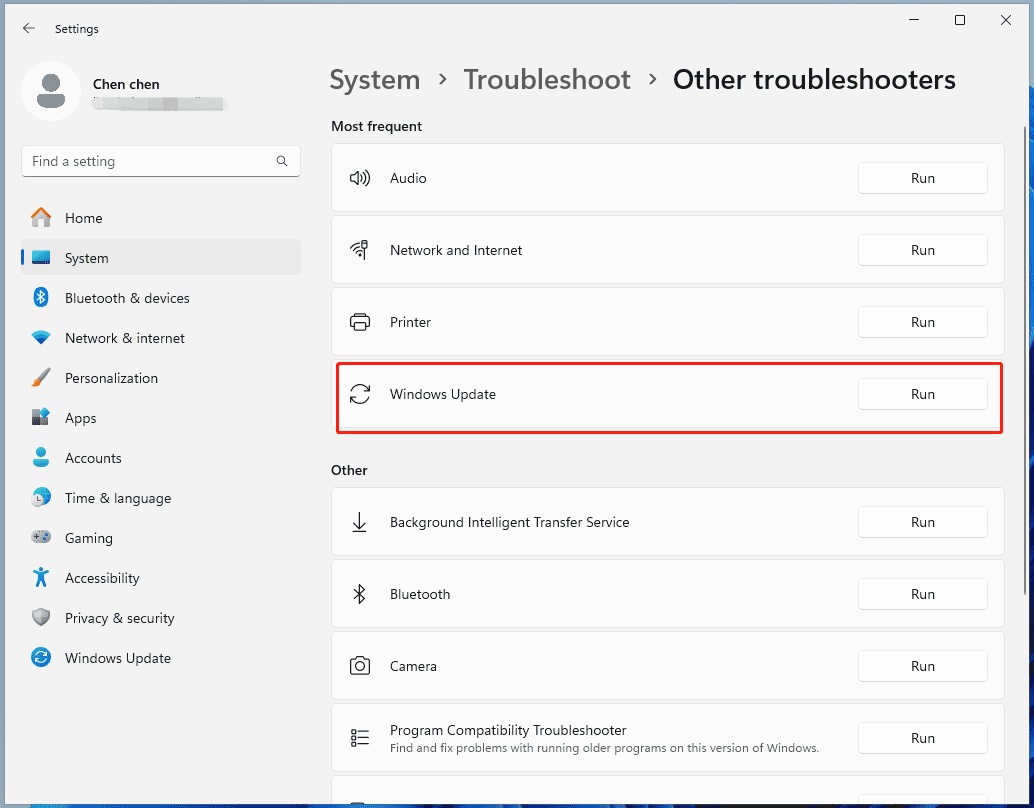
Step 1: Head over System > Troubleshooter > Other troubleshooters.
Step 2: Locate Windows Update and click Run to proceed.
Step 3: Finish the troubleshooting process.
Tip 2: Repair System Files
Corruption in system files can result in various files, including KB5053657 not installing. To solve this issue, perform a SFC or DISM scan.
To do so:
Step 1: Run Command Prompt as an administrator.
Step 2: In the CMD window, execute the SFC scan by typing sfc /scannow and pressing Enter.
Step 3: Then, run the DISM scan by running these commands:
DISM /Online /Cleanup-Image /CheckHealth
DISM /Online /Cleanup-Image /ScanHealth
DISM /Online /Cleanup-Image /RestoreHealth
Tip 3: Reset Windows Update Components
Windows 11 KB5053657 fails to install due to corrupt update files and accumulated update cache. In this case, consider resetting the Windows Update components to address your issue. It is not a hard thing to do this task if you follow the detailed steps in this guide on how to reset Windows Update components.
Tip 4: Clean Boot Windows
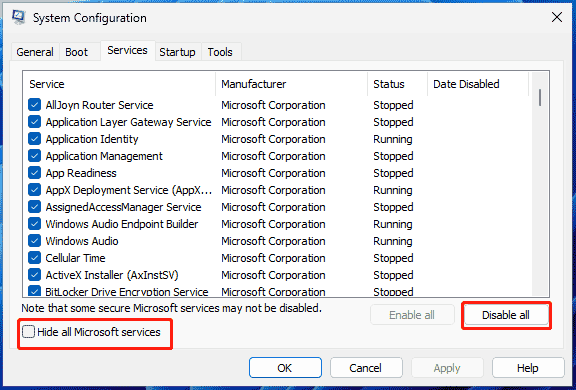
You cannot install KB5053657 if there is a conflict with third-party software. To eliminate this issue, perform a clean boot of the operating system. So, open System Configuration by typing msconfig in Run and clicking OK, untick Hide all Microsoft services, and tap Disable all. Then, access Task Manager to disable all the startup items.
Tip 5: Manually Download and Install KB5053657
Aside from installing KB5053657 for Windows 11 23H2 and 22H2 via Windows Update, you can get it from the website of Microsoft Update Catalog.
Step 1: Visit https://www.catalog.update.microsoft.com/Home.aspx, search for KB5053657, and click the Download button to get the package of the proper version.
Step 2: Click the given link to download the .msu file.
Step 3: Run this installer to complete the update.
The End
Do you meet the issue of Windows 11 KB5053657 not installing on your PC? These common fixes could help you a lot. Try them one by one until you solve your issue.
About The Author

Position: Columnist
Vera has been working at the MiniTool Team for over 10 years as a technical editor and content writer. She mainly focuses on disk and partition management, data recovery, Windows backup and restore, and PC troubleshooting. Through in-depth software testing and hands-on experience, she has helped users solve a wide range of computer problems and better protect their data on Windows devices.
User Comments :