
Running out of space in Windows 10? This page gives a guide for how to limit disk space used by Recycle Bin, so that the Recycle Bin won’t occupy too much space in your Windows 10 computer. To manage hard drive or recover deleted/lost files from hard drive, MiniTool software offers professional tools.
Computer can sometimes run out of space and run slow. You may want to release some storage space for your Windows 10 computer. This post teaches you how to limit the disk space used by Recycle Bin in Windows 10.
How to Limit Disk Space Used by Recycle Bin in Windows 10
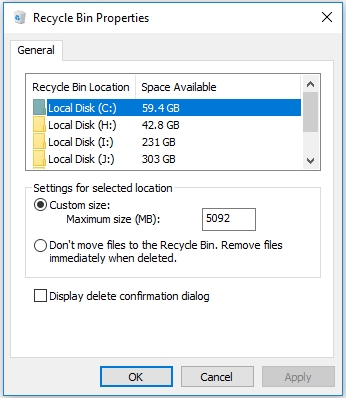
Step 1. You can right-click the Recycle Bin icon on your computer desktop, and select Properties.
Step 2. Next you can click Custom size option, and enter the maximum size of disk space that can be used by Recycle Bin. For instance, you can enter 5120, then your Recycle Bin can use up to 5GB disk space in your Windows 10 computer.
Step 3. In this window, there is another option “Don’t move files to the Recycle Bin. Remove files immediately when deleted.” You can tick this option and the deleted files won’t go into the Recycle Bin, and are deleted permanently. But be careful using this option, because we may mistakenly delete some needed files.
To permanently delete files without sending them to the Recycle Bin, you can also press the Shift + Delete keyboard shortcut.
If Recycle Bin icon is missing from your Windows desktop, you can click Start menu and type show desktop icons, press Enter open Desktop Icon Settings window. If the Recycle Bin is checked, you can uncheck it and check again. Click OK.
If you are looking for more ways to free up more disk space in Windows 10, you can check this post: 10 Ways to Free up Disk Space in Windows 10.
To analyze disk space usage, MiniTool Partition Wizard, the free disk partition manager, provides a Space Analyze module to allow you to analyze hard drive space and delete unnecessary large files directly.
How to Recover Deleted Files after Emptying Recycle Bin
You will permanently delete files after emptying the Recycle Bin but you can still recover them if you find you still need them.
MiniTool Power Data Recovery is the professional free data recovery software for Windows. You can use it to recover any deleted files after emptying Recycle Bin. This tool lets you easily recover any deleted/lost files from Windows computer, external hard drive, SSD, SD card, memory card, USB, and more. You can use it to restore data in various data loss scenarios. 100% clean and safe.
Download and install MiniTool Power Data Recovery on your Windows computer, and check the simple steps below to recover deleted files on Windows 10.
Step 1. Launch MiniTool Power Data Recovery. Click This PC and select the hard drive that contains your lost or deleted files. You can also select the Recycle Bin under Specific Location in the right window. Click Scan button.
Step 2. Wait until the scan finishes. You can check the scan result to find needed files, check them and click Save button to select a new destination to store the recovered files.

Bottom Line
This post introduces how to limit disk space used by Recycle Bin and how to recover deleted files after emptying the Recycle Bin, hope it helps.
User Comments :