
Local Disk Turned into a CD Drive
What bad news to get the local disk turned into a CD drive issue! In this case, you are most likely failed to access files stored on it and use it normally. However, this is not a rare problem several people are troubled by this issue:
My disk partition local disk (D:) has transformed into a CD drive that I can’t access anymore. All my data in that drive too is now inaccessible. When I try to open it, the system prompts me to insert something in the CD drive but my pc doesn't even have a CD drive. I don't understand how this happened. Please help. - Aashiya Iqbal answers.microsoft.com
Before Fixing: Recover Data from the Local Disk
Instead of instantly starting to fix the problematic disk, you are highly advised to recover data from the disk first. Improper operation or fixes might cause secondary damage to your files and even make data irrecoverable.
MiniTool Power Data Recovery is specifically designed to help you restore files that are lost in diverse situations, including when the D partition became a CD-DVD drive. You can get the free edition of this software to check whether this partition can be found and recover files if necessary.
MiniTool Power Data Recovery FreeClick to Download100%Clean & Safe
Step 1. Launch the software and choose the target partition in the main interface. Move your mouse cursor to the partition and click Scan.
Step 2. Wait for the process to complete. You can browse the file list with the help of multiple features, such as Type, Path, Filter, Search, and Preview.
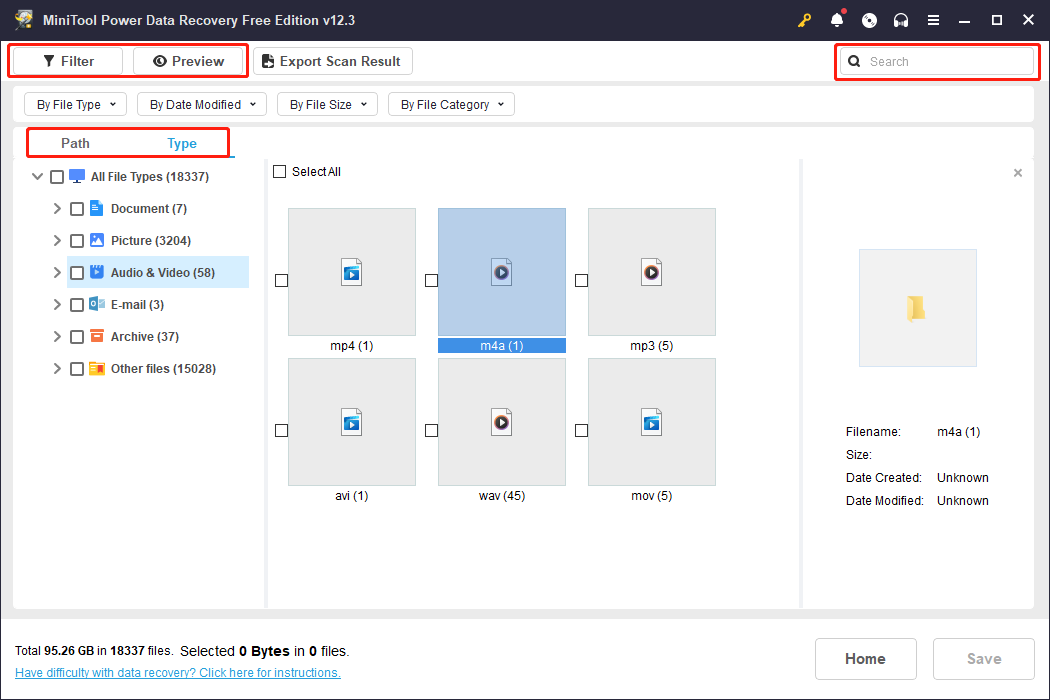
Step 3. Tick the files that you need and click the Save button to choose another destination for those recovered files.
Please remember that the free edition of this tool only provides 1GB of free data recovery capacity. To retrieve more than 1GB of files, you need to get an advanced one by visiting this License Comparison page.
Way 1. Uninstall Suspicious Applications
If your local disk transformed into a CD drive after installing software, you may uninstall such applications to resolve this problem. Some software, like WinArchiver, may change the status of your local disk, making it show as a CD drive.
Go to the Control Panel and choose Uninstall a program under the Programs. Then, browse the file list to find the skeptical software. You should right-click on the software and choose Uninstall to remove the application.
Afterward, you’d better restart your computer and check if your local disk shows properly.
Way 2. Reconnect the Disk
Another possible reason for the computer disk showing as a CD drive is the improper or loose connection. In this case, you can first check the disk connection cable and reconnect any unstable one.
Optionally, shut down your computer and remove the disk. Then, restart the computer and reconnect to see if this local disk issue is caused by an improper connection.
Way 3. Format the Local Disk
If the local disk turned into a CD drive is caused by the disk error instead of other extra factors, formatting the disk for normal use. Generally, you may fail to find the problematic local disk under Disk Management. Thus, you can only format the disk with the help of a third-party partition manager, like MiniTool Partition Wizard.
MiniTool Partition Wizard is an all-in-one tool that works well in resizing partitions, formatting disks, repairing MBR, changing partition tables, etc. You can complete the disk format task with the free edition of this software easily.
MiniTool Partition Wizard FreeClick to Download100%Clean & Safe
Step 1. Launch this software and select the problematic partition.
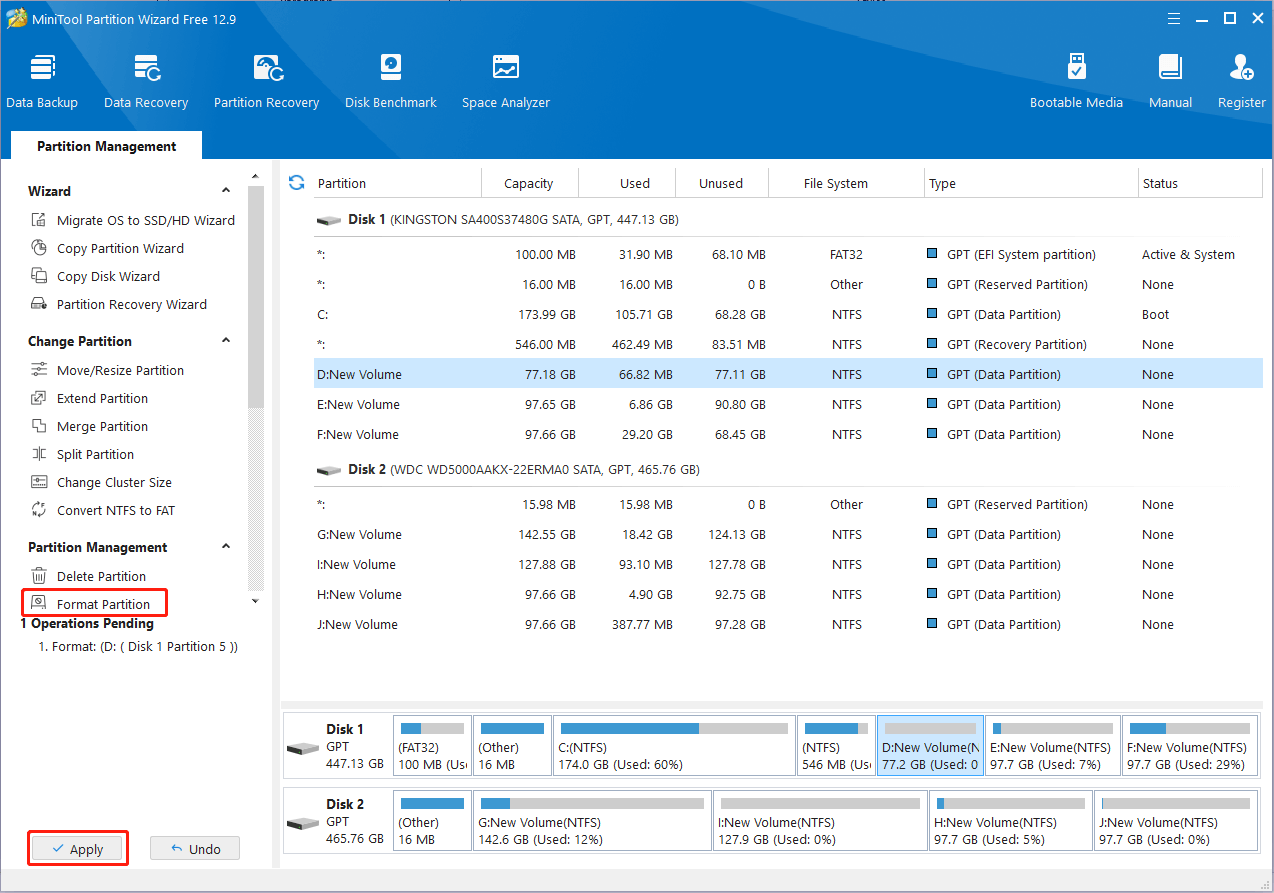
Step 2. Choose Format Partition from the left sidebar. In the prompt window, you should set the Volume Label and the proper File System.
Step 3. Click OK to confirm your set and start formatting.
Step 4. Preview the partition status that is displayed on the software. Click Apply to complete the format process if there is no error.
Final Words
This is the end of this post. There are three solutions for the local disk turned into a CD drive. Different causes require different solutions. I do hope you can obtain some useful information from this post.
User Comments :