
Generally Windows opens programs in normal window. If you want to make Windows programs always open as maximized, here is a detailed guide. MiniTool software designs some useful tools for Windows users, incl. MiniTool Power Data Recovery, MiniTool Partition Wizard, MiniTool ShadowMaker, etc.
Windows always opens programs in a normal window size and won’t open them in full screen. If you’d like to make Windows programs always open as maximized, you can check how to do it below.
How to Force All Windows to Always Open Maximized
Step 1. Open Program Properties Window
For program desktop shortcut icon, you can right-click the shortcut icon and click Properties to open its Properties window.
From program taskbar shortcut icon, you can right-click its shortcut icon at Windows taskbar, and right-click the program to choose Properties to access the Properties window of the program.
Step 2. Make Windows Programs Always Open as Maximized
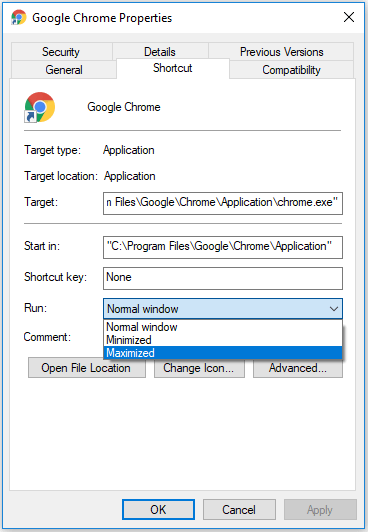
Click Shortcut tab in program’s Properties window. Then click the down-arrow icon next to Run option and choose Maximized. Then you can click Apply and click OK to save the changes.
Other Ways to Make Windows Programs Open as Maximized
You can also try some other measures to force Windows programs to always open maximized.
You can open a program like a Word file, click the square icon at the top-right corner of the program to maximum the window. Close the application and open it again to check if it is opened as maximized.
How to Make Chrome Open in Maximized Windows
- You can right-click the desktop or taskbar shortcut of Google Chrome, and click Properties to open the Properties window of Chrome.
- Next you can click Shortcut tab and choose Maximized in the Run option. Click Apply and click OK. Then each time you open Chrome, it will open as maximized.
Related Useful Free Windows 10 Software
MiniTool Power Data Recovery – Free data recovery software for Windows. You can use it to easily recover any deleted/lost files from PC, external hard drive, SSD, SD card, USB, etc. It helps you tackle various data loss situations. 100% clean and safe. Novice users can easily operate it.
MiniTool Partition Wizard – A professional disk partition manager lets you easily create/delete/extend/resize/format partitions, manage hard drive space, check and fix disk errors, convert disk format, and more.
MiniTool ShadowMaker – Top free PC backup software that can back up Windows OS and data. It allows you to easily backup and restore Windows operating system. You can also freely select files, folders, partitions or the entire disk to back up to external hard drive, USB, network drive, etc.
MiniTool Video Converter – Best free video converter for Windows. You can use this tool to convert any video or audio to preferred format. It supports 1000+ formats. 100% clean and free. Convert video or audio format in a few clicks and at fast speed.
MiniTool MovieMaker – An easy-to-use video editor for Windows. You can use this tool to easily edit video, e.g. trim, split, merge video; add effects, transitions, captions, subtitles, motion, background music to video, etc. It allows you to export the video to MP4 and may other popular formats.
MiniTool YouTube Downloader – Free download YouTube videos in MP4, MP3, WebM, WAV for offline playback.
User Comments :