
Marvel's Spider-Man 2 DXGI ERROR DEVICE HUNG along with error 0x887A0006 may be driving you up the wall. So how can you fix this error so as to play the game smoothly? MiniTool outlines some possible fixes in this guide to help you out.
Marvel’s Spider-Man 2 DXGI ERROR DEVICE HUNG
Marvel’s Spider-Man 2 is a 2023 action-adventure game released for PlayStation 5 and its Windows version came to the public on January 30, 2025. Since its release on Windows, many users have had many complaints about this game. Today, we focus on the common error – Marvel’s Spider-Man 2 DXGI ERROR DEVICE HUNG.
Specifically, you see the error message on your computer screen: “A problem has occurred with your display driver. This can be caused by out of date drivers… (0x887A0006: DXGI_ERROR_DEVICE_HUNG)”. You are suggested to update your GPU driver or lower the in-game settings.
To address Marvel’s Spider-Man 2 error 0x887A0006, try these two ways. In addition, we will introduce some other possible fixes to solve your issue.

Fix 1: Update Graphics Card Driver
Make sure your PC uses the latest graphics card driver when playing modern games. Otherwise, the issue of Marvel’s Spider-Man 2 DXGI ERROR DEVICE HUNG may come up.
To do so:
Step 1: In a web browser, open the official website of AMD, NVIDIA, or Intel.
Step 2: Search for the up-to-date version of the graphics card driver and then download its installer.
Step 3: Run the downloaded file and complete the installation according to the on-screen prompts.
Later, you will embark on a funny journey in Marvel’s Spider-Man 2.
Fix 2: Roll Back Graphics Card Driver
According to some users on YouTube, rolling back the graphics card driver is of help to solve 0x887A0006 DXGI ERROR DEVICE HUNG in Marvel’s Spider-Man 2.
Take these steps:
Step 1: Right-click on the Start button to choose Device Manager.
Step 2: Under Display adapters, right-click your graphics card driver and choose Properties.
Step 3: In the Driver tab, click Roll Back Driver.
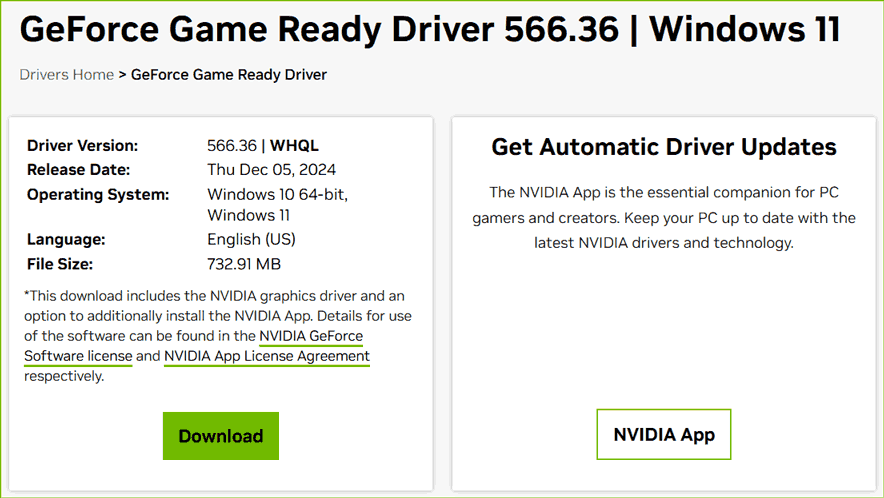
Step 4: Download and install the driver – NVIDIA version 566.36 or AMD version 25.1.1 (that adds support to Marvel’s Spider-Man 2). Then, check if you can play Spiderman 2 smoothly.
Fix 3: Disable Overclocking
If you have overclocked your CPU, remember to disable overclocking to address Marvel’s Spider-Man DXGI ERROR DEVICE HUNG. Don’t know how to do this thing? Refer to this guide on How to Disable CPU Overclocking.
Fix 4: Lower In-Game Settings
As the error popup of DXGI ERROR DEVICE HUNG in Marvel’s Spider-Man 2 says, you had better try to lower in-game graphics settings. So, follow the steps below.
Step 1: Play Marvel’s Spider-Man 2 and go to Settings > Graphics or Display.
Step 2: Turn off Ray Tracing, Frame Generation, and DLSS Ray Reconstruction. Also, switch Anti-Aliasing to TAA.
Fix 5: Update Windows
Keeping Windows up-to-date helps to solve compatibility issues between your game and the outdated system. In case of Marvel’s Spider-Man 2 error 0x887A0006, go to update your system to the latest version.
Before the update, remember to back up your PC in advance to avoid potential system issues or data loss caused by update issues. For PC backup, use MiniTool ShadowMaker, one of the best backup software, that focuses on file, folder, disk, partition, and system backup.
MiniTool ShadowMaker TrialClick to Download100%Clean & Safe
Then, access Settings > Windows Update, check for updates, and download & install them on your PC.
Other Possible Fixes
- Open DLSS Swapper, launch Spiderman 2, and swap DLSS to 310.1
- Try Debug mode in NVIDIA Control Panel
- Increase virtual memory
- Reinstall Visual C++ redistributables
- Verify game files
Final Words
Is the issue of Marvel’s Spider-Man 2 DXGI ERROR DEVICE HUNG frustrating you? Don’t fret. After using these fixes, you should solve your dilemma. If not, contact the support team of this game for help.
About The Author

Position: Columnist
Vera has been working at the MiniTool Team for over 10 years as a technical editor and content writer. She mainly focuses on disk and partition management, data recovery, Windows backup and restore, and PC troubleshooting. Through in-depth software testing and hands-on experience, she has helped users solve a wide range of computer problems and better protect their data on Windows devices.
User Comments :