
You can back up an entire Windows PC to an external hard drive using MiniTool ShadowMaker or Backup and Restore (Windows 7). To protect important files, syncing files and folders to Google Drive or OneDrive through MiniTool ShadowMaker or the native cloud services is another option.
As part of the recovery plan, a full backup of a PC should be your top priority because it can be the best strategy against update issues, malicious software & virus attacks, system failures, software bugs & issues, etc.
If you have a habit of backing up your PC, you can easily get lost files back or restore the system to an earlier state using the created backups in case of computer accidents.
This guide will explain methods to run a PC backup, covering backing up the system or data to an external drive and syncing files to the cloud.
Local Backup vs. Cloud Sync
| Method | Best for | Protect against |
| External drive backup | The entire PC, including systems, files, disks, and partitions | Accidental deletion, system failure, and malware |
| Google Drive/OneDrive sync | Documents, photos, pictures, and videos | Drive failure, theft, and local disaster |
| Both | PCs with critical or frequently updated files | Most common data-loss scenarios |
How to Backup PC to External Hard Drive in Windows 11/10
Backing up your Windows PC to an external drive gives you a separate copy of your files or system for recovery. Follow these steps:
- Run MiniTool ShadowMaker to back up files, folders, disks, partitions, or the operating system
- Use the built-in Backup and Restore (Windows 7) tool to create a system image.
Watch this PC backup video guide:
Run MiniTool ShadowMaker for PC Backup
As an all-around PC backup software, MiniTool ShadowMaker is designed for Windows 11/10/8.1/8/7 to offer an excellent backup & recovery solution.
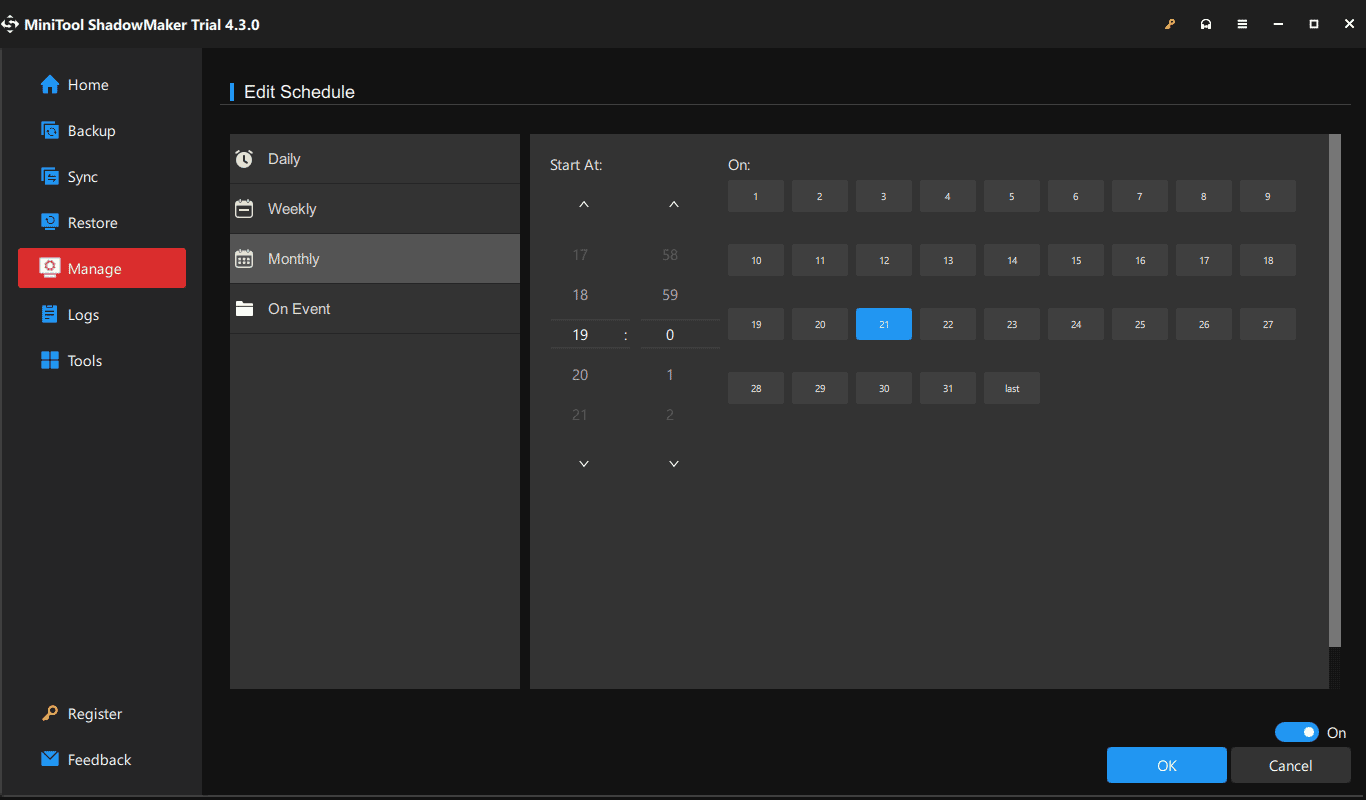
With it, you can backup files with ease and automatically backup data at the time point you have configured. Also, you are allowed to only back up changed data – we call it incremental or differential backup. Besides file backup, MiniTool ShadowMaker supports backing up disks, partitions, and the Windows system, cloning HDD to SSD, and syncing files/folders to Google Drive or OneDrive.
MiniTool ShadowMaker TrialClick to Download100%Clean & Safe
See the guide on how to backup PC to external hard drive:
Step 1: Connect an external hard drive to your Windows PC.
Step 2: Double-click on MiniTool ShadowMaker and tap on Keep Trial after finishing loading.
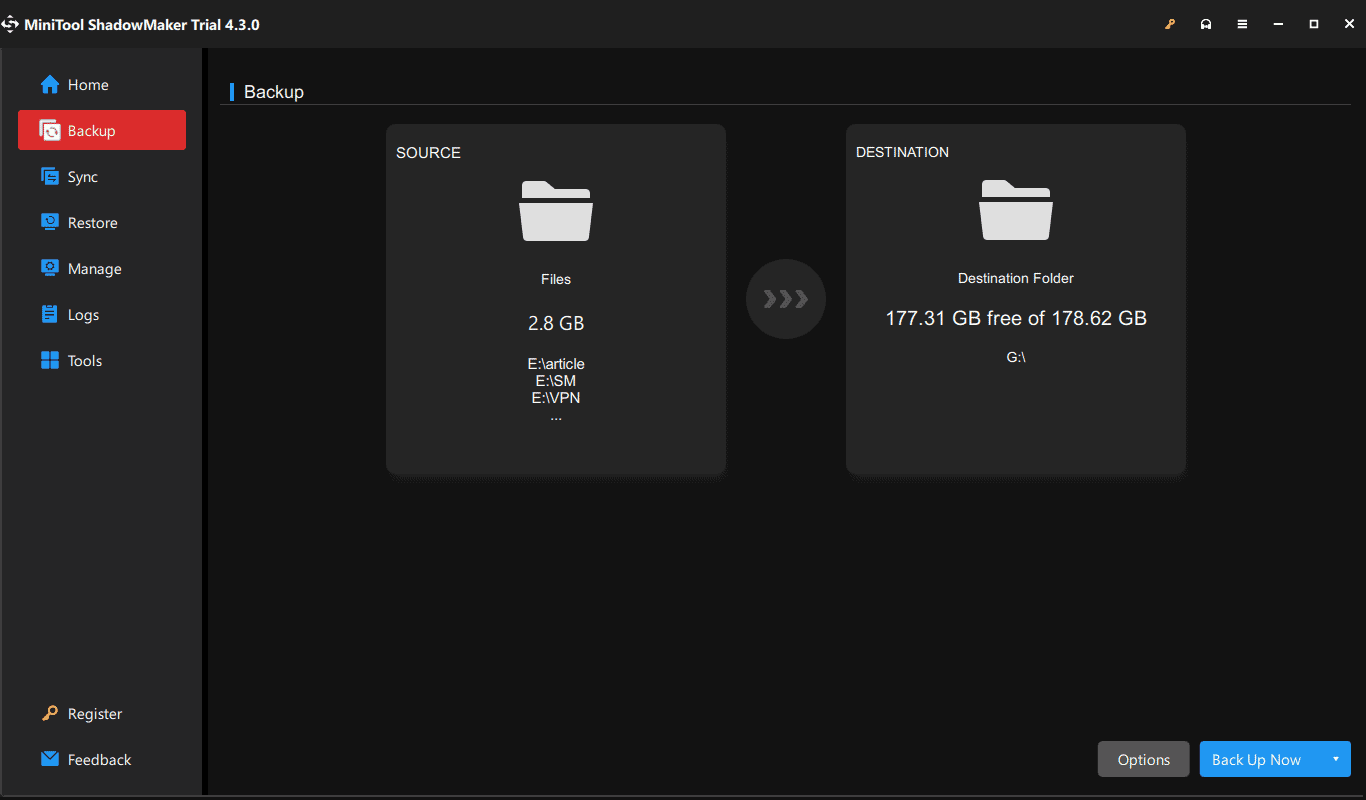
Step 3: In the left pane, click on Backup. Then, you see system partitions are selected by default as the backup source. If you only want to create a system image, you only need to go to DESTINATION to choose an external drive. Then, start the system backup.
If you want to back up files on your PC, choose files that you want to protect – go to SOURCE > Folders and Files, check the items you want to back up, and click OK. Then, choose an external drive as the storage device.
Step 4: Finally, start the file backup by clicking Back Up Now.
Once done, you had better create a bootable USB drive so that you can restore your PC data or system in case of unbootable Windows. To do this thing, tap on Tools > Media Builder, connect a USB drive to your computer, choose it, and start creating the bootable drive.
Besides, if you want to back up the entire disk, refer to our previous post – How to Backup Hard Drive (Internal/External) to Another Disk.
Use Backup and Restore (Windows 7)
In Windows 11/10, the built-in backup tool – Backup and Restore (Windows 7) allows you to create a PC backup and save it to an external hard drive. Using this tool, you can easily create a system image and back up files.
How to backup PC to external hard drive with this program:
Step 1: Open Control Panel via the search bar and then see all the items by Large icons.
Step 2: Find Backup and Restore (Windows 7) and click it to open this tool.
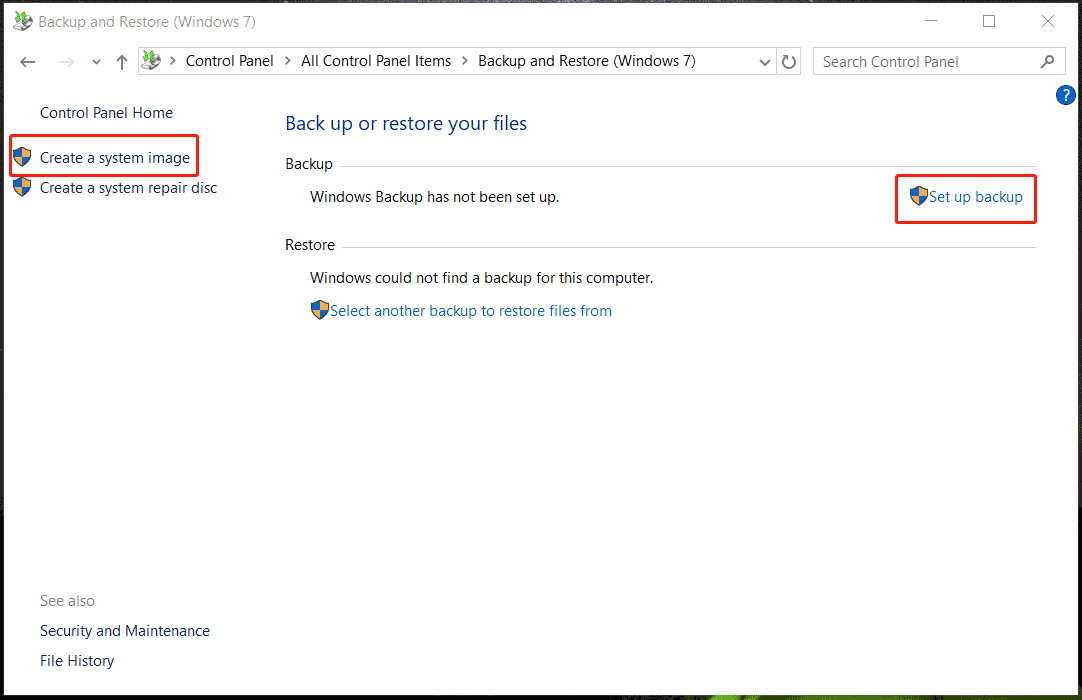
Step 3: To back up your system, tap on Create a system image. Then, choose a path to save the backup and we recommend using an external hard drive. Next, decide which drives to include in the backup (by default, system partitions are selected), confirm the backup settings, and click Start backup.
Step 4: To back up files on your PC to an external drive, click Set up backup on the right side. Then, choose an external drive to save your backup, check Let me choose, select the folders you want to back up, and tap on Save settings and run backup.
Conclusion
When comparing them, you can see the third-party backup tool has limited features, and backup errors & issues often appear. We strongly recommend using MiniTool ShadowMaker to backup your PC via simple clicks since it supports backup, sync, and clone and brings additional powerful features, keeping the PC safe in a reliable and flexible way.
MiniTool ShadowMaker TrialClick to Download100%Clean & Safe
How to Create a PC Backup and Save to Cloud
Backing up a PC to a cloud service platform is also a good way to protect your data besides making a PC backup to an external hard drive. This is because your external hard drive also has a lifespan and once it is damaged due to some reasons, files are also risky.
Run MiniTool ShadowMaker or the native cloud app for file sync.
Way 1: Sync PC Files to Google Drive or OneDrive with MiniTool ShadowMaker
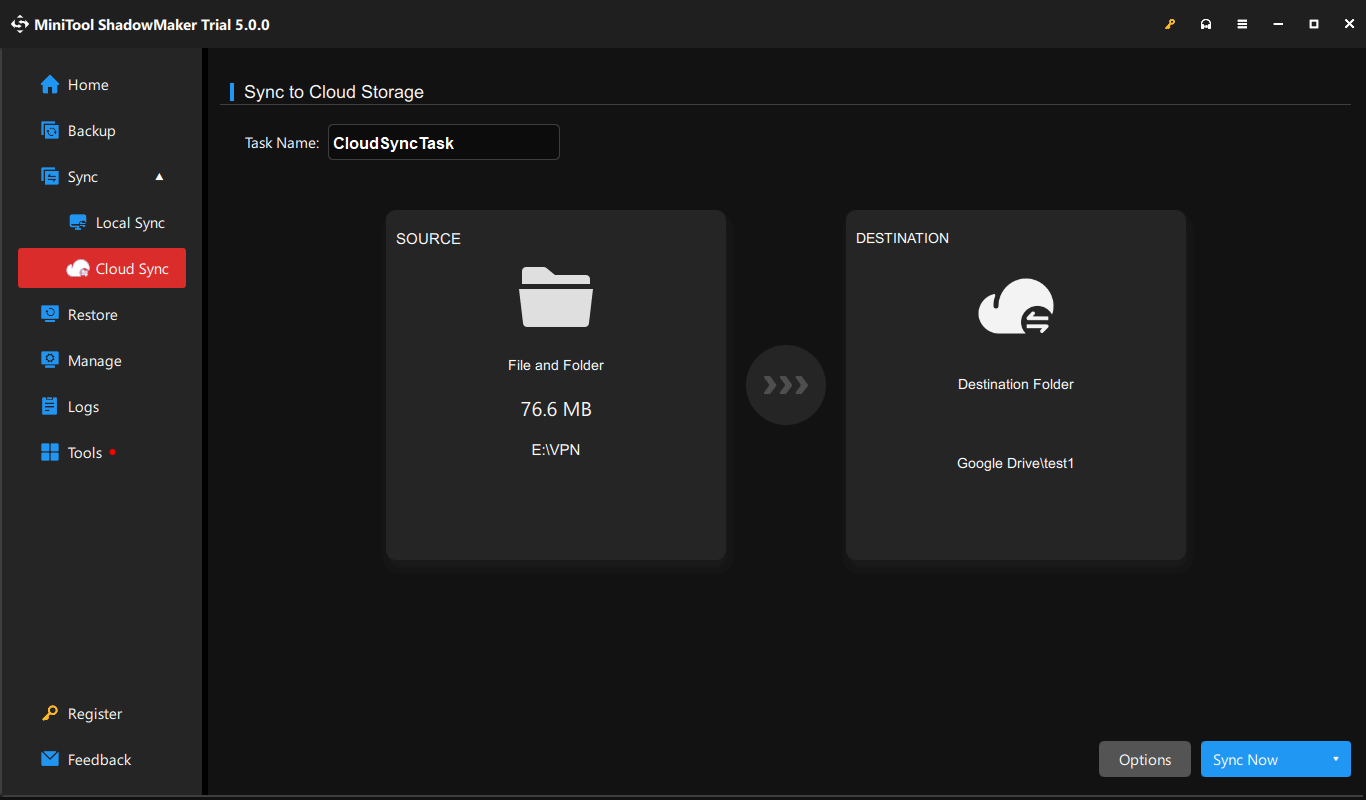
In addition to local backups, MiniTool ShadowMaker supports one-way sync from a Windows PC to Google Drive or OneDrive. You can select individual files or folders and configure scheduled sync tasks.
MiniTool ShadowMaker TrialClick to Download100%Clean & Safe
Step 1: Launch MiniTool ShadowMaker.
Step 2: Navigate to Sync > Cloud Sync.
Step 3: Select files or folders you want to sync to the cloud.
Step 4: Choose Google Drive or OneDrive and follow the on-screen instructions to allow access to the account.
Step 4: Create a folder and select it to save the synced files.
Step 5: Configure the available sync schedule if needed and start the sync task by clicking Sync Now.
Way 2: Sync Files to Google Drive, OneDrive, or Dropbox
Speaking of cloud backup, the common and reputable cloud services are Microsoft OneDrive, Google Drive, Dropbox, etc. Each of them offers limited storage space, for example, OneDrive – 5GB, Google Drive – 15GB, and Dropbox – 2GB.
For more information, refer to the backing up computer to a cloud drive guide.
Bottom Line
PC backup is essential for your Windows 11/10/8.1/8/7 computer or Mac. You can backup it to an external hard drive or cloud to have two backup copies to prevent data loss in a good way.
Follow the comprehensive guide to finish the local and cloud backup. If you have issues with MiniTool software, feel free to contact us at [email protected].
PC Backup FAQ
About The Author

Position: Columnist
Vera has been working at the MiniTool Team for over 10 years as a technical editor and content writer. She mainly focuses on disk and partition management, data recovery, Windows backup and restore, and PC troubleshooting. Through in-depth software testing and hands-on experience, she has helped users solve a wide range of computer problems and better protect their data on Windows devices.
User Comments :