
Do you know what the MSOCache folder is? Can you delete it? If it can be deleted, how to delete it? If you don’t know and want to find the answers to the above questions, you can read this post from MiniTool carefully. Here is a detailed introduction.
What Is MSOCache
what is MSOCache? MSOCache is a folder that resides in the system root directory and is associated with Microsoft Office. The MSOCache folder was created by Microsoft Office during the installation process and was later used by the software as the “local installation source”.
In some cases, folders may take up GB of space and are hidden by default. Office comes with many patches and other regular updates, so whenever any repair/update process is involved, the MSOCache folder will provide and store the basic files needed in the process.
Should You Delete It
Should you delete it? The answer is no. It is strongly recommended that you do not delete from the MSOCache folder because if you do then Microsoft Office may lose its ability to repair or patch. After deleting, you need to install the CD every time you patch or repair.
Similarly, even if you do delete the folder in the usual way, there will be many entries in the registry that need to be organized to make it work properly.
How to Check If the MSOCache Folder Exists
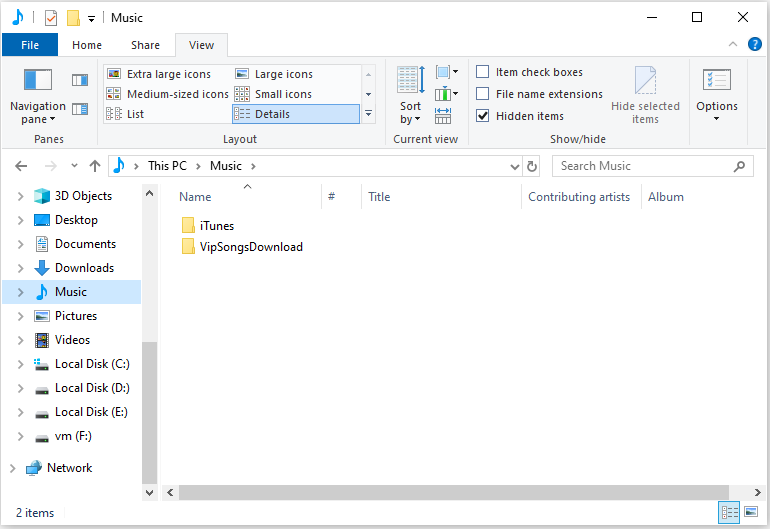
Here is how to see if the MSOCache folder exists on the computer system. First, you need to open Windows Explorer. Then, you need to click the View tab and check the Hidden Items box. Then, you can see if the MSOCache folder exists on the computer system.
Alternative Way to Delete the MSOCache Folder
If you are annoyed by the space taken up when MSOCache folders are stored in the root directory. There is an alternative method that requires you to move the MSOCache folder to another directory without losing any functionality. Now, you can follow the steps below to do that:
Step 1: Open the drive where you want to store the MSOCache folder, right-click anywhere, and click the New Folder option.
Step 2: Name the folder C (The Root Directory) and press the Enter key. Right-click the MSOCache folder and select Cut.
Step 3: Navigate to the C folder in the other directory we just created, and paste the folder here.
Step 4: After the copying process is complete, press the Windows key + R key to open the Run box. Type CMD and press Enter to open the command prompt.
Step 5: Type CD \ and press Enter. Type in the following command and press Enter.
MKLINK /J MSOCache D: \C\MSOCache
Step 6: Type Exit and press Enter.
Also see: Command Prompt Windows 10: Tell Your Windows to Take Actions
Final Words
To sum up, this post introduces information about MSOCache. You can know what it is, how to check if it exists on your computer, and how to delete it on Windows 10. If you have any questions, you can share it in the comment zone.
User Comments :