
Nightingale is an early-released survival crafting game, which will be only available for Windows. The early access period of this video game is about 1 year. Players can experience the game’s story and give feedback to the developers about problems that occur during the execution of the game within the early access period. Some players report issues like Nightingale not launching, crashing on startup, unresponsiveness, etc.
If you are stuck by the Nightingale crashing issue, don’t worry. It is a common issue for either games or devices. It might be triggered by missing game files, outdated drivers, insufficient permissions, etc. Try the following methods to try to resolve this problem.
Fix 1. Restart the Computer
Before taking action to configure settings on Nightingale or your computer, you can simply restart your computer and relaunch the game to see whether Nightingale still crashes on startup.
Sometimes, computer glitches may interrupt the normal performance of programs. These temporary issues can be auto fixed by rebooting the computer. If the problem still exists, please move on to the next method.
Fix 2. Run Nightingale as Administrator
If not enough permissions for Nightingale, your computer may prevent Nightingale run normally; thus, you will encounter the situation that Nightingale crashes on startup. You can check and configure the permission settings with the following steps.
Step 1. Find the executable file of Nightingale and right-click on it to choose Properties.
Step 2. Switch to the Compatibility tab, then tick Run this program as an administrator in the Settings section.
Step 3. Click Apply > OK in sequence to complete the setting.
Fix 3. Verify the Game File
Another possible reason that Nightingale keeps crashing on PC is incomplete installation. If the installation files are corrupted or missing after installation, the launch issues will be triggered on your computer. You have two options to resolve this problem in this situation.
Method 1. Use Steam Feature to Verify Game Files
Step 1. Go to the Steam Library to find Nightingale. You should right-click on the game and choose Properties from the context menu.
Step 2. Choose LOCAL FILES from the left pane then choose Verify integrity of game files.
Wait for the process to complete automatically. You need to reboot your computer to apply the change fully.
Method 2. Run MiniTool Power Data Recovery to Recover Missing Game Files
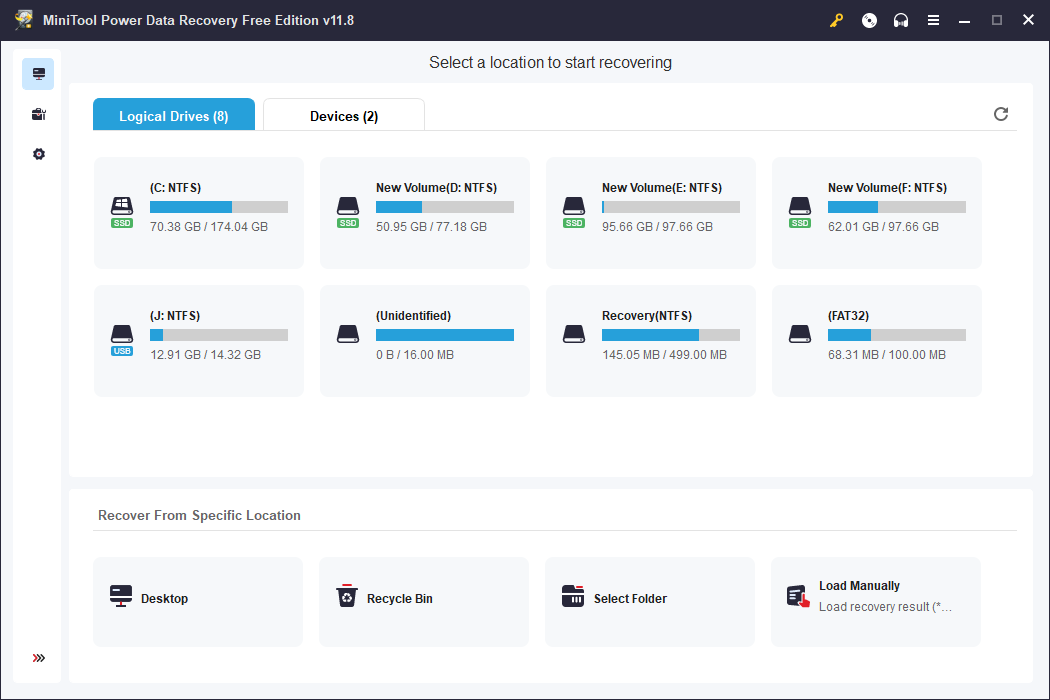
MiniTool Power Data Recovery is a specifically designed data recovery service that helps you discover and restore lost files when a partition is lost/unallocated, a device gets formatted/unrecognized, or other situations.
You can get MiniTool Power Data Recovery Free first to scan the partition and recover 1GB of files for free. After getting this software, you can choose to scan the specific folder where the Nightingale installation files are stored in the main interface.
MiniTool Power Data Recovery FreeClick to Download100%Clean & Safe
Fix 4. Update Graphics Driver
Alternatively, you can check if there is an outdated computer graphics driver in Device Manager. An outdated or corrupted driver may trigger multiple issues including Nightingale crashing on PC.
Step 1. Press Win + X and select Device Manager from the WinX menu.
Step 2. Expand the Display adapters option and right-click on the graphics driver.
Step 3. Choose Update driver and select Search automatically for drivers in the prompt window.
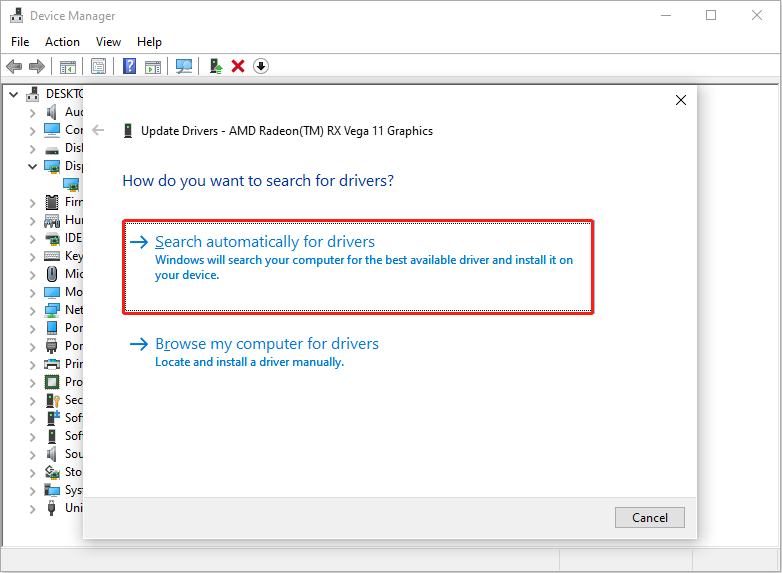
Your computer will detect and install the compatible latest driver on your computer. When the process is completed, restart your computer and relaunch the game to check if the issue is resolved.
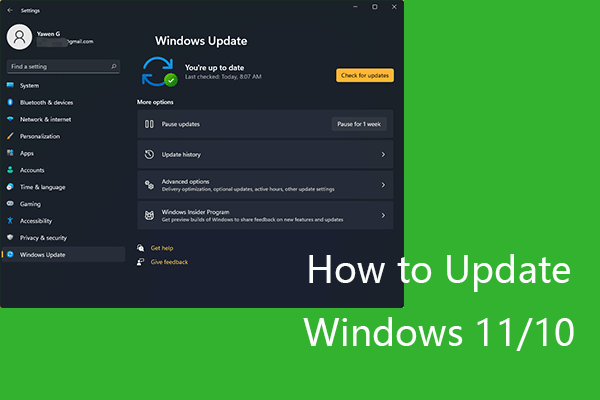
Fix 5. Update Windows System
It is acknowledged that the computer system configuration should satisfy the requirement to download games. Sometimes, an outdated operating system may cause conflicts between software and hardware. You can check whether your computer requires to update to maintain stable performance.
Bottom Line
Don’t worry when you find Nightingale crashing on PC frequently. You can read this post and try the above methods to resolve this issue.
User Comments :