
You may find something called Npcap loopback adapter in the available network on your Windows 10 computer. Do you know what is it and how to fix the issue with it? Now, you can read this post from MiniTool to learn more information.
What Is Npcap Loopback Adapter
What is Npcap Loopback Adapter? Npcap runs on Windows 7 and higher by using the new NDIS 6 Lightweight Filter (LWF) API. It is faster than the deprecated NDIS 5 API, and Microsoft can remove it at any time.
Moreover, the driver has been signed with our EV certificate and signed by Microsoft, so the driver can work normally even under the stricter driver signing requirements in Windows 10 1607.
Sometimes, when you click the WIFI icon on the Windows desktop, it will display “Npcap Loopback Adapter No Internet”. Some users also reported that this Npcap Loopback Adapter error will pop up after Windows 10 is updated.
After checking this network adapter in the Npcap Loopback Adapter device Manager, there may also be no network connection on Windows 10. Or, you may also encounter the Npcap loopback adapter does not have a valid IP configuration on Windows 10 issue.
Related articles:
- 4 Ways to Fix Ethernet Doesn’t Have a Valid IP Configuration
- Fixed: Windows 10 WiFi Doesn’t Have a Valid IP Configuration
Now, let’s see how to fix the Npcap Loopback Adapter issue.
How to Fix the Npcap Loopback Adapter Issue
Fix 1: Reinstall Npcap Loopback Adapter Driver
You can fix the Npcap Loopback Adapter issue by reinstalling it. Here are the steps.
Step 1: You need to open Device Manager, then navigate to Network adapters.
Step 2: Right-click your Npcap Loopback Adapter Driver, and select Uninstall.
Step 3: Wait for the process to complete.
Step 4: Click the Action tab, and select Scan for hardware changes.
Then you can download the latest drivers directly from your manufacturer’s website. After you reinstall them, you can check if the Npcap Loopback Adapter issue has been fixed. If not, try the next fix.
Fix 2: Flush the DNS
If the Npcap Loopback Adapter issue still appears, you can flush the DNS to fix the issue. Here is how to do that:
Step 1: Type Command Prompt in the Search box.
Step 2: Right–click it to select Run as Administrator.
Step 3: Type ipconfig/flushdns to completely flush the DNS.

Step 4: Now run the game and check to see if the Npcap Loopback Adapter problem persists.
Fix 3: Reset the Network
If the above methods do not work for you, you may have to reset the network connection on the system. In this case, you can try to reset the Npcap loopback adapter and system network settings. Follow the guide below:
Step 1: Open the Settings application by pressing the Windows + I keys at the same time.
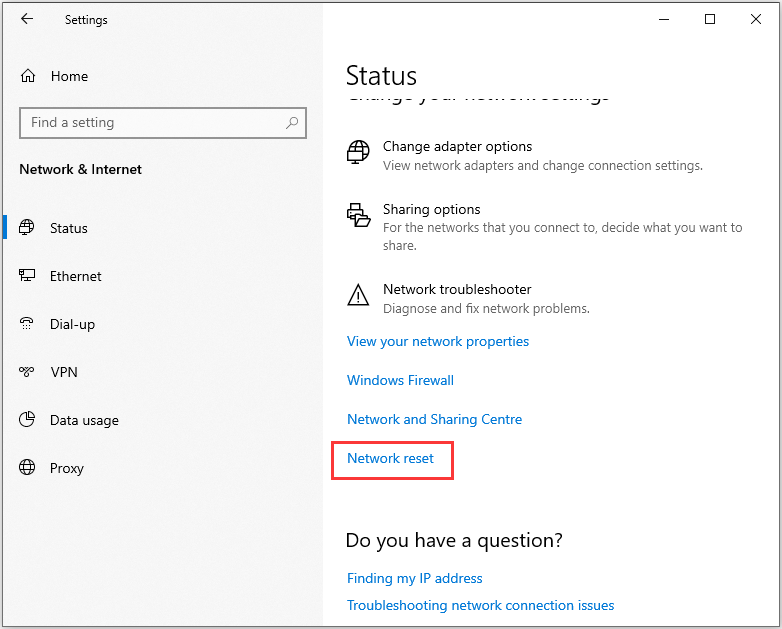
Step 2: Then, click the Network & Internet part. Next, click the Status tab and click the Network reset option.
Final Words
In summary, this post shows 3 ways to fix the Npcap Loopback Adapter issue. If you have the same trouble, try these solutions. If you have any better ideas to fix this problem, share them in the comment zone.
User Comments :