
What Is Microsoft OneDrive?
Microsoft OneDrive is your personal cloud storage. You can use it to save your photos, videos, music files, and other kinds of files to OneDrive and access them from any device, anywhere using your account. Due to this, you can use it to back up and protect your files. You can also use it to share your documents and photos with your friends and family, and collaborate in real-time with Office apps.
OneDrive has different versions for different editions of Windows and Mac. Usually, it is pre-installed on your device. If not, you need to download a proper version according to your Windows version. Here are the introductions of OneDrive 64-bit, 32-bit, and Arm versions for Windows & Mac. The information can help you choose a OneDrive 64-bit version, OneDrive 32-bit version, or OneDrive Arm preview version on your device.
OneDrive 32-Bit Version (Download)
When to Choose OneDrive 32-bit Version
32-bit OneDrive can only run on the following systems:
- 64-bit operating system with ARM-based processor not trying the ARM preview
- 32-bit operating system with an x86 (32-bit) processor
Download OneDrive 32-bit Version
When you get a new Windows 10/11 32-bit computer, OneDrive is already installed on your device. If OneDrive is missing or uninstalled by mistake, you can download OneDrive 32-bit version again and install it again.
If you are using a Mac computer, OneDrive is available in the 64-bit version and ARM preview version.
OneDrive 64-Bit Version (Download)
When to Choose OneDrive 64-bit Version
If you want to use large files, or have a lot of files to save, and using a computer that is running a 64-bit version of Windows 10/11, you will need to use the 64-bit version of OneDrive.
Compared to the 32-bit predecessors, 64-bit versions of Windows PCs have more resources like processing power and memory. Besides, 64-bit applications can access up to 18.4 million Petabytes of memory. This is quite more than 32-bit applications.
Download OneDrive 64-bit Version
If you can’t find OneDrive on your Windows 10/11 64-bit PC, you can download OneDrive 64-bit version here. Your install type will be kept even if you are using PerMachine, you will need to run OneDriveSetup.exe /allusers.
Exclusive 50% OFF Revo Uninstaller Pro
OneDrive Arm Preview Version (Download)
If you’re using an ARM-based device, your best choice of OneDrive is the ARM preview version since the process will not be emulated. Only ARM-based computers can use the ARM preview version of OneDrive.
You are not allowed to run the 64-bit version of OneDrive on ARM-based devices. Currently, the 32-bit version of OneDrive is the only non-preview version of OneDrive for ARM-based devices.
Get OneDrive ARM Preview Version for Windows
If you want to use the ARM preview version of OneDrive, you need to first join the Office Insider program or Windows Insider program. After that, you can follow these steps to get OneDrive:
Step 1: Click the cloud icon from the taskbar. Then, OneDrive for work or school will open with a blue cloud icon, or OneDrive for home will open with a white cloud icon.
Step 2: Click Help & Settings.
Step 3: Go to Settings > About.
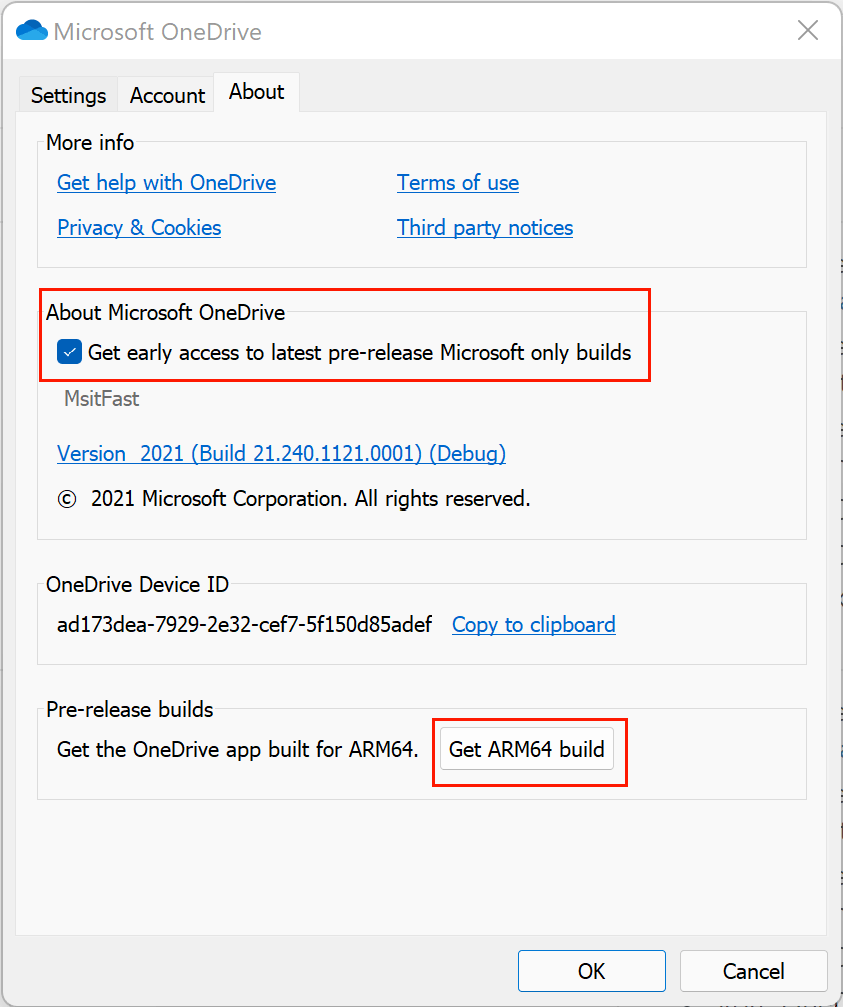
Step 4: Select the checkbox under About Microsoft OneDrive to join the OneDrive Insiders preview.
Step 5: Click the Get ARM64 build button under Pre-release builds to get the OneDrive ARM preview version for Windows 10/11.
Get OneDrive Apple Silicon Preview Version for Mac
If you want to use the Apple silicon preview version of OneDrive, you need to be on the OneDrive Standalone version.
Step 1: Select the cloud icon on the taskbar.
Step 2: Go to Help & Settings > Preferences.
Step 3: Switch to the About tab.
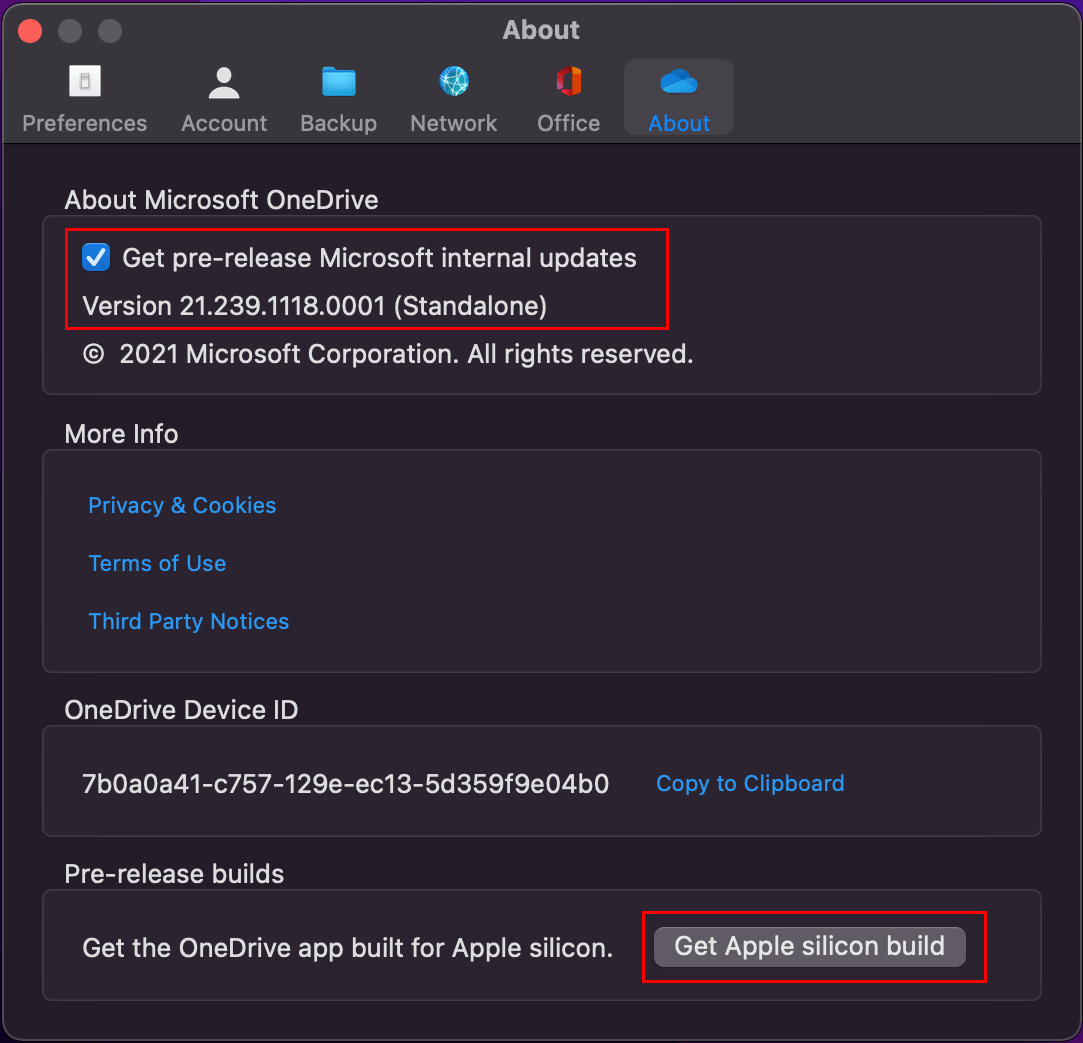
Step 4: Select the checkbox under About Microsoft OneDrive to join the OneDrive Insiders preview.
Step 5: Restart OneDrive. This can help you move to Insiders immediately.
Step 6: If you are using the OneDrive Standalone version, you will find the version number (Standalone) under About Microsoft OneDrive. Here, you need to know that you must be on the Standalone version of OneDrive for Mac to use the Apple silicon preview version of OneDrive.
Step 7: Click the Get Apple silicon build button under Pre-release builds.
The End
OneDrive 64-bit version, OneDrive 32-bit version, or OneDrive Arm preview version? After reading this post, you should know which one is suitable for you and how to download and install OneDrive on Windows and Mac. If you have other related issues, you can let us know in the comment.
About The Author

Position: Columnist
Stella has been working in MiniTool Software as an English Editor for more than 8 years. Her articles mainly cover the fields of data recovery including storage media data recovery, phone data recovery, and photo recovery, videos download, partition management, and video & audio format conversions.
User Comments :