
OneDrive error code 0x8004de25 is most often seen with the message There was a problem signing you in, which prevents OneDrive from signing up your account. For some users, the app may not even launch. Meanwhile, you may also see sync operations hang.
What’s Cause of OneDrive Sign-in Error 0x8004de25?
The 0x8004de25 error most often points to authentication issues, where OneDrive is unable to authenticate your Microsoft account credentials. Other than that, common causes of the error include OneDrive setting corruption, outdated app versions, or incompatibility with cached credentials that will not allow sign-in.
Firewall blocking or proxy settings can also stop OneDrive from connecting to Microsoft servers. System problems such as file corruption, incorrectly configured services, or disruption from third-party antivirus may be the cause of the error too.

Fix 1. Clear Cached Credentials
This problem occurs while trying to sign in to OneDrive on your computer, so chances are you’re using incorrect credentials. In this case, clearing cached credentials can do the trick:
Step 1. Terminate your OneDrive > type control panel in Windows Search > press Enter.
Step 2. Navigate to User Accounts > choose Manage your credentials in the left sidebar.
Step 3. Select the Windows Credentials section > scroll down to Generic Credentials > remove all OneDrive credentials as required.
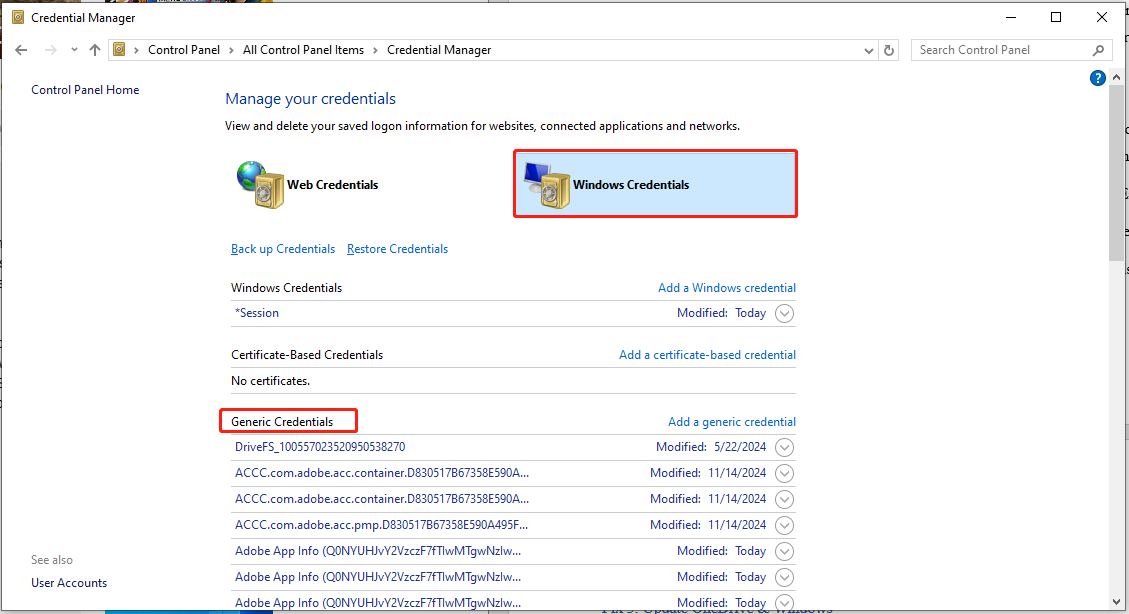
Step 4. Once done, restart your PC and sign in again to see if OneDrive error code 0x8004de25 still appears.

Fix 2. Check Network and Firewall Settings
This error sometimes also occurs due to your poor internet connection or block from firewall. You can check the network and firewall settings. The steps are as follows:
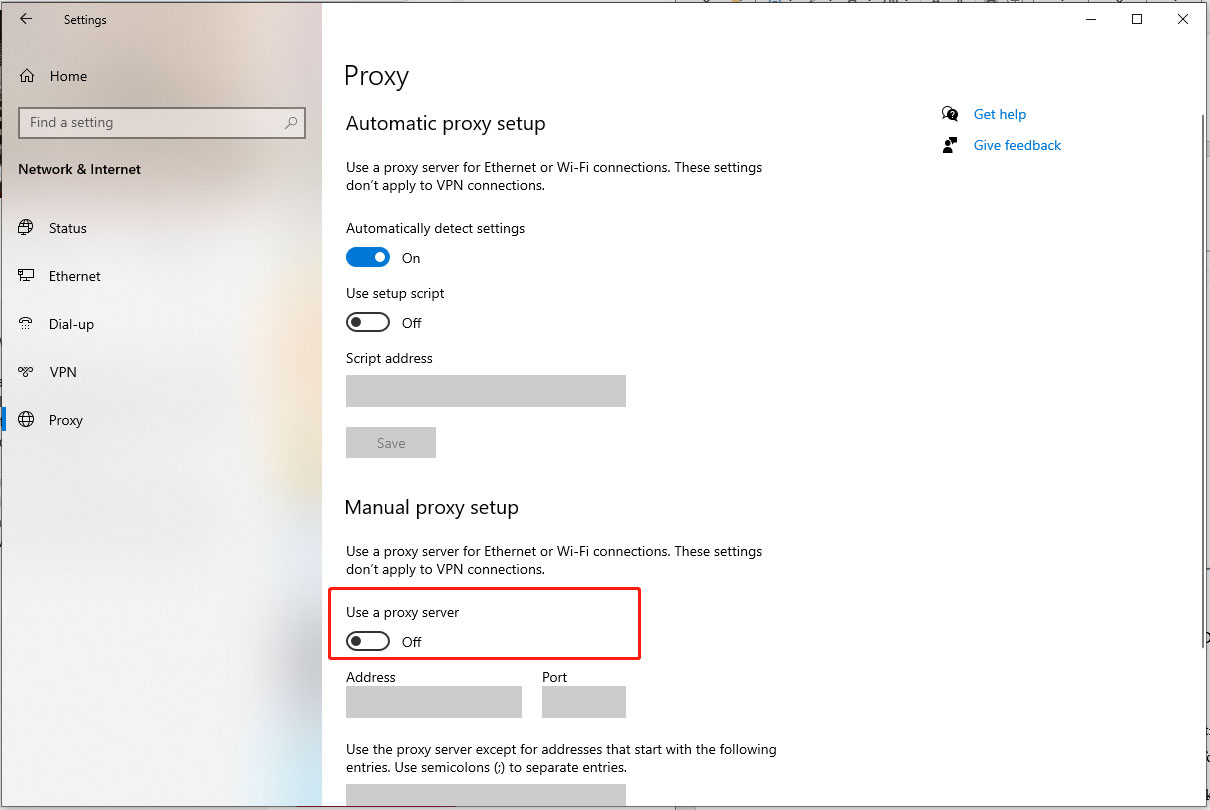
Step 1. Press Windows and I keys to open Settings > go to Network & Internet.
Step 2. Select the Proxy tab > toggle off Use a proxy server.
Step 3. Open Windows Security through the Start menu.
Step 4. In the new window, go to Firewall & network protection > Allow an app through firewall.
Step 5. Ensure OneDrive is listed and allowed for both private and public networks.
After checking, relaunch your OneDrive and try to log in again.
Fix 3. Reset OneDrive
The corrupted cache or settings on the OneDrive app could also be the culprit of OneDrive sign in error 0x8004de25. Resetting OneDrive should be helpful.
Step 1. Press Win + R to bring up the Run window.
Step 2. Input %localappdata%\Microsoft\OneDrive\onedrive.exe /reset and hit OK. If you face a Windows can’t find… error, then enter C:\Program Files (x86)\Microsoft OneDrive\onedrive.exe /reset and press Enter.
Step 3. Restart your computer and open OneDrive again.
Fix 4. Reinstall OneDrive
To fix error code 0x8004de25 on OneDrive, you need to make sure Windows and OneDrive is updated. Alternatively, you can directly reinstall the latest OneDrive app. To do so,
Step 1. Fire up the Run dialog > enter appwiz.cpl > hit OK.
Step 2. Find OneDrive from the installed programs list > right-click on it > select Uninstall > follow its on-screen wizard to finish the uninstallation.
Step 3. Go to Microsoft website to download the latest version of OneDrive.
After that, launch OneDrive and check whether the error persists or not.
MiniTool ShadowMaker TrialClick to Download100%Clean & Safe
Final Words
How to get out of OneDrive error code 0x8004de25? With this post, you may now know 4 helpful and effective solutions to this issue. Appreciate your support!
User Comments :