
The Overwatch is a vibrant team-based shooter game played on the computer. It is common for you to come across the Overwatch stuttering issue when playing it. This post from MiniTool will show you how to solve Overwatch audio stuttering.
If you come across the Overwatch stuttering when playing it on your computer, you would be very annoying. But if you encountered this error, don’t be panic. You are certainly not the only one. Many game lovers have encountered the same error.
Hence, the more important thing is to fix the Overwatch audio stuttering. If you don’t know what measures you should take, keep on your reading to find the solutions in the following part.
4 Ways to Fix Overwatch Stuttering When Playing It
In this section, we will show you how to fix the Overwatch audio stuttering error so as to improve game performance.
Way 1. Stop Other Background Programs
In order to fix the Overwatch stuttering error, you can stop other programs from running in the background first.
Now, here is the tutorial.
- Right-click on the Taskbar and choose Task Manager.
- Then navigate to the Processes tab.
- Select the program you want to disable and click End Task.
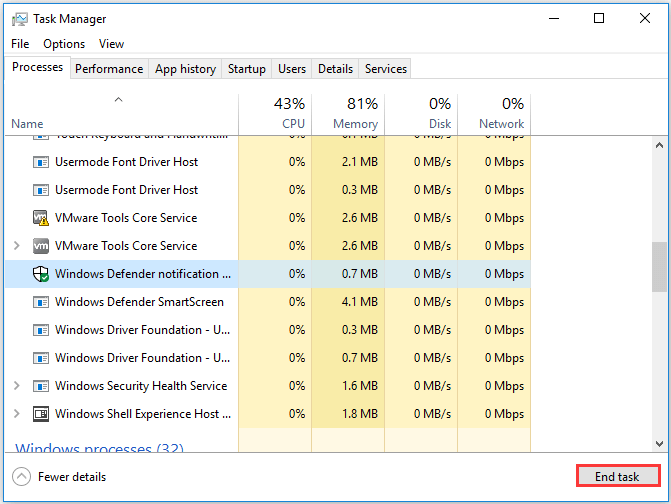
After that, re-start the Overwatch and check whether it can run smoothly and check whether the error Overwatch stuttering is fixed.
Way 2. Turn Off Fullscreen Optimization
To solve the Overwatch stuttering error, you can try disabling fullscreen optimizations.
Now, here is the tutorial.
- Right-click the Overwatch shortcut on the desktop and choose Properties.
- In the pop-up window, go to the Compatibility tab.
- Then check the option Disable fullscreen optimizations.
- Click Apply and OK to confirm the changes.
When it is finished, re-start the Overwatch and check whether the error Overwatch stuttering is fixed.
Way 3. Turn off Game Mode
To fix Overwatch stuttering high fps, you can also try turning off the Game Mode.
Now, here is the tutorial.
- Press Windows key and I key together to open Settings.
- Click Gaming to continue.
- Select Game Mode on the left panel and switch the option Use Game Mode to off.
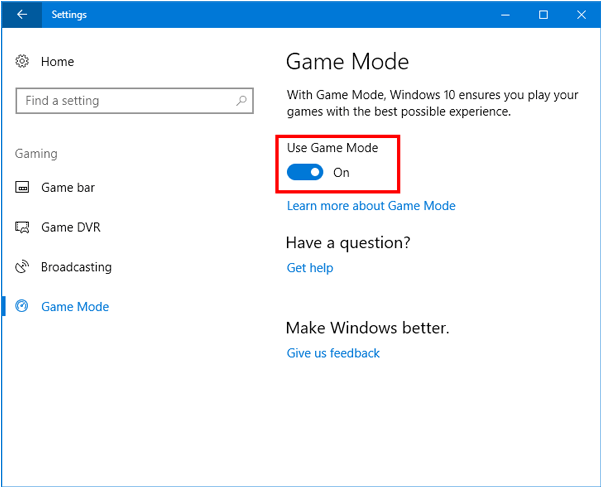
Then exit the Settings window and check whether the Overwatch runs smoothly and the error Overwatch audio stuttering is fixed.
Way 4. Turn Off Game DVR
The last way you can try to fix Overwatch stuttering is to turn off Game DVR. On Windows 10, Game DVR controls how you capture your game through screenshots and games clips. But if it is enabled, you may encounter the game stuttering error.
So, in order to fix Overwatch stuttering high fps error, you can try turning off Game DVR.
Now, here is the tutorial.
- Press Windows key and I key together to open Settings.
- Click Gaming.
- On the left panel, click Game bar.
- Turn off Record game clips, screenshots, and broadcast using Game bar.
- Then click Game DVR, turn off Record in the background while I’m playing a game, turn off Record audio when I record a game, and uncheck Capture mouse cursor in recording.
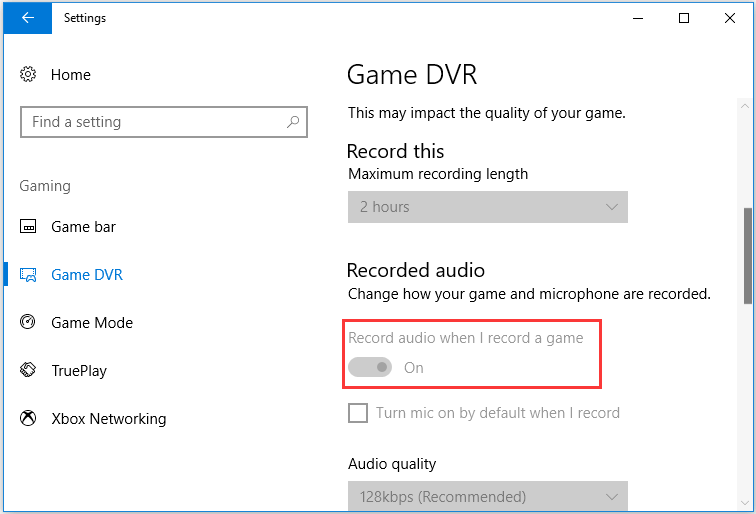
After all steps are finished, re-launch the Overwatch and check whether the error Overwatch stuttering is fixed.
Final Words
To sum up, this post has introduced 4 ways to fix the Overwatch stuttering. If you have come across the same error, try these solutions. If you have any better idea to fix the Overwatch stuttering high fps error, you can share it in the comment zone.
User Comments :