
There is nothing more frustrating than encountering the Quarantine Zone: The Last Check Demo crashing/not launching issue after a long wait while in-game or at startup. Wanna know how to fix it? This MiniTool guide offers several effective solutions to help you get back to smooth gameplay.
Quarantine Zone: The Last Check Demo was released on May 22, 2025, which is a puzzle game focused on examining survivors from a zombie apocalypse for signs of infection. It’s a serious inspection game where there is no margin for error. Everyone could be infected, and each choice you make influences what happens next.
As a demo, players may experience some technical issues, like Quarantine Zone: The Last Check Demo crashing or not launching, unexpected frame drops, character models vanishing into thin air, and survivors milling around incomplete structures.
If you are facing the Quarantine Zone: The Last Check Demo not launching or crashing issue, there are several simple steps you can take to resolve it:
- Restart PC.
- Update Windows.
- Close conflicts or unnecessary programs in Task Manager.
- Disable Steam overlay.
- Update GPU driver.
Now, let’s jump into more specific and complex methods to resolve the issue that Quarantine Zone: The Last Check Demo crashes at startup on PC.
Method 1. Verify the Game Files
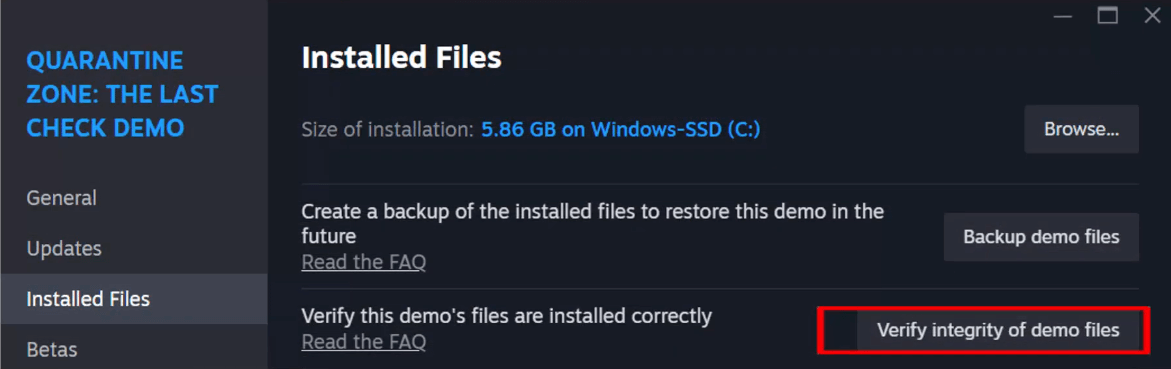
If you acquired Quarantine Zone: The Last Check Demo through Steam, you can check your library to confirm that the files are not corrupted. Follow these steps to complete the process:
- Open Steam, go to your Steam Library, right-click Quarantine Zone: The Last Check Demo, and choose Properties.
- In the left pane, select the Local Files tab and click the Verify integrity of demo files button in the right section. During this process, the game files will be examined for any corruption.
MiniTool Power Data Recovery FreeClick to Download100%Clean & Safe
Method 2. Run the Game in Compatibility Mode & As an Administrator
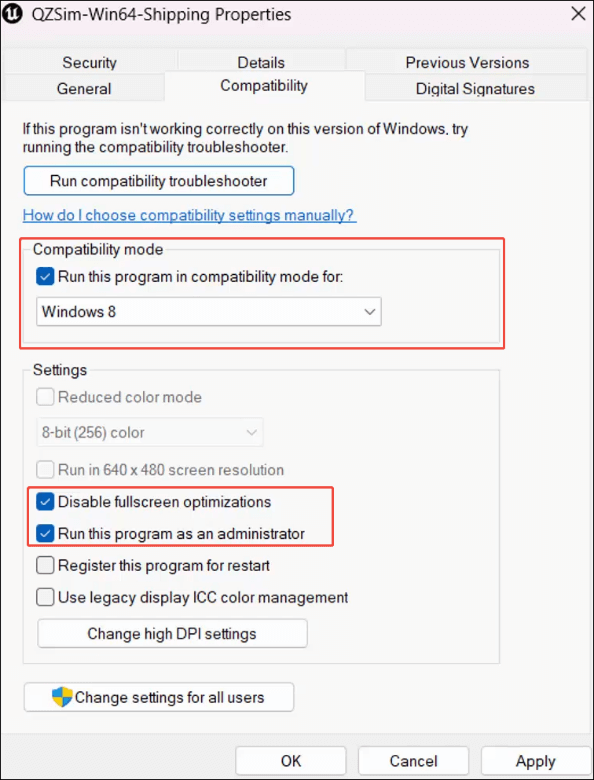
To address any issues related to permissions or compatibility with Quarantine Zone: The Last Check Demo, including Quarantine Zone: The Last Check Demo crashing or not launching, you can launch the game with elevated privileges and run the game in compatibility mode.
- In your Steam Library, right-click Quarantine Zone: The Last Check Demo and select Manage > Browse local files.
- Right-click on the “QZSim” exe file and choose Properties.
- In the window that appears, navigate to the Compatibility tab. Check the box for Run this program in compatibility mode for and select Windows 8 or Windows 7 from the drop-down menu. Next, tick the boxes of Run this program as an administrator and Disable fullscreen optimizations.
- Click Apply > OK to confirm the changes.
- Do the same steps for the QZSim-Win64-Shipping exe file to run it as an administrator.
- Right-click the Steam icon on the desktop and choose Run as administrator.
Method 3. Modify the Game Launch Options
Some players have noted that modifying the launch options helped resolve the Quarantine Zone: The Last Check Demo not launching/crashing problem. You can try this by following these instructions:
- Open Steam and navigate to your Library.
- Right-click Quarantine Zone: The Last Check Demo and choose Properties.
- Go to the General tab and enter this text into the Launch Options box: -dx11.
- Start the game and check whether the issue is gone.
- If these launch options do not resolve the issue, you can test the following options one by one until you find a solution: -dx12/-d3d11/-d3d12. If none of these commands fix the problem, you should clear the command in the box and explore alternative solutions.
Method 4. Run the Game on a Dedicated Graphics Card
Before trying this solution, you must ensure updated your GPU driver first. After updating, follow these steps to run Quarantine Zone: The Last Check Demo on a dedicated graphics card:
- Press Win + I to open Windows Settings, then select System > Display > Graphics from the options on the right.
- Under the Custom options for apps section, click on Add an app, browse to the game installation folder: C:\Program Files (x86) > Steam > steamapps > common > Quarantine Zone The Last Check Demo folder, select “QZSim” exe file, and then click Add.
- Click on Options to open the GPU preference window and choose High performance from the drop-down menu. Afterwards, click the Save button.
- Again, click Add desktop app. Browse to C:\Program Files (x86) > Steam > steamapps > common > Quarantine Zone The Last Check Demo > QZSim > Binaries > Win64 folder. Select QZSim-Win64-Shipping exe file and click on Add.
- After adding, expand it, click Options, select High performance, and click Save.
Method 5. Allow the Game Through Firewall/Antivirus
Sometimes, the Windows firewall or antivirus may block the game from running, causing the Quarantine Zone: The Last Check Demo crashing or not launching issue on PC.
1. Type Windows Security in the Windows Search box and press Enter.
2. Click Virus & threat protection. In the new interface, scroll down and click Manage ransomware protection.

3. Ensure to toggle the Controlled folder access to On and click Allow an app through Controlled folder access. In the pop-up window, click the Yes button.
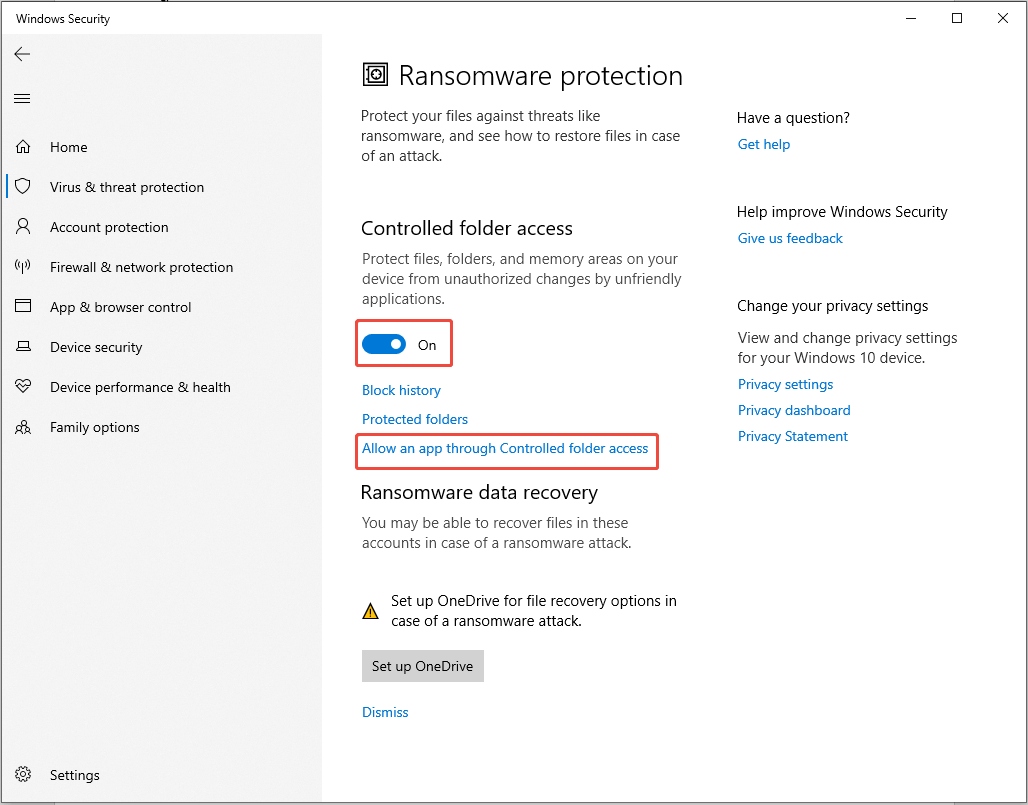
4. Click + Add an allowed app. Then select Browse all apps and browse to C:\Program Files (x86) > Steam > steamapps > common > Quarantine Zone The Last Check Demo folder, select the “QZSim” exe file, and then click Open to add it to the list.
5. Click + Add an allowed app again and click Browse all apps. Navigate to C:\Program Files (x86) > Steam > steamapps > common > Quarantine Zone The Last Check Demo > QZSim > Binaries > Win64 folder, select QZSim-Win64-Shipping exe file, and click Open.
6. Press Win + S to open the Windows Search bar, type Windows Security, and press Enter.
7. Select Firewall & network protection, and then click Allow an app through firewall.
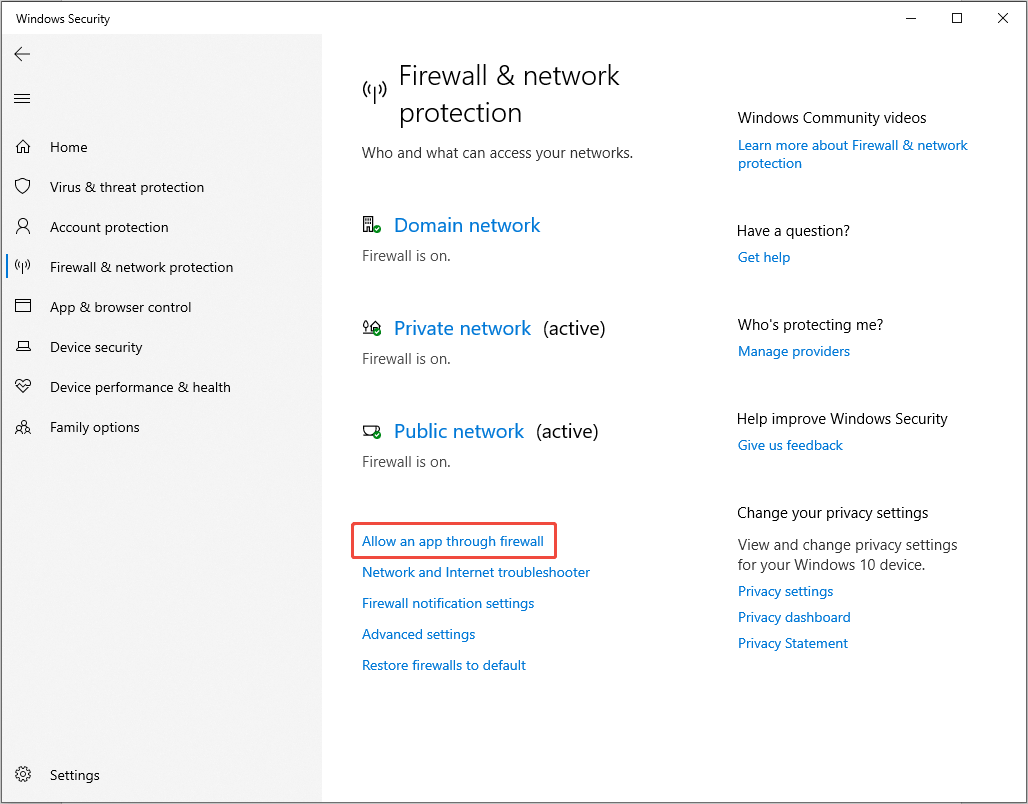
8. click the Change settings button. Then, click the Allow another app button.
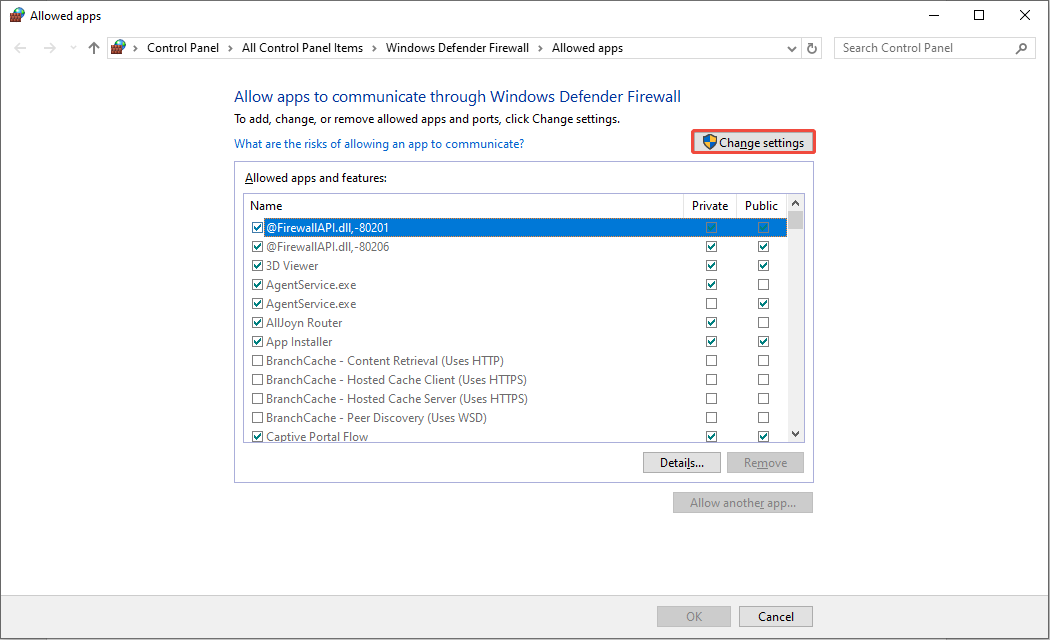
9. Click Browse next to the Path option and add the “QZSim” exe file. After adding, make sure the Private and Public boxes are ticked.
10. Again, add the QZSim-Win64-Shipping exe file and tick the Private and Public boxes.
11. Click the OK button to save the change.

Final Words
This guide offers five feasible ways to fix the Quarantine Zone: The Last Check Demo crashing or not launching issue on PC. Hope you can enjoy your game again.
User Comments :