
If you want to use Razer peripherals, you need to install Razer Synapse on your PC. If Razer Synapse failed to install in Windows 11, what should you do to fix this issue? Don’t worry and you can read this post to find some useful solutions given by MiniTool Software.
Razer Synapse Won’t Install on Windows 11
Razer Synapse is a configuration software that can help you configure your Razer peripherals. This software is very important if you upgrade your PC to Windows 11 and install Razer devices. But the installation process may fail and you are not the only one. According to reports, many users are bothered by this issue. When trying to install Synapse in Windows 11, a failure appears.
The common reasons for this could be conflicts with background processes or programs, firewalls,.NET Framework software missing, and installed Razer device drivers. Fortunately, you can fix it by following the ways below.
Related article: Razer Synapse Not Opening? Try These Methods to Fix It
Fixes for Razer Synapse Not Installing in Windows 11
Close Razer Background Processes
Processes or programs related to Razer can lead to installation failure. If Razer Synapse failed to install in Windows 11, you need to close these background items.
Step 1: Click the search icon, type task manager, and right-click it to open this tool. Or, right-click on the Start button and choose Task Manager.
Step 2: Click Processes and locate all the Razer processes under the Background processes section.
Step 3: Select any that process and click End task.
Install .NET Framework
Microsoft .NET is an app that is very important during the installation of Razer Synapse. If .NET Framework is not up-to-date or there is no such an app, you must encounter the issue of Razer Synapse not installing. To get rid of the issue, install the latest version of the .NET Framework now.
Step 1: Click here to enter a Microsoft webpage and click .NET Framework 4.8 to download.
Step 2: Click the button – Download .NET Framework 4.8 Runtime to continue.
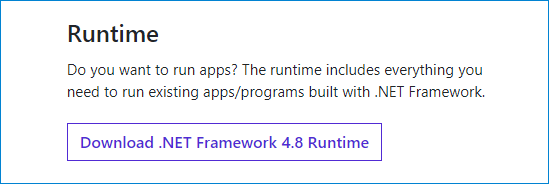
Step 3: Double-click the .exe file to start the installation by following the on-screen instructions.
Disable Windows Firewall
It is very common for Windows Firewall to identify things as a threat during the installation although they are not actually a threat. A common example is Razer Synapse. Firewall can interfere with it, leading to Razer Synapse install error. And a simple solution is to disable it. And in the meantime, disable the antivirus program on your PC.
Step 1: Type Windows Defender Firewall in the search box and click the result to get a new window.
Step 2: Click Turn Windows Defender Firewall on or off to continue.
Step 3: Check the boxes for Turn off Windows Defender Firewall (not recommended).
Step 4: Click OK to save the change.
After that, you should also disable Windows Defender or Windows Security. Here is a related article – How to Enable or Disable Microsoft Defender in Windows 11.
Uninstall Razer Drivers
Sometimes the Razer drivers issue can also cause Razer Synapse to fail to install. You can try to uninstall all the drivers related to Razer and see if the issue can be fixed.
Step 1: Press Win + X and choose Device Manager.
Step 2: Expand the category that includes Razer peripheral, right-click on it and choose Uninstall device.
Step 3: Click Uninstall to confirm the operation.
Repeat these steps for all the Razer devices and then install Razer Synapse again. Next, reconnect your Razer devices to the computer to reinstall the drivers.
Final Words
Razer Synapse failed to install in Windows 11? After trying these solutions above, you can easily get rid of the trouble. If you have any other useful ways to fix Razer Synapse not installing, let us know in the comment below. Thanks.
About The Author

Position: Columnist
Vera has been working at the MiniTool Team for over 10 years as a technical editor and content writer. She mainly focuses on disk and partition management, data recovery, Windows backup and restore, and PC troubleshooting. Through in-depth software testing and hands-on experience, she has helped users solve a wide range of computer problems and better protect their data on Windows devices.
User Comments :