
REMATCH A D3D12-compatible GPU Is Required to Run the Engine
REMATCH is a multiplayer online football game set to launch officially on June 19th. Currently, a beta version is available to players to help improve the game’s online infrastructure and gather user feedback. However, some users who joined the beta test are encountering an error message: “A D3D12-compatible GPU (Feature Level 12.0, Shader Model 6.6) is required to run the engine”.
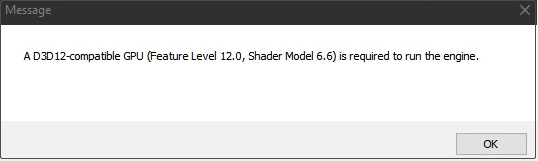
The REMATCH a D3D12-compatible GPU error prevents users from starting the game on Steam. Are you experiencing the same problem? If so, read on to learn more about the error and how to fix it.
How to Fix A D3D12-compatible GPU Error in REMATCH
Fix 1. Upgrade Your GPU
It is certain that REMATCH requires your graphics card to support feature level 12.0 and Shader Model 6.6 as the error message suggests. Even if you have installed the latest version of DirectX, the game won’t run if your GPU does not meet these requirements.
How to check if your graphics card supports feature level 12.0? Follow the steps below.
Step 1. Press the Windows + R key combination to open Run.
Step 2. Type dxdiag in the text box and press Enter to open the DirectX diagnostic tool.
Step 3. Go to the Display tab, and all the supported DirectX feature levels of your graphics card are listed in the Feature Levels section.
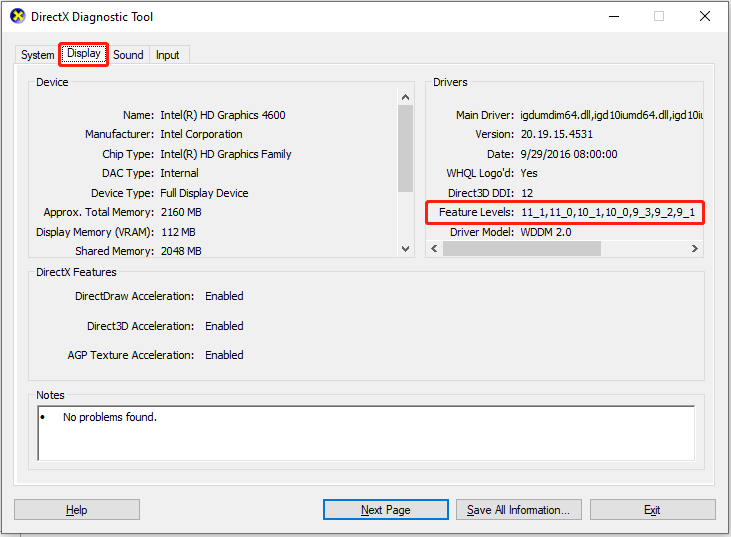
When your GPU does not support feature level 12.0, even if you try to force the game to launch in DirectX 11 using the -dx11 command in Steam’s launch options, the game won’t run because it does not support DirectX 11 at all. Your best option is to hope the developers add DX11 support for the game in the future, but for now, there is no sign that this will happen.
Fix 2. Update the Graphics Card Driver
If your graphics card does support DirectX 12 but you still cannot start REMATCH, there may be issues with the graphics card driver. If the driver is outdated or corrupted, it may cause DirectX function calls to fail. So, it is important to update the graphics card driver.
Step 1. Right-click the Start button on the taskbar and choose Device Manager.
Step 2. Double-click Display adapters to expand it.
Step 3. Right-click your display device and choose Update driver. Next, select Search automatically for drivers to continue.
Alternatively, you can visit the website of your display card manufacturer to download the latest version of the driver, and then install it on your computer.
Fix 3. Update Windows
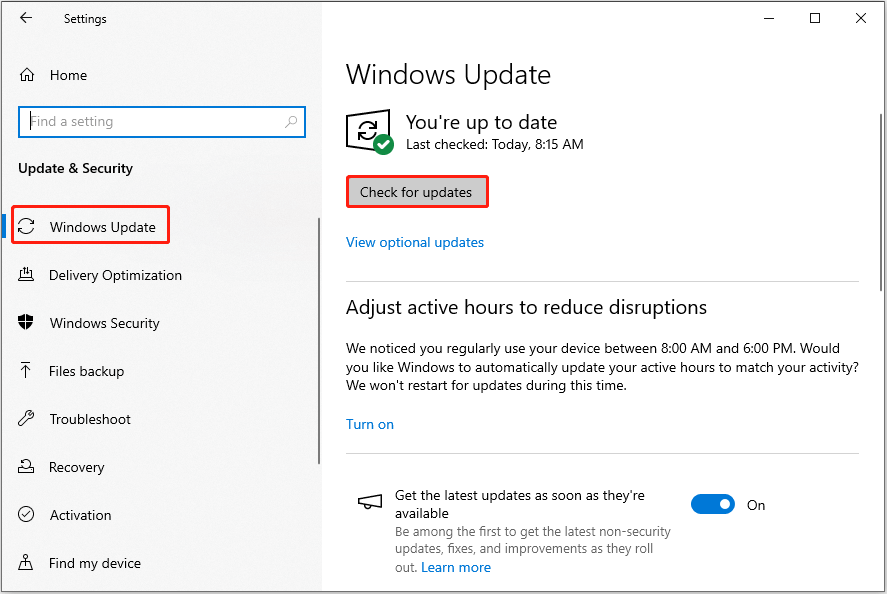
If your current Windows system version is too old, it may lack D3D12 support files, resulting in the REMATCH a D3D12-compatible GPU error. In this case, you need to check for pending Windows updates and then install them.
Important: Typically, Windows updates won’t cause severe damage to your system or files. However, it is always recommended to back up your data or system before installing any updates to prevent potential issues. You can use MiniTool ShadowMaker to back up files/folders, partitions/disks, and even the entire system for free within 30 days.
MiniTool ShadowMaker TrialClick to Download100%Clean & Safe
Here is how to update Windows:
- First, press Windows + I to open Settings.
- Second, select Update & Security > Windows Update, and then click Check for updates in the right panel.
Bottom Line
How to fix the REMATCH a D3D12-compatible GPU error? If your graphics card does not support DirectX 12, the only solution is to upgrade your GPU. However, if it does support DirectX 12, try updating your graphics driver or operating system to resolve the issue.
About The Author

Position: Columnist
Shirley holds a bachelor’s degree in English and has been an editor at the MiniTool Team for many years. She specializes in IT-related content, with a focus on data recovery, file backup, disk management, and other technical topics. She is committed to delivering clear, accurate, and practical solutions to help users resolve common computer issues.
User Comments :