
When you use Google Chrome, you may encounter the network issue - the remote device won't accept the connection. If you want to find some feasible solutions to get rid of the annoying issue, this post from MiniTool is what you need.
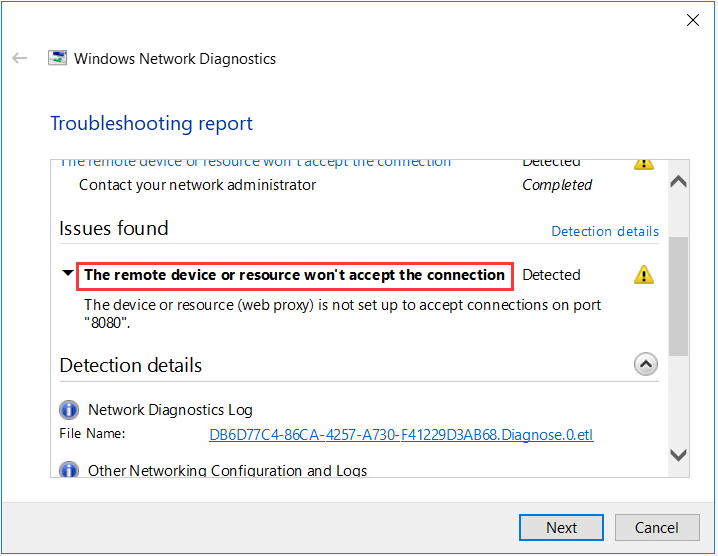
When there is an incorrect configuration amongst your network settings on your computer, the error message – “the remote device or resource won’t accept the connection” occurs. It’s a common error. You can find some quick fixes here to get rid of it.
Solution 1: Turn off Proxy Settings
If you use proxy settings for your work, this may be causing the issue. You can try to disable the proxy server and get the Internet connection without a proxy to fix the remote device won’t accept the connection Windows 10. Here is how to do that:
Step 1: Press the Windows + R keys to open the Run dialogue box. Then, type inetcpl.cpl and click the OK button.
Step 2: Click the Connections tab and click the LAN settings button.
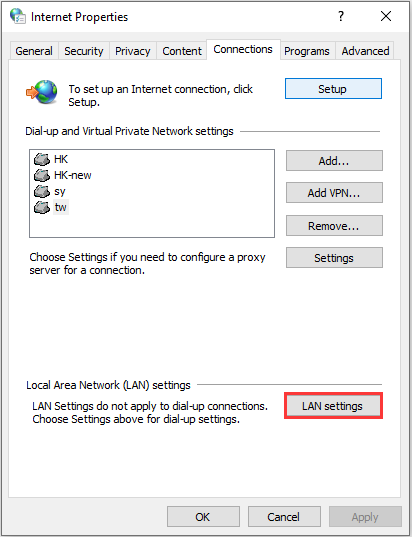
Step 3: Uncheck the Use a proxy server for your LAN box and check the Automatically detect settings box in the Local Area Network Settings window. Then, click the OK button.
Now, restart your browser and check to see if the remote device or resource won’t accept the connection issue has been fixed. If not, try the following solutions.
Solution 2: Reset IE Settings
Another solution you can try is resetting IE settings. It is possible that the internet explorer settings are not configured properly and it might be causing the remote device won’t accept the connection issue. Follow the steps below to fix the error.
Step 1: Open Internet Explorer.
Step 2: Click the gear-like Settings icon at the top-right corner, and select Internet options.
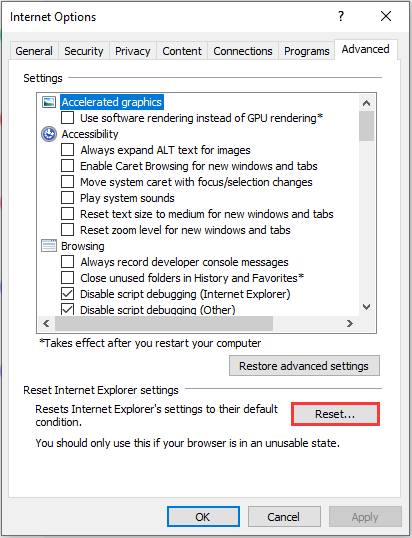
Step 3: Click the Advanced tab, and click the Reset… button to reset the Internet Explorer browser settings. You can also click the Security tab in the Internet Options window, and click Reset all zones to default level to see if it can fix the issue.
Solution 3: Disable Antivirus and Firewall Software
To fix the remote device won’t accept the connection Windows 10 error, you can also try to disable antivirus and firewall software. To disable Windows Defender temporarily, you can refer to this post: 3 Ways to Disable Windows Defender Antivirus on Windows 10.
After you temporarily disable Windows Defender, wait for a few minutes and check to see if the issue has been fixed.
Solution 4: Use Command Prompt
You may encounter the remote device won’t accept the connection error if you are trying to access a server in a specific domain. In this case, it means that the remote connection to the destination address failed. You can try to execute an elevated command to fix the issue. The steps are as follows:
Step 1: Press the Windows + S keys and type command prompt. Then, right-click the application and select Run as administrator.
Step 2: Then, execute the command: GPUPDATE /FORCE. Then, check if the problem gets solved.
![[Fixed] Command Prompt (CMD) Not Working/Opening Windows 10?](https://images.minitool.com/minitool.com/images/uploads/2020/01/fix-command-prompt-not-working-thumbnail.jpg)
Final Words
To sum up, this post has shown how to fix the remote device won’t accept the connection error with detailed instructions. If you encounter the same issue, you can try the instructions listed above. If you have some different ideas, you can share it in the comment zone.
User Comments :