
What causes the error Reset to device, \Device\RaidPort0, was issued? How to fix the error reset to device device raidport0 was issued? This post from MiniTool will show you 6 solutions.
What Causes the Error Reset to Device, \Device\RaidPort0 Was Issued?
If your computer usually freezes, you may receive the error message Reset to device, \Device\RaidPort0, was issued. This issue often occurs on Windows PCs or Windows Servers.
The reset to device device raidport0 was issued error is often caused by the Windows power setting configurations, SATA Controller cards or other reasons.
So in the following section, we will show you how to fix the Reset to device device raidport0 was issued Windows 10 error.
6 Solutions: Reset to Device, \Device\RaidPort0 Was Issued
In this part, there are 6 solutions to fix the error Reset to device, \Device\RaidPort0, was issued.
- Perform System File Checking
- Run Disk Scan
- Adjust Power Settings
- Configure Power Plan Settings
- Update AHCI Driver
- Turn off Fast Startup
Now, we will show you the detailed solutions one by one.
Solution 1. Perform System File Checking
If there are corrupted system files on your computer, you may encounter the error reset to device device raidport0 was issued.
Now, here is the tutorial.
Step 1: Type Command Prompt in the search box of Windows and choose the best-matched one. Then right-click it to choose Run as administrator.
Step 2: In the command line window, type the sfc /scannow command and hit Enter to continue.
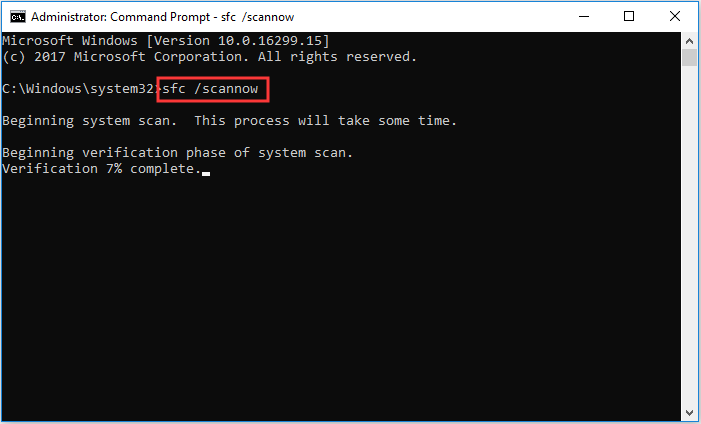
Then you need to wait for the process to be finished. Please do not close the command line window until you see the message verification 100% complete.
Related article: Quickly Fix – SFC Scannow Not Working (Focus on 2 Cases)
When it is finished, reboot your computer and check whether the error Reset to device, \Device\RaidPort0, was issued is solved.
If this solution does not take effect, try the following solutions.
Solution 2. Run Disk Scan
The second solution you can try is to run disk scan to check whether there are bad sectors on hard drive and repair them.
Now, here is the tutorial.
Step 1: Open Command Prompt and run it as administrator.
Step 2: Type the command chkdsk /r and hit Enter to continue.
When it is finished, reboot your computer and check whether the error Reset to device, \Device\RaidPort0 was issued is solved.
Solution 3. Adjust Power Settings
In general, adjusting power settings is able to fix the error reset to device device raidport0 was issued. If you come across the same issue, try this solution.
Now, here is the tutorial.
Step 1: Press Windows key and R key together to open Run dialog, then type the regedit in the box and click OK to continue.
Step 2: In the Registry Editor window, navigate to the following folder.
Computer\HKEY_LOCAL_MACHINE\SYSTEM\CurrentControlSet\Control\Power\PowerSettings\012ee47-9041-4b5d-9b77-535fba8b1442\0b2d69d7-a2a1-449c-9680-f91c70521c60
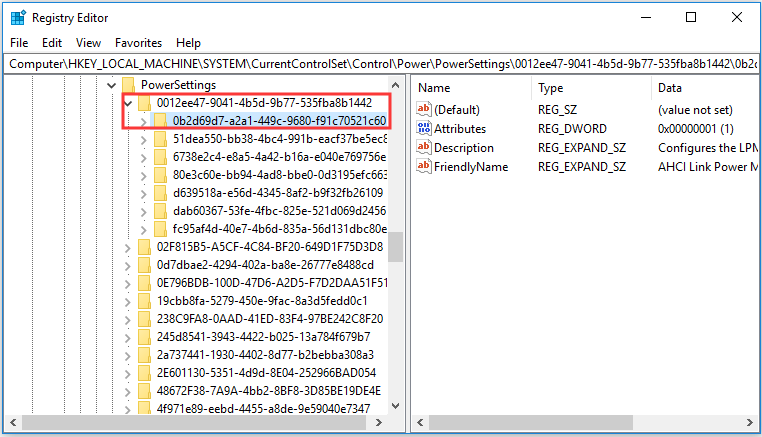
Step 3: Double-click Attributes and change its value data to 2. Then press OK to continue.
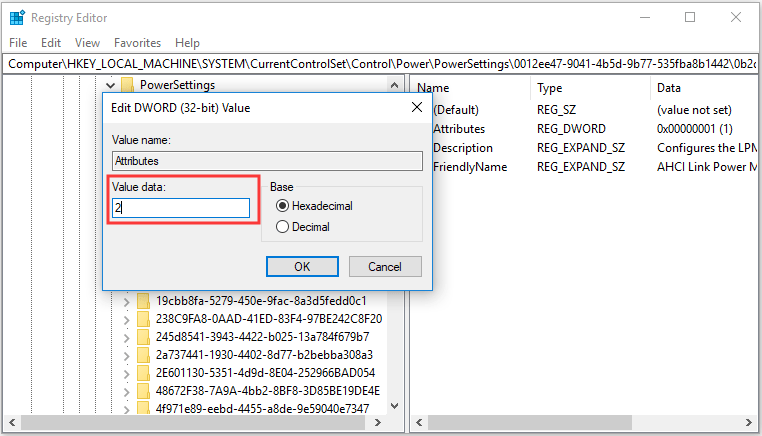
Step 4: Next, navigate to the HKEY_LOCAL_MACHINE\SYSTEM\CurrentControlSet\Control\Power\PowerSettings\012ee47-9041-4b5d-9b77-535fba8b1442\dab60367-53fe-4fbc-825e-521d069d2456.
Step 5: Double-click the Attributed and change its value data to 2. Then exit the Registry Editor window.
Step 6: Open Run dialog again and type the powercfg.cpl in the box and click OK to continue.
Step 7: In the pop-up window, click Change plan settings and change advanced power settings to continue.
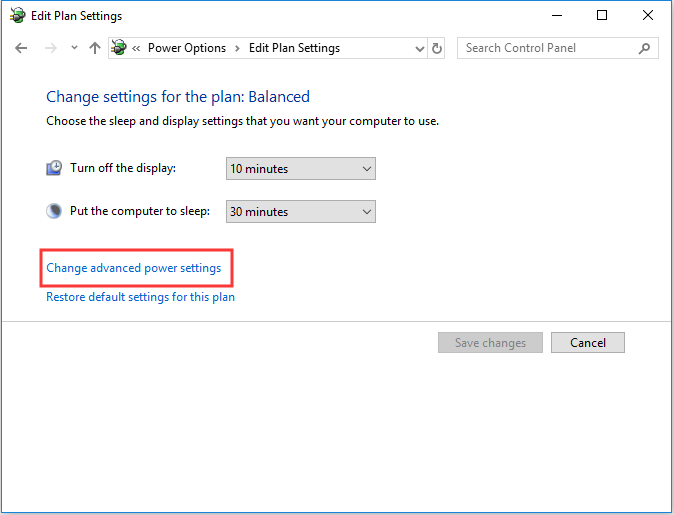
Step 8: Double-click Hard Disk to expand it.
Step 9: Double-click AHCI Link Power Management – HIPM/DIPM and switch both its On battery and Plugged in options to Active.
Step 10: Double-click AHCI Link Power Management – Adaptive and switch the On battery and Plugged in settings to 0.
Step 11: Double-click Turn off hard disk after and change the On battery to Never.
Step 12: Then click Apply and OK to confirm the changes.
After that, reboot your computer to check whether the error Reset to device, \Device\RaidPort0,was issued is solved.
Solution 4. Configure Power Plan Settings
The fourth solution you can try is to configure power plan settings.
Now, here is the tutorial.
Step 1: Open the Power Options window as the method listed above.
Step 2: Change the power plan to High performance. Then the PCI Express will be configured to off.
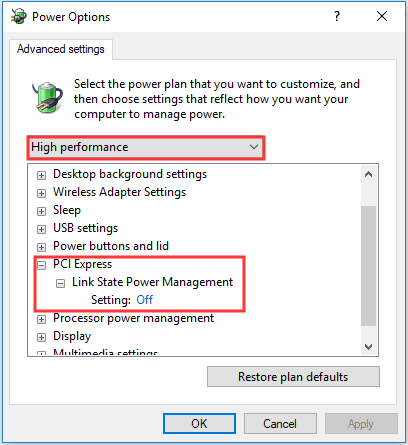
When it is finished, reboot your computer and check whether the issue Reset to device. \Device\RaidPort0 was issued is solved.
Solution 5. Update AHCI Driver
To resolve the error reset to device device raidport0 was issued Windows 10, you can try updating the AHCI driver.
Now, here is the tutorial.
Step 1: Press Windows key and R key together to open Run dialog, then type devmgmt.msc in the box and click OK to continue.
Step 2: In the pop-up window, expand the IDE ATA/ATAPI controllers and select the AHCI controller. Then right-click it to choose Update driver to continue.
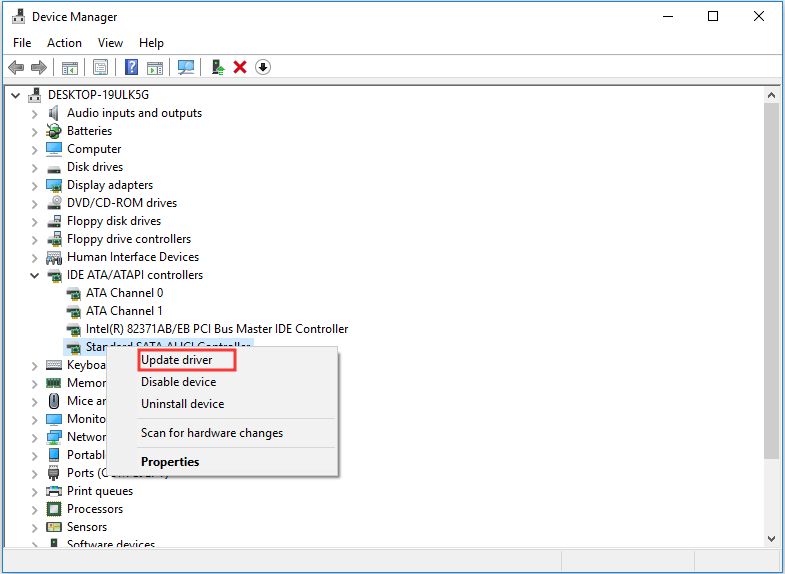
Step 3: In the pop-up window, click Search automatically for update driver software to continue.
Then you can follow the instruction to continue. When it is finished, you can reboot your computer to check whether the issue Reset to device, \Device\RaidPort0, was issued is solved.
Solution 6. Turn off Fast Startup
The last solution you can try is to turn off fast startup.
Now, here is the tutorial.
Step 1: Press Windows key and R key together to open Run dialog, then type the powercfg.cpl in the box and click OK to continue.
Step 2: In the pop-up window, click Choose what the power button does.
Step 3: Choose Change settings that are currently unavailable to continue.
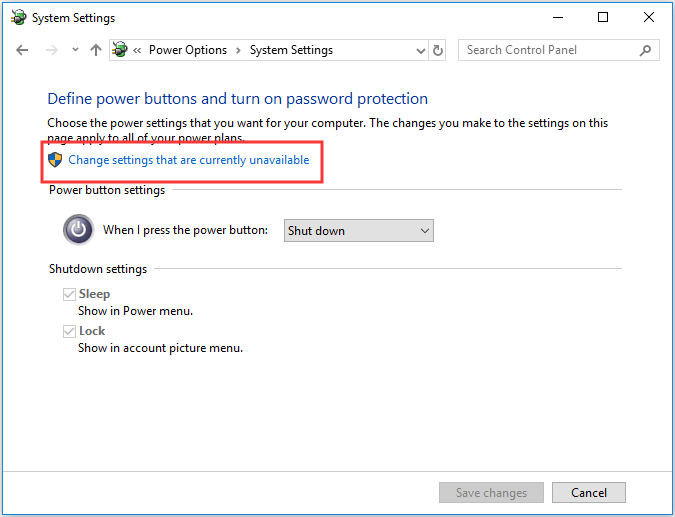
Step 3: Uncheck the option Turn on fast startup.
When it is finished, reboot your computer and check whether the error Reset to device, \Device\RaidPort0, was issued is solved.
Final Words
To sum up, this post has introduced 6 ways to fix the Reset to device, \Device\RaidPort0, was issued error. If you have any better solution to fix this error, please share it in the comment zone.
User Comments :