
There's nothing more satisfying than encountering the Revenge of the Savage Planet crashing or not launching issue on a PC. Fear not, as here you will find a couple of fixes provided by MiniTool to resolve these vexing problems.
Revenge of the Savage Planet is an exhilarating new adventure game where players journey between different planets, collecting resources and seeking ways to return to Earth. Although the game isn’t particularly demanding on hardware, you may experience performance issues like Revenge of the Savage Planet crashing/not launching if your download encounters issues or your PC isn’t fully updated.
Fortunately, there are several straightforward methods to improve performance without needing to wait for a patch from the developers, and in this guide, we’ll outline all the steps you can take to resolve the Revenge of the Savage Planet not launching or crashing issue to enhance your gaming experience in Revenge of the Savage Planet on PC.
Fix 1. Run the Game as Administrator
Running the Revenge of the Savage Planet with administrative privileges can resolve permission-related crashes. This method allows the game to access necessary system resources without restrictions, potentially preventing interruptions and ensuring a smoother gaming experience.
- According to your game service, locate the Revenge of the Savage Planet file location. For instance, open Steam, go to your Library, locate and right-click Revenge of the Savage Planet, and then choose Properties. Next, in the pop-up window, go to the Installed Files tab and click the Browse button.
- After locating the game folder, right-click the Revenge of the Savage Planet EXE file and select Properties.
- Once you see the interface, navigate to the Compatibility section and check the box for Run this program as administrator.
- Click Apply > Ok.
- You can choose Run this program in compatibility mode for and select Windows 8.
Fix 2. Disable Overlays
If Revenge of the Savage Planet crashes at startup or won’t launch, consider disabling overlays. Although overlays are useful to display additional information or tools on top of existing content, they can sometimes negatively impact overall performance.
>> For Discord:
- Navigate to User Settings > Overlay.
- Disable Enable in-game overlay.
>> For NVIDIA GeForce Experience:
- Launch GeForce Experience.
- Click on the gear icon (Settings).
- Turn off In-Game Overlay.
>> For Steam:
- Launch Steam on your computer.
- Click on Library.
- Right-click the Revenge of the Savage Planet and select Properties.
- Go to the General section.
- Uncheck the box for Enable the Steam Overlay while in-game to deactivate the Steam Overlay for that specific game.
- Click OK to apply the changes.
Fix 3. Update the GPU Drivers
Outdated drivers of your graphics card can trigger the issue that Revenge of the Savage Planet keeps crashing, stuttering, and experiencing frame drops. Therefore, you can follow the step-by-step instructions to update your graphics driver:
Nvidia users:
- Launch the Nvidia application or visit the Nvidia Driver official website.
- You will see the Drivers section on the left side of the display. Click it to look for any new driver updates for your GPU.
- If new drivers are available, click on Download.
- After the download finishes, proceed to install the drivers by selecting Express Installation.
AMD users:
- Download and launch the AMD Adrenalin Edition application, or go to the AMD Drivers page. It will automatically detect any outstanding driver updates.
- If there is a driver update available, click on Download Now.
- Once the download completes, the installation of the driver will start automatically.
From Device Manager:
- Press Win + X to open the Power User menu and select Device Manager from the list.
- Unfold the Display adapters category.
- Right-click your graphics card and select Update driver.
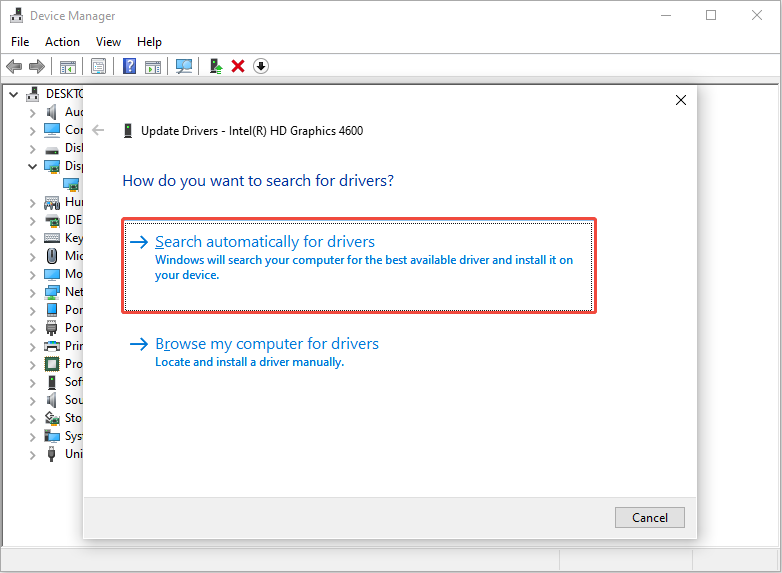
- In the new window, select Search automatically for drivers. Next, follow the on-screen instructions to complete the update.
Fix 4. Verify the Integrity of Game Files
Corrupted or missing game files can cause the issue that Revenge of the Savage Planet won’t launch or even crash. Here’s the breakdown you can follow to verify the integrity of the game files:
- Start Steam on your computer.
- Access your Game Library.
- Right-click on Revenge of the Savage Planet and choose Properties.
- Navigate to the Installed Files section.
- Click on Verify Integrity of Game Files and allow Steam to examine everything.
Other Possible Steps to Take:
- Close Background Applications
- Check for Windows and System Updates
- Reinstall the Game
MiniTool System Booster TrialClick to Download100%Clean & Safe
Bottom Line
Now you should know how to resolve the Revenge of the Savage Planet crashing/not launching issue on PC. Hope the information can be useful for you.
User Comments :