
Is Sea of Thieves not launching? How do you launch this app? The answer to this question can be found in this post. Just read this post offered by MiniTool and then you can easily fix your issue after trying these solutions mentioned.
Sea of Thieves Won’t Launch PC
Sea of Thieves is an action-adventure game published by Microsoft Studios and developed by Rare. Players play the role of pirates to enjoy the game. It is compatible with Xbox One, Steam, and Windows.
Since Sea of Thieves was released, this outstanding multiplayer game has been popular with persons. However, like any other game, this game also goes wrong. For example, many users have reported that they cannot launch this game not to speak of playing it.
When running this game, it may stay on the splash screen for a few minutes or so and just closes. This is quite annoying. Fortunately, you can fix this issue by following these solutions below.
Solutions to Sea of Thieves Not Launching
Make Sure Windows Is Up-to-Date
Updating your Windows operating system to the latest version is helpful if Sea of Thieves opens then closes.
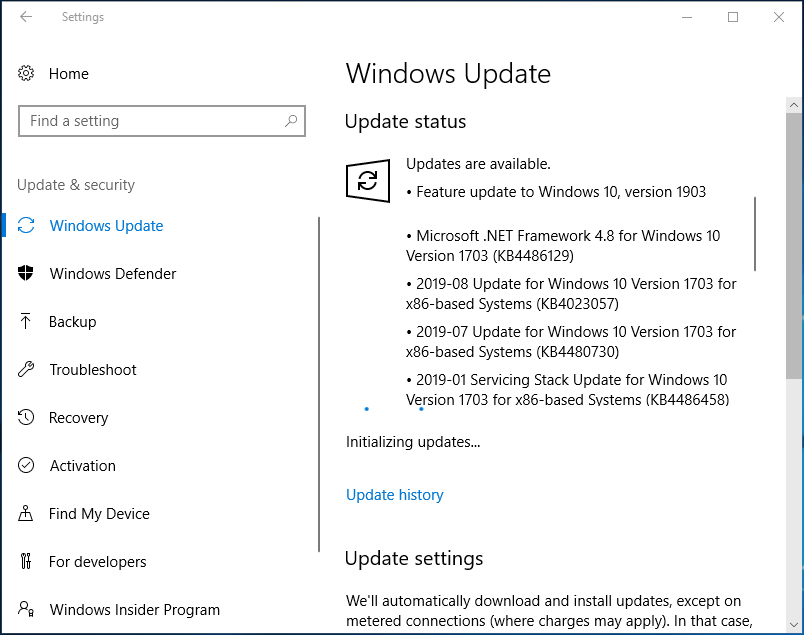
Just go to Start > Settings > Update & Security. Under the Windows Update tab, click Check for updates, and Windows will detect and download the available updates. Restart the PC if you are required to finish the updates.
Run Sea of Thieves as Administrator
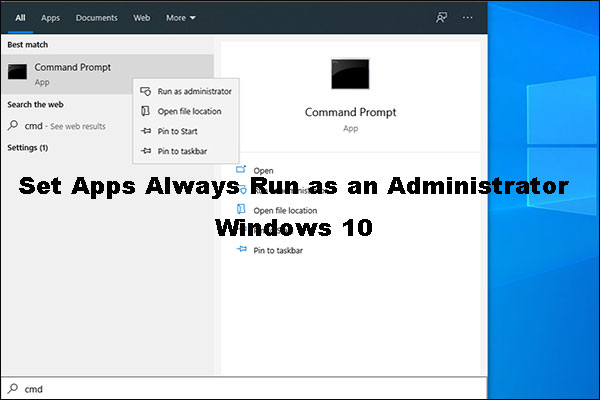
Sea of Thieves not launching may be triggered due to the privilege issue. So, you can try to run this game as an administrator to see if your issue is fixed.
Step 1: Right-click the icon of Sea of Thieves and choose Properties.
Step 2: Go to the Compatibility tab, check the option of Run this program as an administrator, and save the change.
Reset the App
Resetting Sea of Thieves can be a good option for you if it won’t open. Follow these steps:
Step 1: Uninstall this app via Windows Apps settings.
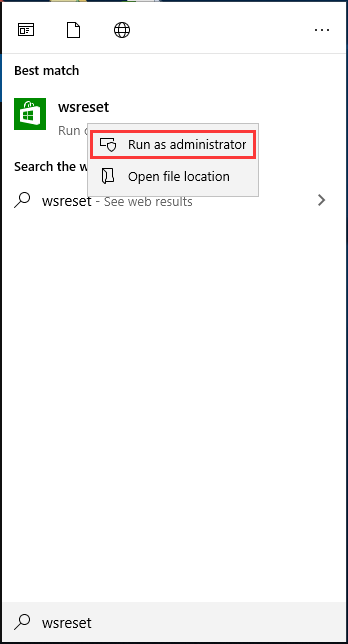
Step 2: Type wsreset to the search box and run this command with admin rights.
Step 3: Reinstall this game.
Step 4: Go to Settings > Apps, find Sea of Thieves, and click Advanced options.
Step 5: Click Reset.
Use PowerShell
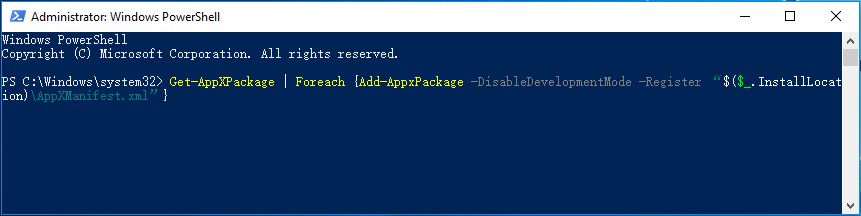
You can use PowerShell to force Sea of Thieves to launch.
Step 1: Right-click the Start button and choose Windows PowerShell (Admin).
Step 2: Copy and paste the command to the PowerShell window: Get-AppXPackage | Foreach {Add-AppxPackage -DisableDevelopmentMode -Register “$($_.InstallLocation)\AppXManifest.xml”} and press Enter.
Change the Time & Region
The incorrect time and region may cause Sea of Thieves not launching. When running this app, the game will compare the time and date via the Internet. If the PC’s time zone is different from the region, the connection fails and the issue happens. Just have a check.
Step 1: Press Win + I to open Windows Settings.
Step 2: Click Time & Language > Region & language, ensure the region and language is correct.
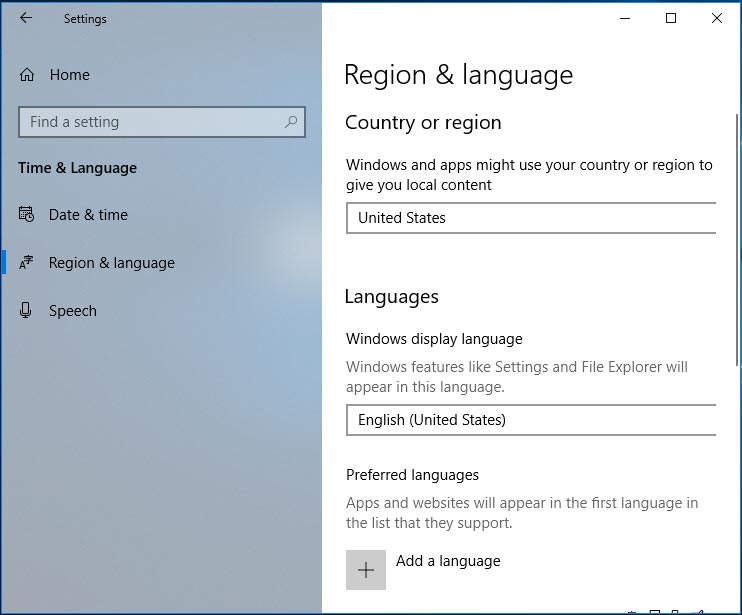
Step 3: Reboot the PC and re-launch Sea of Thieves.
Clear All Extra Windows 10 Store Accounts
Step 1: Open Windows 10 Store, click on the profile picture in the top right corner.
Step 2: Sign out all of the accounts if you have multiple accounts signed in. Only leave the email account linked to the purchase of the game signed in.
Step 3: Download any free app.
Step 4: Play Sea of Thieves via the Library page of Windows 10 Store.
Other Solutions:
- Set time automatically
- Update graphics card driver
The End
Is Sea of Thieves not launching in Windows 10? After trying these solutions, you should run this game properly. Just try these solutions if Sea of Thieves won’t open.
About The Author

Position: Columnist
Vera has been working at the MiniTool Team for over 10 years as a technical editor and content writer. She mainly focuses on disk and partition management, data recovery, Windows backup and restore, and PC troubleshooting. Through in-depth software testing and hands-on experience, she has helped users solve a wide range of computer problems and better protect their data on Windows devices.
User Comments :