
If your TV doesn’t have the cast feature, you can use Google Chromecast to cast your device to your TV. However, if you can’t do it because you receive the error source not supported, you need to do something to fix it. In this MiniTool post, we will show you some effective solutions.
Source Not Supported Chromecast!
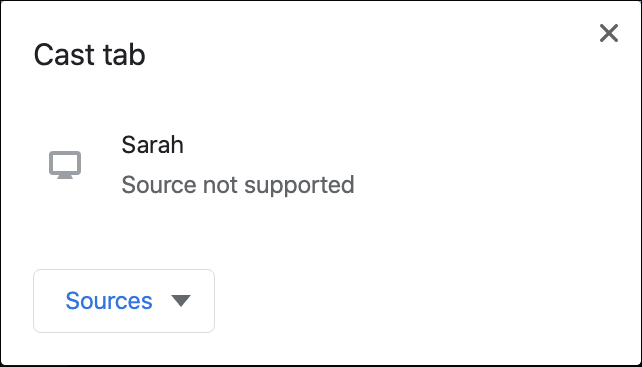
You can cast your phone or computer to your TV via Chromecast. When you set up Chromecast, you may see a pop-up window with an error message: Source not supported. The following image is an example.
Recommendation: How to Set up Chromcast on Windows 10 and Cast the Screen
If you also stumble upon this issue and don’t know how to remove this error, this post will be helpful. We will show you some solutions that are proved to be effective. You can try them and find a suitable one to solve your issue.
How to Fix Chromecast Source Not Supported?
- Enable the mirroring service
- Restart your Chromecast, computer, and Wi-Fi router
- Disable all ad-blockers and VPN
- Enable the Cast Media Route Provider option
- Update Chrome
- Factory reset your Chromecast
Fix 1: Enable the Mirroring Service
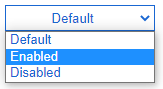
If you can’t cast your computer to your TV screen via Chromecast, you can go to check whether the Mirroring service is enabled. Usually, it is not enabled by default. You need to enable it manually.
- Open Google Chrome.
- Copy and paste chrome://flags/ to the address bar and press Enter.
- Type mirror in the search box and you will see the mirroring service.
- Expand the menu next to it and select Enabled.
Fix 2: Restart Your Chromecast, Computer, and Wi-Fi Router
The temporary errors in your devices can also cause Chromecast source not supported. To remove these errors, you can disconnect your Chromecast from your TV, and restart both your TV and computer. After that, you can cast your computer using your Chromecast to see whether the error source not supported disappears.
Recommendation: How to Cast YouTube to TV? Some Tips You Should Know
Fix 3: Disable All Ad-Blockers and VPN
To block ads on your web browser, you may install some ad-blockers (they are just Chrome extensions). But they can be the cause of source not supported Chromecast. You can disable these extensions and check whether you can use Chromecast to cast your computer.
If the issue persists, you also need to disable VPN on your computer: click the VPN service you are using and click the Disconnect button.
Fix 4: Enable the Cast Media Route Provider Option
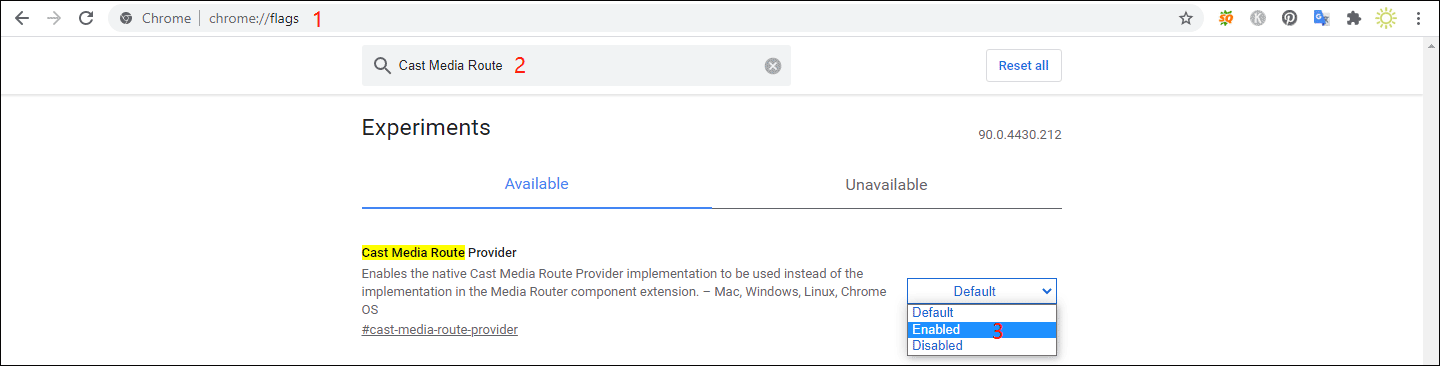
- Open Chrome.
- Copy and paste chrome://flags/ to the address bar and press Enter.
- Type Cast Media Route in the search box and press Enter.
- Expand the menu next to Cast Media Route Provider and select Enabled.
Fix 5: Update Chrome
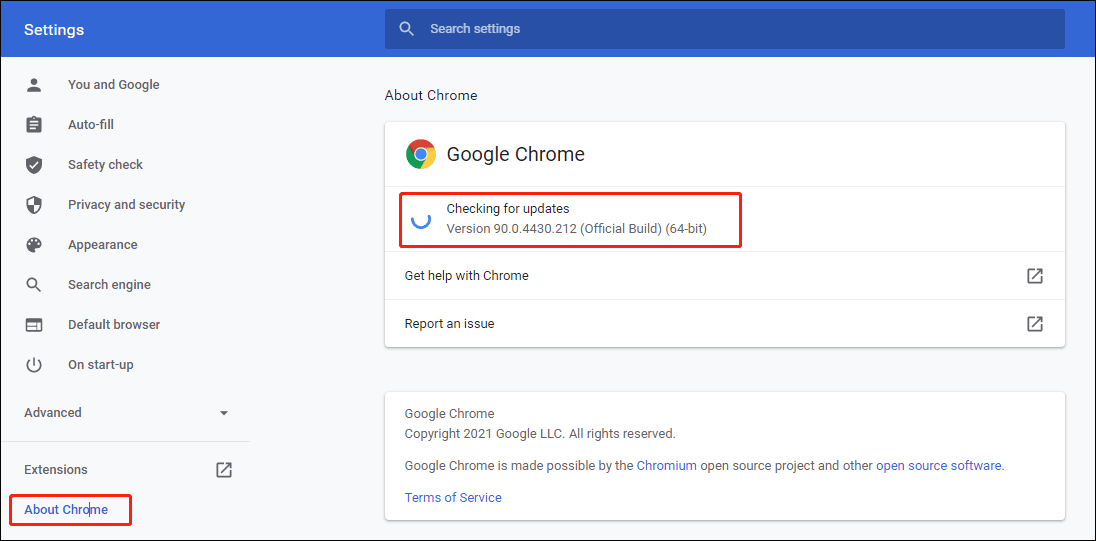
- Open Chrome.
- Go to Settings > About Chrome. Then Chrome automatically starts to check for updates and install the latest version.
Fix 6: Factory Reset Your Chromecast
If all of the above solutions can’t help you solve the issue, you can consider restoring your Chromecast to factory settings. This will clear all your data and can’t be restored.
Those are the solutions to Source not supported Chromecast. There should be a suitable one for you. If you have other useful fixes, you can let us know in the comments.
About The Author

Position: Columnist
Stella has been working in MiniTool Software as an English Editor for more than 8 years. Her articles mainly cover the fields of data recovery including storage media data recovery, phone data recovery, and photo recovery, videos download, partition management, and video & audio format conversions.
User Comments :