
If you don’t want previous applications or folders to automatically open on startup or after logon, you can take measures to stop Windows 11 from reopening apps/folders. How can you do this work? Read this post from MiniTool Solution and you can find what you should do.
Auto Restart Apps/Folders Windows 11
For a web browser, it usually reopens the previously opened tabs after a restart. Likewise, Windows 11 allows you to restore previously opened apps on startup or after logon. This feature is useful since it can help save time and let you easily go back to the unfinished work.
But this is not always perfect and it is possible to be counterproductive. If Windows needs to relaunch many apps, rebooting the PC to access these apps can increase the logon time. The more apps, the longer the time. To avoid this situation, you can choose to stop Windows 11 from reopening apps.
Besides, Windows 11 can also reopen recent folders. This is a good choice if you power off the computer when you don’t finish the work. And you don’t need to remember which folder you are working on. If you want to get a clean desktop, you can disable this feature.
In the following part, we will show you how to automatically stop apps/folders opening in Windows 11.
How to Stop: Windows 11 Reopen Applications after Shutdown/on Startup
Here is how to stop apps from opening on startup or logon in Windows 11.
Step 1: Launch Windows 11 Settings by pressing Win + I or clicking Start > Settings. (Related article: Windows 11 New Settings: How to Open it? | How to Use It?)
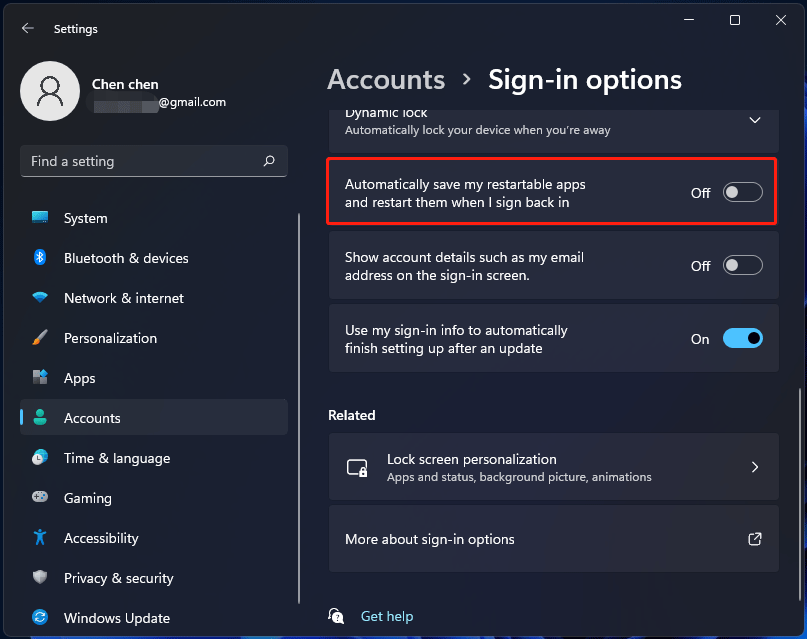
Step 2: Click Accounts from the left pane and click Sign-in options in the right pane.
Step 3: Scroll down to find the option for Automatically save my restartable apps and restart them when I sign back in. Switch the toggle to Off. Now, you successfully stop Windows 11 from reopening apps.
How to Stop Windows 11 from Reopening Folders
Step 1: Launch File Explorer in Windows 11.
Step 2: Click the three-dot menu in the upper right corner and choose Options.
Step 3: Go to the View tab, uncheck Restore previous folder windows at logon in the Advanced settings section and click OK to save the change.
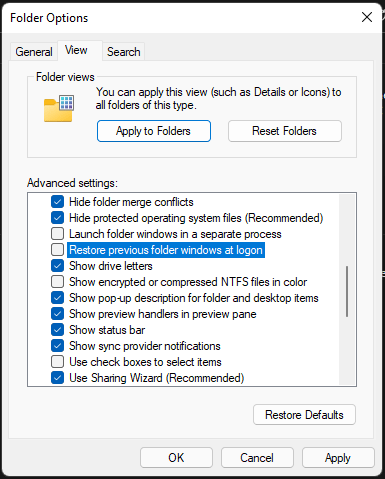
Now, previous folders won’t open automatically when you start your computer.
How to Disable Startup Programs in Windows 11
Sometimes apps still run automatically at startup although you have stopped them from reopening in Windows 11 settings. In this situation, you need to disable startup apps in Task Manager.
Step 1: Right-click on the Start button and choose Task Manager.
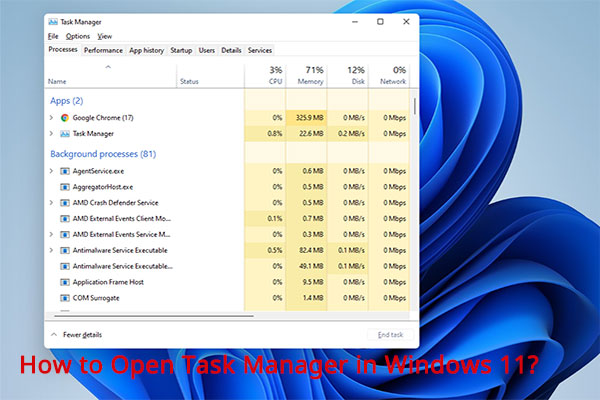
Step 2: Go to the Startup tab and you can see a list of disabled and enabled startup apps.
Step 3: Click the one you want to disable at startup and choose Disable.
Like that, the app won’t open when you boot up Windows 11.
Wrapping Things up
That’s all the information about how to stop apps automatically opening, how to stop folders from automatically opening and how to disable startup programs in Windows 11. Just follow the steps above for your task.
About The Author

Position: Columnist
Vera has been working at the MiniTool Team for over 10 years as a technical editor and content writer. She mainly focuses on disk and partition management, data recovery, Windows backup and restore, and PC troubleshooting. Through in-depth software testing and hands-on experience, she has helped users solve a wide range of computer problems and better protect their data on Windows devices.
User Comments :