
What causes the issue that sync is not available for your account? How to solve this sync problem? This post from MiniTool will show you how to solve the issue that sync is not available for your account azure. In addition, you can visit MiniTool to learn more Windows solutions and tips.
What Causes the Issue That Sync Is Not Available for Your Account?
When you want to enable sync on Windows 10, you may encounter the problem that sync is not available for your account contact your system administrator to resolve it. This sync problem can be caused by various reasons. Here, we briefly show some reasons.
- The file system is corrupted.
- Azure doesn’t allow syncing.
- The Registry policy doesn’t allow syncing.
- Microsoft account is not verified.
- The account is not correct.
Of course, there are some other reasons that may lead to the issue that sync is not available for your account. However, do you know how to solve the problem that Windows 10 sync is not available for your account?
Meanwhile, in the following section, we will show you the solutions one by one.
5 Solutions to the Issue That Sync Is Not Available for Your Account
This part will list some solutions to solve the issue that Sync is not available for your account.
Solution 1. Remove Work or School Account
The first way you can try is to remove the work or school account. In most cases, the issue that sync is not available for your account occurs due to a problem with connected accounts in the Access work or school settings page.
So, in order to solve it, you can try to remove work or school account. In general, removing the work or school account can solve the issue that sync is not available for your account.
Now, here is the tutorial.
Step 1: Press Windows key and R key together to open Run dialog, then type ms-settings:workplace in the box and click OK to continue.
Step 2: Then you will enter the Access work and school section. You will find the account connected with work and school. Then click Disconnect to continue.
Step 3: After removing the account, press Windows key and R key together to open Run dialog, then type ms-settings:sync in the box and click OK to continue.
Step 4: In the pop-up window, switch Sync settings to On.
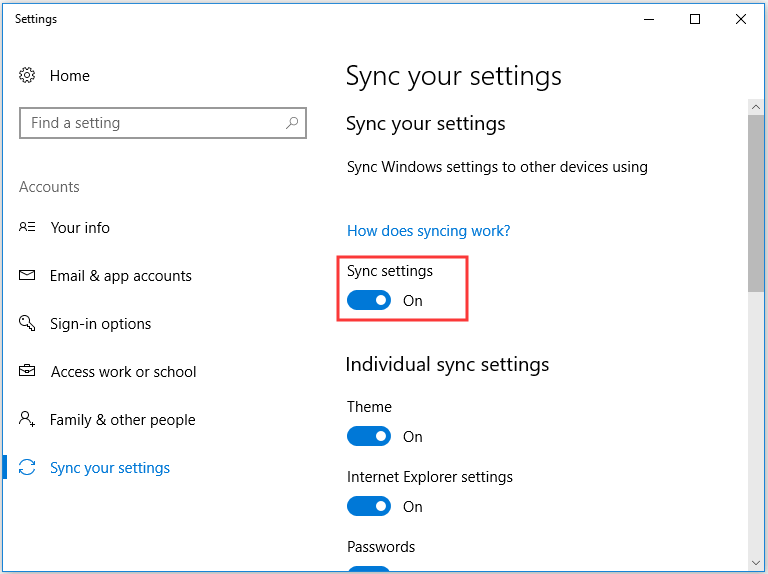
If you have finished all steps, you can check whether the issue that sync is not available for your account is solved.
Solution 2. Verify Microsoft Account
As mentioned in the above part, the issue that Windows 10 sync is not available for your account may be caused by the incorrect Microsoft account.
So, in order to solve this sync problem, you can try to verify the Microsoft account.
Now, here is the tutorial.
Step 1: Click here to visit Microsoft account website. Then click Sign in button to continue.
Step 2: Next, input your Microsoft account.

Step 3: After signing in, go to Your Info > Security& Privacy to verify your Microsoft account.
Step 4: After that, go to the Sync your settings page and change Sync settings to On.
When it is finished, check the issue that sync is not available for your account is solved.
Solution 3. Modify the Registry Editor
The third solution to fix the issue that sync is not available for your account is to modify the Registry Editor.
Now, here is the tutorial.
Step 1: Press Windows key and R key together to open Run dialog, then type regedit in the box and click OK to continue.
Step 2: In the pop-up window, navigate to the following path:
HKEY_LOCAL_MACHINE\SOFTWARE\Microsoft\Windows\CurrentVersion\Policies\System
Step 3: On the right panel, find the NoConnectedUser key and double-click it. Then change its value data to 0.
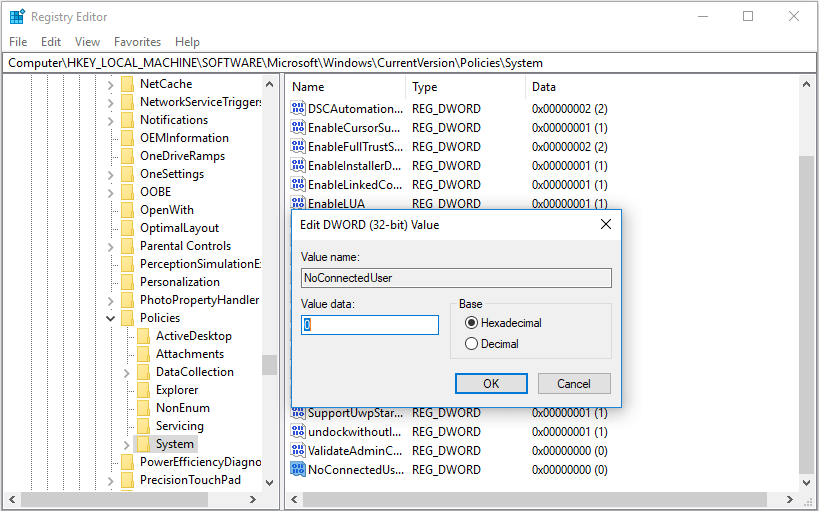
When it is finished, reboot your computer and check whether the issue that Sync is not available for your account is solved.
Solution 4. Enable Sync from Azure Active Directory
There is an available way for you to solve the issue that sync is not available for your account. But this solution only suits for the users who have an Azure Active Directory account. If you don’t have, ignore this way.
Now, here is the tutorial.
Step 1: Click here to login in your Azure Active Directory account.
Step 2: Then go to Azure Active Directory > Device Settings.
Step 3: On the right section, change User may sync settings and app data to All.
Step 4: After that, go to Sync your settings page again and change Sync settings to On.
When it is finished, check whether the issue of sync is not available for your account contact your system administrator to resolve it is solved.
Solution 5: Reinstall the Operating System
If none of the above solutions is effective, you may need to reinstall the operating system. In general, reinstalling OS can solve system-related problems.
However, before reinstalling the OS, please back up all your important files in advance. After ensuring your data is safe, you can continue to reinstall the operating system.
When it is finished, we believe the issue that sync is not available for your account is solved.
Final Words
To sum up, this post has introduced 5 ways to solve the issue that sync is not available for your account Windows 10. If you have encountered the same issue, try these solutions to help out.
User Comments :