
Task Manager Crashes on Startup/Launch
Task Manager is a practical built-in gadget that is used to end background processes, monitor system performance, manage startup items, and more. Sometimes, when you try to open the Task Manager, it may close immediately or pop up some error message indicating that it cannot run. When Task Manager keeps crashing, you cannot end the unresponsive process or perform other operations unless you force restart the computer, which brings a bad computer experience.
In this case, you can use the following approaches to fix the Task Manager crashing issue completely.
How to Fix Task Manager Crashing Windows 10/11
Method 1. Check for Corrupted System Files
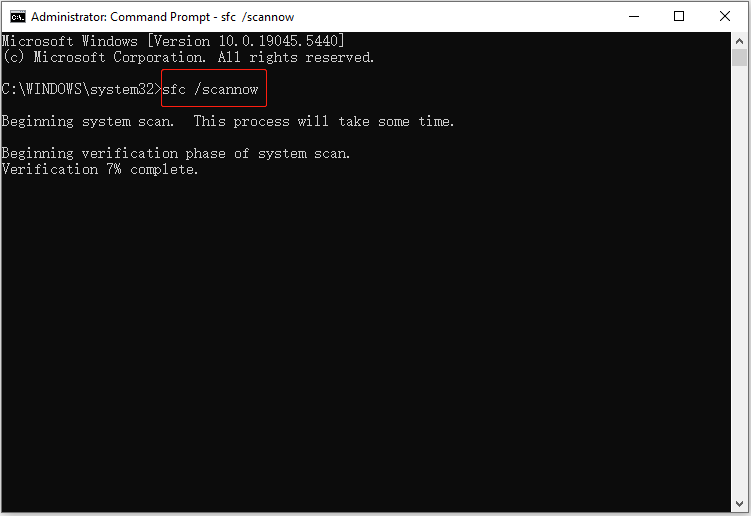
Corrupted or missing system files can lead to various computer problems including Task Manager crashes on launch issues. Therefore, it is necessary to run the SFC utility to scan all protected system files and compare them to the correct versions. If it finds damaged or missing files, it will attempt to repair or replace them.
Type cmd in the Windows search box. In the search results, right-click Command Prompt, and then select Run as administrator. In the new window, type sfc /scannow and press Enter.

Method 2. Troubleshoot in a Clean Boot Mode
If some startup items conflict with Task Manager, it may cause Task Manager to crash. In this case, you can start Windows in a clean boot mode to troubleshoot the issue.
Step 1. Type msconfig in the Windows search box, and then open System Configuration.
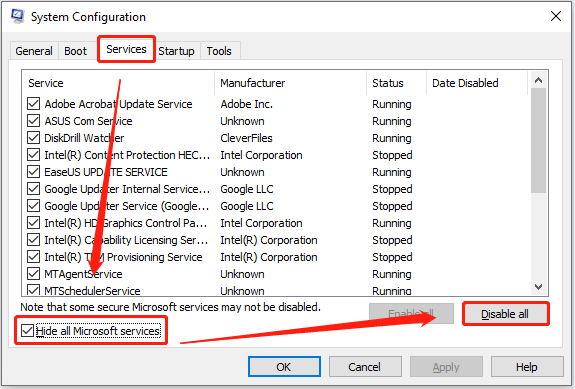
Step 2. Move on to the Services tab, tick Hide all Microsoft services, select Disable all, and click Apply.
Step 3. Go to the Startup tab and select Open Task Manager.
Step 4. Select each enabled item and disable them one by one. Note that you should keep track of these items.
Step 5. Save your changes in each window, and then restart your computer.
In the clean boot mode, you need to enable startup items and services one by one, then restart the system and observe whether Task Manager crashes again. This can help find the conflicting program or service, and then you can uninstall or disable it.
Method 3. Scan for Viruses
Some viruses or malware may prevent Task Manager from running. You can use Windows Defender to scan for viruses easily.
- Press the Windows + I key combination to open Settings.
- Select Update & Security > Windows Security > Virus & threat protection.
- Click Quick scan and wait for the process to complete.
Method 4. Perform a System Restore
If you have created a system restore point before the Task Manager crashing issue happens, you can perform a system restore. This can help restore your system to a healthy state without affecting your personal files. But you should know that some installed programs or drivers may be uninstalled.
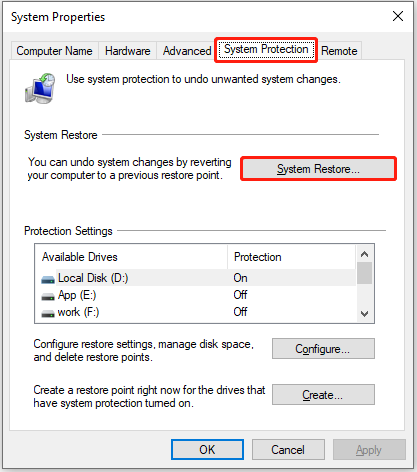
Search for Create a restore point in the Windows search box and open it.
Under System Protection, click System Restore. Then, follow the on-screen instructions to select an available restore point and complete the process.
Method 5. Do a Clean Install
According to user reports, performing a clean system install fixes the problem of “Task Manager crashes on startup”. So, if the ways above do not work for you, you may consider trying this. It should be noted that a clean install will restore the system to a brand-new state, just like when it was newly purchased, so all your files, applications, and settings will be removed.
Before You Do: Back up Files
To prevent data loss, you need to make a full backup of your files before reinstalling Windows. It is recommended that you adopt multiple backup methods to ensure data security to the greatest extent.
For example, you can copy and paste all wanted files to an external hard drive or USB drive. Also, if there is available cloud storage space, you can transfer your files to the cloud. The most recommended data backup solution is to use MiniTool ShadowMaker, professional Windows backup software.
Not only files and folders backup, this software also has a built-in system backup function to help you back up and restore the system when needed without reinstalling it again.
MiniTool ShadowMaker TrialClick to Download100%Clean & Safe
How to Clean Install Windows
- Go to the Windows software download page (Windows 10) to download the Windows Media Creation Tool.
- Connect a blank USB drive to your computer and launch the downloaded tool to create an installation media.
- Once it is done, start your computer from the bootable USB drive and then complete the Windows installation process.
Further Reading:
If you want to restore files without backup after reinstalling the system, you can use MiniTool Power Data Recovery. As long as the deleted or lost files are not overwritten by new data, there is a high probability that you can recover them. Be aware that the free edition of this tool is capable of restoring 1 GB of files for free.
MiniTool Power Data Recovery FreeClick to Download100%Clean & Safe
Bottom Line
If the Task Manager crashes on startup, try running the SFC command line, scanning for viruses, carrying out a system restore, or reinstalling Windows. Before performing actions that may cause data loss, it is necessary to back up your files.
About The Author

Position: Columnist
Shirley holds a bachelor’s degree in English and has been an editor at the MiniTool Team for many years. She specializes in IT-related content, with a focus on data recovery, file backup, disk management, and other technical topics. She is committed to delivering clear, accurate, and practical solutions to help users resolve common computer issues.
User Comments :