
If you created a scheduled task on your Windows devices, chances are that you might receive the operator or administrator has refused the request. If you have the same issues, follow the steps from the post on MiniTool Website to tackle it properly.
The Operator or Administrator Has Refused the Request
If you want to automate tasks on Windows devices, Task Schedule might be very helpful to you. However, some of you might receive the following error message while using it:
- Error 0x800710E0: The operator or administrator has refused the request.
- Shadow Error: The operator or administrator has refused the request.
- Error (Login): 0x10e0. The operator or administrator has refused the request.
This error might result from incorrect permissions and power set during the scheduling. Now, let’s see how to solve it step by step.
Windows Task Scheduler will execute the tasks automatically by monitoring what made you choose or create them. If you need to create a scheduled backup, there’s a better choice for you – MiniTool ShadowMaker. This Windows backup software simplify the process of scheduling a backup or sync task and you can transfer your files with ease. Try it by click on the button below!
MiniTool ShadowMaker TrialClick to Download100%Clean & Safe
How to Fix The Operator or Administrator Has Refused the Request?
Fix 1: Change Power Settings
If you are using the laptop currently, you will get the operator or administrator has refused the request 0x800710E0 when your device is not connected to the power source. Follow these steps to apply the appropriate power settings:
Step 1. Press Win + S to open the search bar.
Step 2. Type task scheduler and hit Enter.
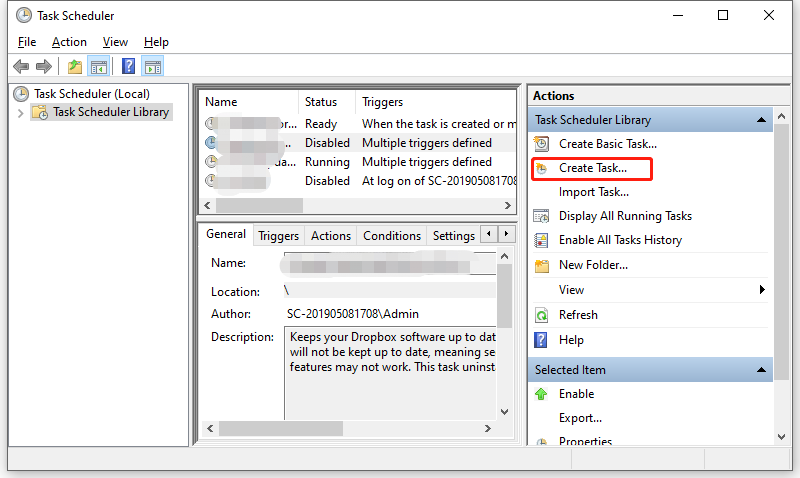
Step 3. Hit the problematic task and select Create Task from the right-hand pane.
Step 4. Under the Conditions tab, uncheck Start the task only if the computer is on AC power.
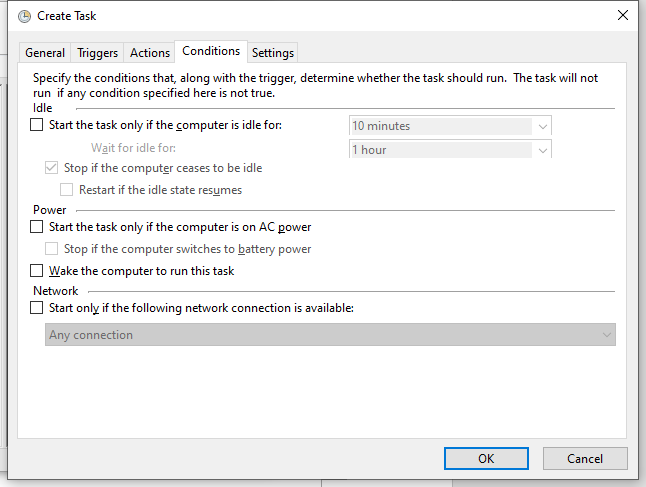
Step 5. Hit OK to save the changes
Fix 2: Check the Permissions and Privileges
Make sure you are using the administrator account and running the task with enough privileges, or you will get Shadow Error the operator or administrator has refused the request. Here’s how to modify some settings related to the user account:
Step 1. Open Task Scheduler > select the problem task > choose Create Task.
Step 2. Under the General tab, tick Run whether user is logged in or not > click on Change User or Group > type Administrator > hit Check Names > hit OK if everything is in order.
The Run whether user is logged in or not option will enable you to run the task at all times.
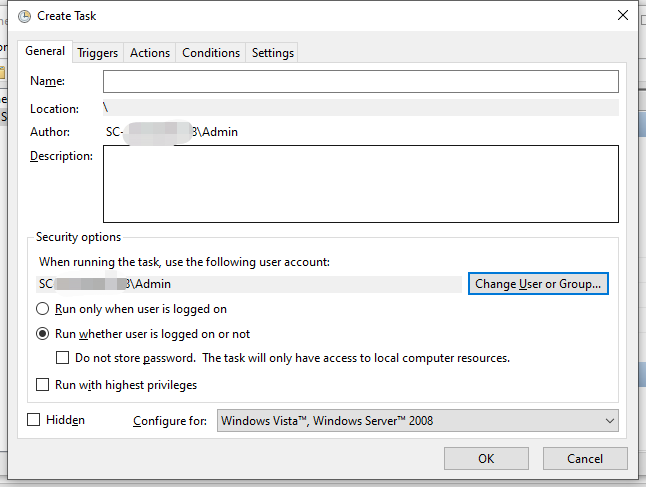
If you tick the Run with highest privileges option, make sure the user is part of the administrators group or the application. To dos so:
Step 1. Right-click on the application and select Properties from the context menu.
Step 2. Under the Security tab, hit Edit.
Step 3. Then, select the user account and check the allowed permissions that apply. If the user isn’t available, hit Add to add the user.
Step 6. Under the General tab, click on Change User or Group > type Administrator > hit Check Names > hit OK if everything is in order.
Fix 3: Disable Sleep Mode
Another solution for Task Scheduler the operator or administrator has refused the request is to disable sleep mode. Here’s how to do it:
Step 1. Type control panel in the search bar and hit Enter.
Step 2. Click on the inverted triangle beside View by and choose Small icons.
Step 3. Scroll down to find Power options and hit it.
Step 4. Beside your current power plan, hit Change plan settings.
Step 5. Select Never in the dropdown menu of Put the computer to sleep.
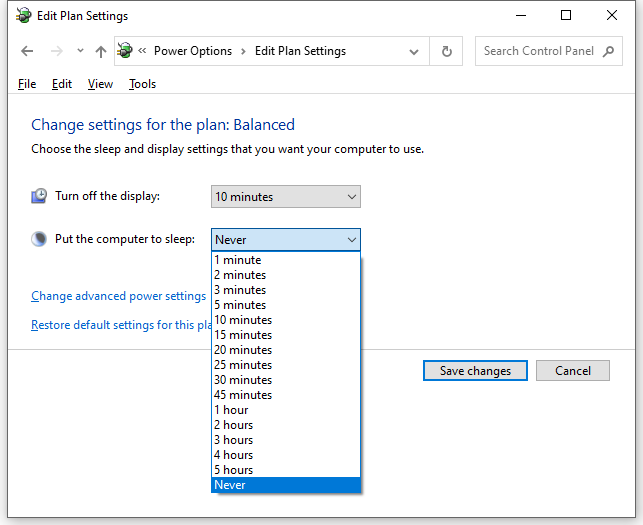
Step 5. Hit Save changes and reboot your computer.
User Comments :