
Most people use OneDrive to save and back up crucial files. However, you may receive an error message that “There was a problem connecting to OneDrive” when you try to sign in. If you have accessed the internet normally, how to solve the problem? This MiniTool post shares some methods with you.
“There was a problem connecting to OneDrive” is a common error. You might have this error message with an error code 0x8004deed or 0x8004ded0. If you are bothered by this problem as well, read the following content and try to resolve it by yourself with the following guidance.

Method 1: Disable the Proxy
If you connect to a proxy or VPN, OneDrive might fail to sign in because of some restrictions. You can disable the proxy or VPN to solve the problem.
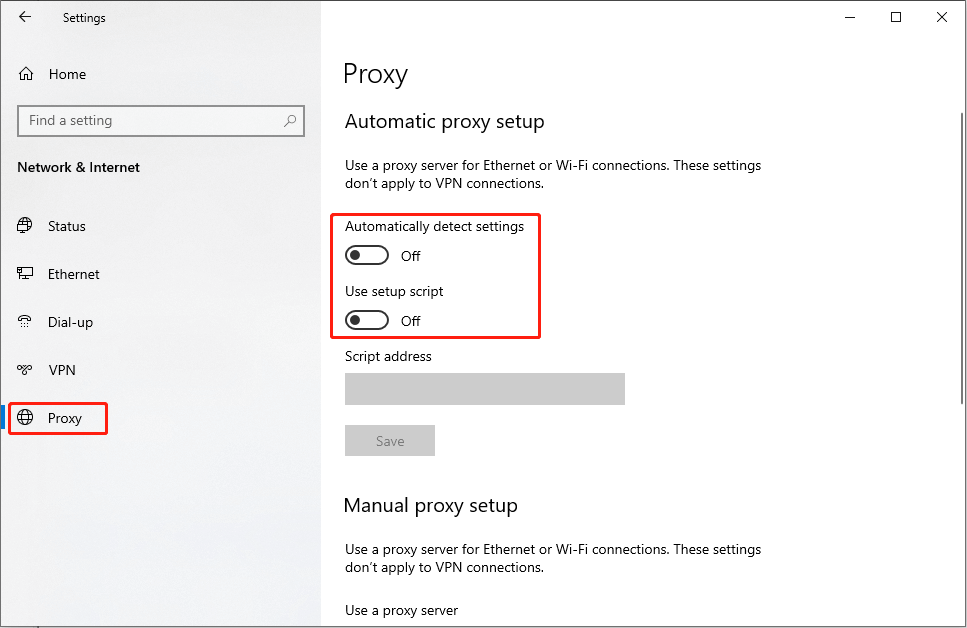
1. Press Win + I to open Windows Settings.
2. Select Network & Internet and choose the Proxy tab.
3. Turn off the switch under Automatically detect settings and disable the Use setup script option below.
Method 2: Change the Network Properties
This method is mainly to ensure whether the TLS services work properly. TLS refers to the Transport Security Protocols, which help to connect internet. The TLS services are enabled by default, but they might also be changed due to several reasons. Here are how to check and change the Network properties.
1. Press Win + R to open the Run window.
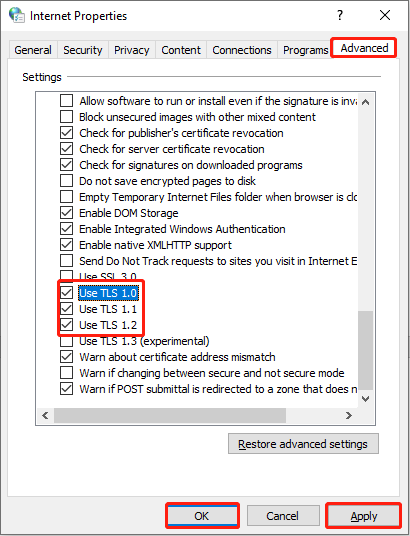
2. Type inetcpl.cpl into the text box and hit Enter to open the Internet Properties window.
3. Change to the Advanced tab at the top toolbar and scroll down to find TLS 1.0, TLS 1.1, and TLS 1.2.
4. Add check marks of these services and click Apply > OK in sequence.
Method 3: Reset Network Connections
You can try to reset the whole network connection to see if this helps fix the problem of connecting to OneDrive.
1. Press Win + R to open the Run window.
2. Type cmd into the box and press Shift + Ctrl + Enter to run Command Prompt as administrator.
3. Type netsh int ip reset c:resetlog.txt and hit Enter.

4. When the process is finished, type netsh winsock reset and hit Enter again.
After this, you need to restart the computer and try to sign in OneDrive.
Method 4: Reset OneDrive
Resetting OneDrive to remove all the connections might help resolve the 0x8004deed or 0x8004ded0 error of connection.
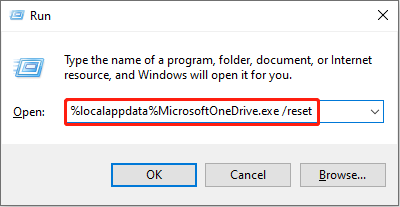
1. Press Win + R to open the Run window.
2. Copy and paste %localappdata%MicrosoftOneDrive.exe /reset into the box and hit Enter. The Command Prompt window will open briefly, then it will close automatically.
After resetting, you can open OneDrive manually and sign in to see if it helps resolve the There was a problem connecting to OneDrive error.
MiniTool Power Data Recovery FreeClick to Download100%Clean & Safe
Method 5: Reinstall OneDrive
The last method is to reinstall OneDrive. This method can fix many problems that happen due to the app’s faults.
1. Press Win + S and type Control Panel into the search box.
2. Hit Enter to open the window.
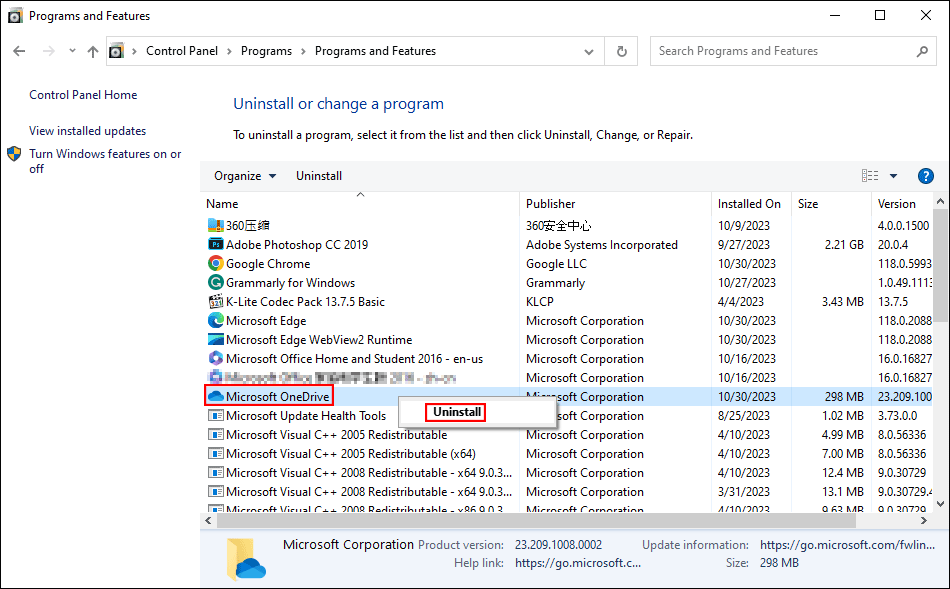
3. Click on the Uninstall a program option under the Programs option, then you need to find Microsoft OneDrive from the app list.
4. Right-click on it and choose Uninstall from the context menu.
5. Go to the Microsoft Download page to reinstall OneDrive.
Bottom Line
This is all about how to resolve the There was a problem connecting to OneDrive problem. Hope these methods can provide you with useful information and help you fix the problem easily.
User Comments :