
Some iPhone users report that they encounter the “this message has not been downloaded from the server” issue when using Mail or Microsoft Outlook. If you also encounter the issue, you can refer to this post from MiniTool to find solutions.
Some users have reported that they see the “this message has not been downloaded from the server” error message when they want to open an email with an attachment on iPhone or iPad. There are some reasons for the issue.
- Outdated OS of your iPhone or iPad
- Anti-spam Filtering
- The replica has been removed from the server
- Mail app installation is broken
Now, let’s see how to get rid of the “message not downloaded from server” issue.
Fix 1: Restart the Mail App
Temporary glitches between the iPhone’s Mail app and the email server can cause mail download problems. Restarting the mail app after force closing it might solve the “message has not been downloaded from the server” issue.
Fix 2: Set the Mail Preview to 5 Lines
You can also try to set the Mail Preview to 5 lines to get rid of the “this message has not been downloaded from the server” issue. Follow the guide below:
Step 1: Open Settings on your iPhone and open Mail.
Step 2: Now, tap Preview and select 5 Lines.
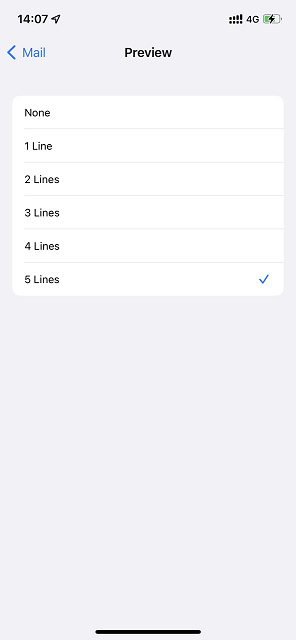
Step 3: Then restart your iPhone to check if the “message not downloaded from server” issue has gone.
Fix 3: Enable Fetch in the Phone’s Settings
Emails are delivered to the user’s device via the Push or Fetch method. In the Push method, the server notifies the client of new emails, while in the Fetch method, the client application repeatedly requests the server for any new emails. Here is how to do that:
Step 1: Open Settings on your iPhone and open Passwords.
Step 2: Now select Fetch New Data and turn Push off.
Step 3: Then enable Fetch and set Fetch to Automatically. In some cases, you may have to tap on the problematic account and select Fetch.
Step 4: Now set all other accounts to Fetch that shows Push.
Step 5: Restart your iPhone to check if the issue has gone.
Fix 4: Readd Your Account
Next, it’s recommended to remove your account and add it again to fix the “this message has not been downloaded from the server” issue.
Step 1: Open Settings on your iPhone and open Passwords.
Step 2: Tap the email account that has issues and tap Delete Account.
Step 3: Now, you can re-add the account by going to Settings > Passwords.
Step 4: Tap Add Account and then select your email account provider. Add email and password and follow the onscreen instructions.
Also see: How to Add Gmail Account to Mail App in Windows 11?
Fix 5: Restart or Update Your iPhone
If the “message has not been downloaded from the server” issue also occurs, you can restart or update your iPhone to see whether the issue is solved. Charge your iPhone and connect it to a wireless network. Unlock your iPhone and go to Settings > General > Software Update. Tap Install and enter your passcode.
Final Words
These are common fixes for “this message has not been downloaded from the server”. If you are bothered by this issue, try these troubleshooting tips and you can easily fix it.
User Comments :