
Tiny Tina’s Wonderlands Not Launching/Crashing
Tiny Tina’s Wonderlands is a first-person shooter action video game released by 2K Games and developed by Gearbox Software. Players can create their characters using the game’s character customization system. For the first time in this series, gamers can blend and combine abilities from six different character classes.
The Tiny Tina’s Wonderlands crashing or not launching issue can occur due to various reasons, involving interference from background processes, connected external devices, and more. Regardless of the specific reason, it is often possible to fix such issues easily with a few workarounds and quickly return to playing. Keep reading to get some troubleshooting steps.
How to Fix Tiny Tina’s Wonderlands Crashing/Not Launching on PC
If you encounter Tiny Tina’s Wonderlands crashes at startup, take it easy! Below are some potential solutions to fix the issue. Without any further ado, let’s jump into it.
Preparation Before Troubleshooting
1. Exit the game and its launcher in the Task Manager, then reopen them.
2. Verify your Internet connection and check the server status.
3. Turn off full-screen optimization.
4. Disconnect external peripherals.
5. Restart your PC.
6. Update your Windows.
7. End the unnecessary or conflicting apps in the Task Manager.
9. Run Tiny Tina’s Wonderlands as an administrator
10. Check if your PC fulfills the game’s minimum requirements. The minimum requirements are as below:
- OS: Windows 10 (latest service pack)
- Processor: AMD FX-8350 (Intel i5-3570)
- Memory: 6GB RAM.
- Graphics Card: AMD Radeon RX470 (NVIDIA GeForce GTX 960 4GB)
- Storage: 75 GB.
- DirectX: Version 11.
MiniTool System Booster TrialClick to Download100%Clean & Safe
Fix 1. Clear Saved Files
Some players reported that deleting game saved files helped them fix the problem that Tiny Tina’s Wonderlands keeps crashing. Corrupted saved files are the primary culprit for this issue. Let’s look at how to delete these saved files.
Step 1. Press Win + R together to open the Run dialog box.
Step 2. Type %localappdata%\TinyTina’sWonderlands\Saved into the box and hit Enter.
Step 3. In the Saved folder, you can see three folders. Select and right-click them, and then choose Delete.
Step 4. Go ahead and launch the game to see if the issue has now been resolved for good.
Fix 2. Verify the Integrity of Game Files
To check and repair corrupted or missing files that may trigger the Tiny Tina’s Wonderlands/not launching issue, you might want to use the built-in file repair feature available in Steam:
Step 1. Open Steam and go to your Library.
Step 2. Right-click on Tiny Tina’s Wonderlands and select Properties.
Step 3. Navigate to Installed Files and choose Verify integrity of game files.
Fix 3. Modify Game Launch Options
Sometimes, modifying the game launch option can fix the crashing issues. Here’s the way to change the Tiny Tina’s Wonderlands launch option:
Step 1. Right-click Tiny Tina’s Wonderlands in your Steam library and choose Properties.
Step 2. Navigate to the General tab, under the Launch Options section, type -dx11 or -dx12.
Fix 4. Update Graphics Card Driver & Run the Game on Dedicated Graphics Card
An outdated graphics card driver may cause the Tiny Tina’s Wonderlands crashing or not launching issue, as it plays a vital role in the communication between your hardware and system. To update the driver, you can follow the breakdown:
>> Update Graphics Card Driver:
Step 1. Press Win + X to open the Power User menu and select Device Manager.
Step 2. Expand the Display adapters section by double-clicking on it.
Step 3. Right-click on your graphics card and select Update device.
Step 4. Select Search automatically for drivers and then follow the on-screen instructions to finish the rest process.
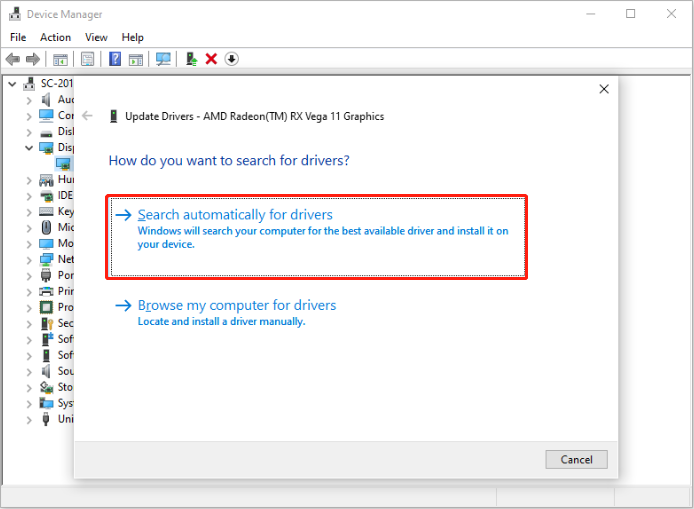
>> Run the Game on Dedicated Graphics Card:
Step 1. In Windows Search, type Graphics Settings and open it.
Step 2. Click Add desktop app and add the Tiny Tina’s Wonderlands exe file.
Step 3. To do this, browse to C:\Program Files (x86)\Steam\steamapps\common\Tiny Tina’s Wonderlands folder.
Step 4. Select Wonderlands.exe file and click on Add.
Step 5. After adding it, expand it, and click on the drop-down next to GPU preference. Then, select High Performance.
Fix 5. Run the Game on DirectX 11
By default, Tiny Tina’s Wonderlands operates on DirectX 12, which is common for most contemporary games. However, there are instances where games may crash depending on the DirectX version they utilize. If Tiny Tina’s Wonderlands is experiencing such crashes, we need to switch it to DirectX11 instead. To do it:
Step 1. Start the Epic Games Launcher on your Windows computer.
Step 2. Once the launcher is up and running, click on your profile icon.
Step 3. From the dropdown menu, select the Settings option.
Step 4. Under Manage Games, expand the section for Tiny Tina’s Wonderlands.
Step 5. Check the box that says Additional Command Line Arguments.
Step 6. Finally, type -dx11 in the text area.
Final Words
This is all about the Tiny Tina’s Wonderlands Crashing/Not Launching issue. If you are troubled by this error for days, try the above methods and hope they can help you get rid of such an annoying problem.
User Comments :