
For some reason, you may need to transfer videos from iPhone to PC. This post from MiniTool Software will show you different methods to do this work. Each method has its disadvantages. You can read this post and then select a suitable approach according to your situation.
Do You Want to Transfer Videos from iPhone to PC
The videos you take with your iPhone should take much space in your device. When your iPhone runs into low space, you can choose to transfer videos from your iPhone to your computer free up space. Besides, it is also a method to back up the videos on your iPhone.

How to transfer videos from iPhone to computer? Various methods are available. We will show them to you in this post.
How to Get Videos from iPhone to PC?
- Use iCloud Photos
- Use iCloud Drive
- Use Windows Photos
- Use File Explorer
- Use Windows 7 AutoPlay
Method 1: Use iCloud Photos to Transfer Videos from iPhone to PC
You can use this method to transfer small videos from your iPhone to your computer. Here is a guide:
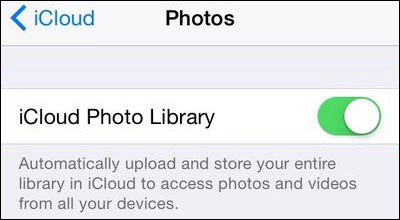
1. Unlock your iPhone and then go to Settings > your Apple ID > iCloud > Photos.
2. Turn on iCloud Photo Library.
3. Download iCloud for Windows on your computer and sign in with your Apple ID & password.
4. Click Options next to Photos.
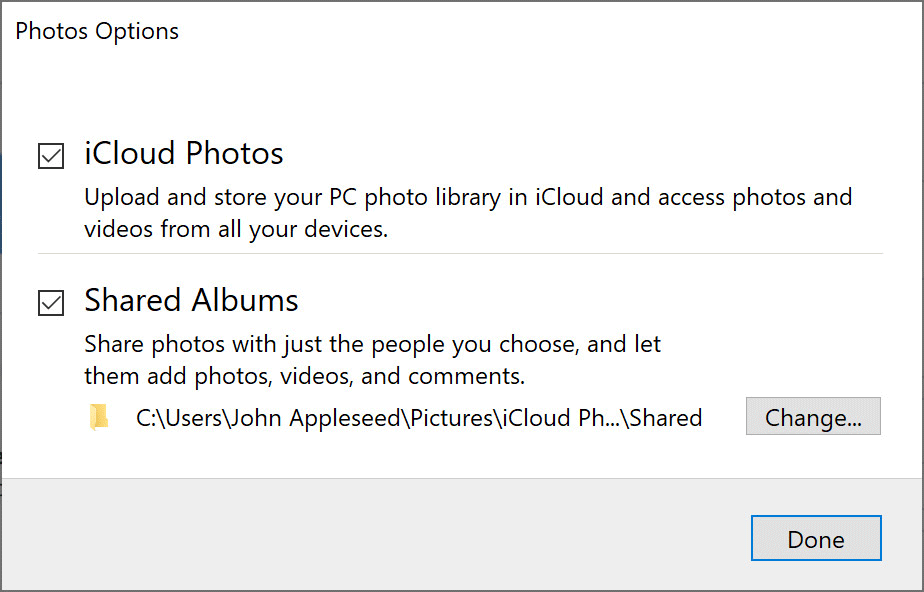
5. Tap Done.
6. Click Apply.
7. Now, you can go to This PC > iCloud Photos > Download to see all the newly added videos from your iPhone.
If the video you want to move to your PC has a large size, this method is not recommended. You can try the following approaches.
Method 2: Use iCloud Drive to Transfer Videos from iPhone to PC
You can sync your iPhone videos to iCloud Drive and then download the videos to your computer via iCloud. This method is recommended when you want to transfer large videos to your computer.
1. Unlock your iPhone.
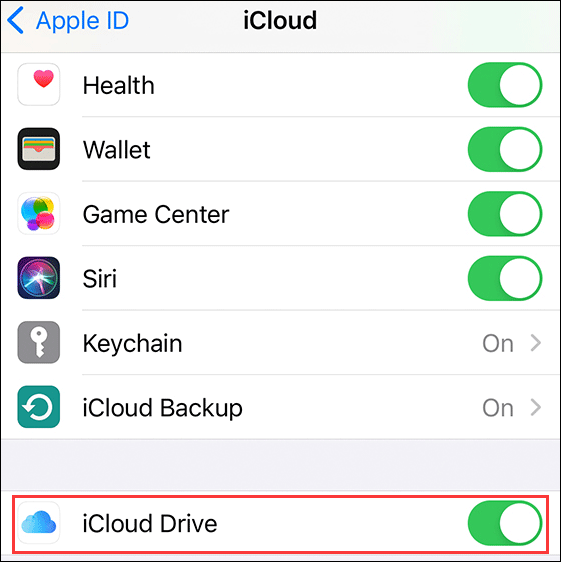
2. Go to Settings > your Apple ID > iCloud.
3. Scroll down to find iCloud Drive and make sure it is enabled.
4. Find and select the videos you want to transfer to your computer and tap the share icon at the bottom-left corner of the screen.
5. Go to Save to Files > iCloud Drive and then create/select a folder to save the videos.
6. Now, open your web browser on your computer and then go to iCloud.com.
7. Sign in with your Apple ID and password.
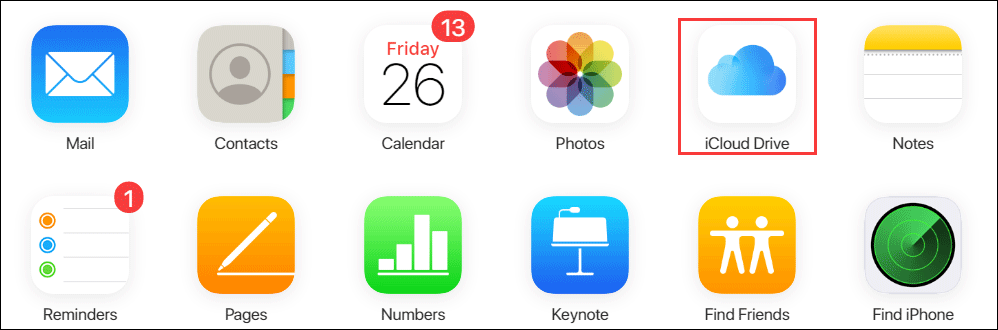
8. Click iCloud Drive to continue.
9. Open the folder you used to save your iPhone videos.
10. Select your needed videos and then click the download icon to download them to your computer.

Method 3: Use Windows Photos to Transfer Videos from iPhone to PC
You can also use Windows Photos to directly transfer videos from your iPhone to your computer. This method is used to transfer the videos that are saved on your iPhone but not the ones that are saved in iCloud.
1. Connect your iPhone to your computer via a USB cable and make your iPhone trust your computer.
2. Open the Photos app on your computer and then go to Import > From a USB Device. After that, the Photos app will automatically search for the videos and photos on your iPhone.
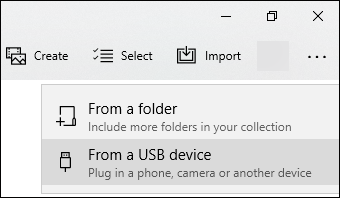
3. Select the videos you want to import and then select a location to save them.
Method 4: Use File Explorer to Transfer Videos from iPhone to PC
Another method is to use File Explorer. This is simple and you also don’t need to use any third-party software.
Import Videos from iPhone to PC
1. Connect your iPhone to your computer via a USB cable and make your iPhone trust your computer.
2. Open This PC to find your iPhone.
3. Right-click on your iPhone and then select Import pictures and videos.
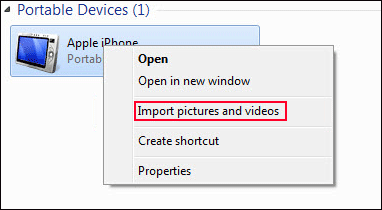
4. Select Review, organize, and group items to import or Import all new items now according to your situation.
5. Click Next.
6. Choose the videos you want to import to your PC and then click Import to start the video import process.
Copy and Paste Videos from iPhone to PC
You can also go to This PC > your iPhone > Internal Storage > DCIM to directly copy and paste your needed videos to a folder on your computer.

Method 5: Use Windows 7 AutoPlay to Transfer Videos from iPhone to PC
If you are still running Windows 7, you can use Windows 7 Autoplay to import videos from your iPhone to your PC.
Here are the things you can do:
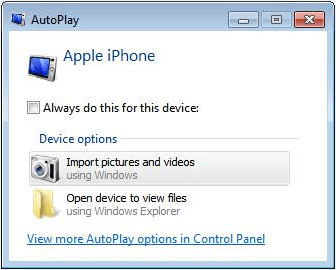
- Connect your iPhone to your computer via a USB cable. Windows 7 AutoPlay can automatically pop up.
- Select Import pictures and videos from the Windows 7 AutoPlay window.
- Set the destination using the Import Setting and then select the videos to import.
Bottom Line
These are the 5 methods to transfer videos from iPhone to PC. You can select one according to your situation and requirements. Next, how to get videos off iPhone after you import them to your computer? You can just delete them from your iPhone.
However, if you delete some videos by mistake, you can use the free MiniTool data recovery software, MiniTool Power Data Recovery, to get them back.
MiniTool Power Data Recovery FreeClick to Download100%Clean & Safe
About The Author

Position: Columnist
Stella has been working in MiniTool Software as an English Editor for more than 8 years. Her articles mainly cover the fields of data recovery including storage media data recovery, phone data recovery, and photo recovery, videos download, partition management, and video & audio format conversions.
User Comments :