
This post introduces what Twitch Channel Points are and how to get and use Twitch Channel Points. For more computer tips and tricks, you can visit MiniTool Software official website. MiniTool also provides some useful free computer software like MiniTool Power Data Recovery, MiniTool Partition Wizard, MiniTool MovieMaker, etc.
What Are Twitch Channel Points
Twitch is favored by many game streamers to play and stream their favorite games. In the past, Twitch streamers can use some third-party loyalty programs to reward their loyal viewers for being active or engaging in some activities in their communities.
In 2019, Twitch launched their own integrated channel points system that can do everything that third-party loyalty programs do. With Twitch Channel Points, they can bring meaningful rewards to chat in Twitch communities. Viewers can get points for following, subscribing, or taking some other actions.
In one word, Twitch streamers can utilize Twitch Channel Points to engage their viewers and supporters. Active viewers in a specific channel can earn the channel points and then redeem them for temporary special chat features or channel custom rewards.
How to Get Channel Points on Twitch
Active viewers of Twitch streams have various ways to earn channel points. Check how to get Twitch channel points below with different actions.
- 5-minute watching time gets 10 points.
- Participating in a raid gets 250 points.
- Following a channel gets 300 points.
- Watching 2/3/4/5+ streams in a row respectively gets 300/350/400/450 points.
- And more…
Twitch Channel Points is currently only available for a few Twitch Affiliates and Partners. It’s expected that it will roll out soon for all.
To know more about Twitch Channel Points, you can visit the Channel Points Guide on Twitch official website.
An Easy and Free Screen Recorder for Twitch
MiniTool Video Converter, with the built-in screen recorder feature, lets you record anything and any part on your computer screen for free. You can use it to easily record Twitch clips, any other live streaming videos, gameplay, lectures, courses, program instructions, web pages, etc. on PC. It allows you to record screen with audio.
You can choose to record screen in HD MP4 or other formats. It lets you adjust the record settings before hitting Record.
MiniTool Video Converter is a 100% clean and free program with three main functions: video/audio convert, screen record, and video download.
You can download and install MiniTool Video Converter on your Windows computer, and check how to use it to record Twitch live streaming videos on your screen.
MiniTool Video Converter FreeClick to Download100%Clean & Safe
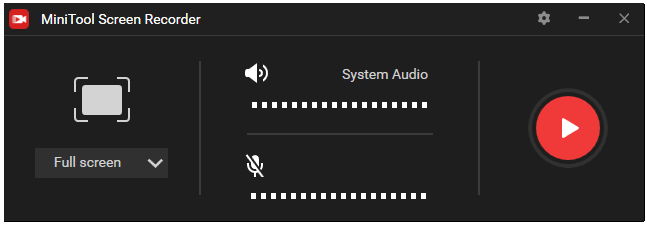
- Launch MiniTool Video Converter. Click Screen Record. Then hit Click to record screen. A new MiniTool Screen Recorder window will pop up.
- Then you click the drop-down icon next to Full Screen to select a recording module. You can choose Full screen to record your computer entire screen or choose Select region to select any area on your screen to record. Here you can select the Twitch stream window.
- After selecting the area, you can click Record button to start recording the Twitch streams and save the recording file to your computer.
About MiniTool Software
MiniTool Software is a top software developing company. Its products and tutorials have helped many users solve their computer problems. Its flag product, MiniTool Power Data Recovery, can help you recover any deleted/lost files from Windows computer, SD/memory card, USB flash drive, external hard drive, SSD, and more. Another flag product, MiniTool Partition Wizard, lets you manage hard disk partitions by yourself. You can use it to create/delete/resize/format/wipe partitions, convert disk partition format, check and fix disk errors, migrate OS, benchmark disk, analyze hard drive space, etc.
User Comments :