
Twitch used to be based on the gaming industry and gamers are allowed to live stream their gameplay. Unfortunately, Twitch is sometimes affected by various errors and Twitch error 4000 is one of them. Now, you can read this post from MiniTool to fix the issue.
The error 4000 Twitch can be caused by several reasons, such as cache and cookies, disconnection, other streams/audio playbacks, autoplay settings as well as the selecting proper output device. Don’t worry. In the following section, we will walk through the feasible and useful methods to fix the “Twitch resource format not supported” error.
Method 1: Clear Cache and Cookies
Sometimes, the corrupted Chrome cache can cause Twitch error code 4000. So, you can try clearing it to fix the problem. Here is a guideline below for you.
Step 1: In the Chrome page, press Ctrl + Shift + Delete keys at the same time to open the Clear browsing data window.
Step 2: Go to the Advanced tab and select All time from the drop-down menu.
Step 3: Check the Browsing history, Download history, Cookies and other site data, and Cached images and files boxes.
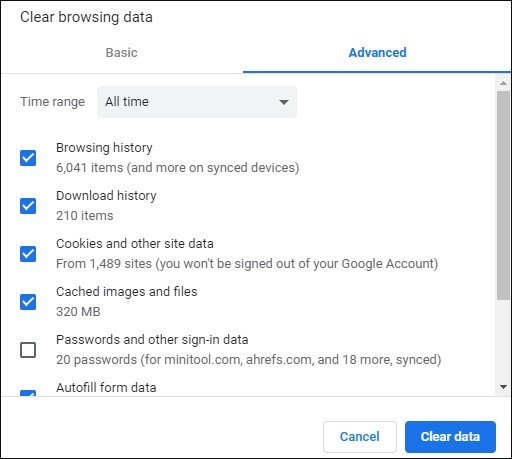
Step 4: Click the Clear data button to apply this change. Then, check to see if the Twitch error 4000 has gone. If not, try the following methods.
Also see: Google Chrome Is Waiting for Cache – How to Fix
Method 2: Try to Refresh the Stream
Sometimes, when you try to open the site and it will interfere with the loading process of the stream or the website, the computer might have been disconnected from the Internet. Thus, you can try to refresh the stream. For that:
Step 1: Open the tab in which you tried to load the site and click the Refresh button.
Step 2: Wait for the stream to load and check to see if the error 4000 Twitch has been fixed.
Method 3: Close Other Active Media Players
If there is any other application opened up on your computer that provides audio feedback, it can also cause the “Twitch resource format not supported” issue. Therefore, it is recommended that you close other active media players. Maybe you are interested in this post – 4 Methods to Fix Windows Media Player Not Working on Windows 10.
Method 4: Select Default Audio Drivers
The correct audio driver may not be selected for the output device you use. Therefore, it is recommended that you select default audio drivers. Here is how to do that:
Step 1: Right-click the sound icon in the bottom right corner. Click the Open Sounds settings option.
Step 2: Click the Sound Control Panel option and click the Playback tab.
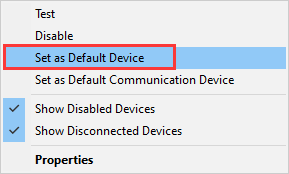
Step 3: Identify the correct audio drivers for your output device and right-click it to choose Set as the Default Drivers.
Method 5: Change Autoplay Options
The last method for you is to change autoplay options to fix Twitch error 4000. If you don’t know how to do that, follow the steps below.
Step 1: Open Google Chrome. Type chrome:flags in the address bar and press the Enter key.
Step 2: Search for Autoplay policy and select the Document user activation is required option.
Now, you need to restart Google Chrome and try to open the stream again to check if the 4000 resource format not supported error still exists.
Final Words
To sum up, this post introduced 5 feasible methods to fix Twitch error 4000. If you encounter the same error, you can refer to this post. Besides, if you have better methods to fix the error, you can share it in the comment zone.
User Comments :