
When using Twitch on Chrome in Windows 10, you may find it is laggy. This is frustrating since the issue interferes with your user experience. How can you fix Twitch lagging? In this post, MiniTool Solution summarizes some useful solutions and you can try them to easily get rid of the trouble.
Twitch is a famous live streaming service that is used worldwide. For gamers, it is the preferred platform when you want to witness some high-quality gaming. It is the main source of entertainment. So, it is necessary to run it in the best way.
However, although it is popular, many users have reported the issue of Twitch lagging. This greatly interferes with your user experience. How annoying it is!
Why is Twitch so laggy? The PC specifications, firewall setting, Internet connection, browser issue, etc. can lead to Twitch stream lagging. Fortunately, you can follow these solutions below to easily solve the issue.
Fixes for Twitch Lagging
Use a PC with Better Specifications
The PC specification is one of the most reasons for laggy Twitch. If you are a streamer, this is a problem since the intense bandwidth is required to stream and the PC needs to take much time to do it in a smooth manner.
This is why you should have a good computer with better than average specifications. If Twitch is lagging, upgrading the PC is a suggestion.
Check Firewall Settings
Firewall settings may block Twitch from running smoothly and disabling firewall may be helpful or at least you can see if it is making any difference.
In Windows 10, go to Control Panel > Windows Defender Firewall > Turn Windows Defender Firewall on or off. Then, choose Turn off Windows Defender Firewall (not recommended).
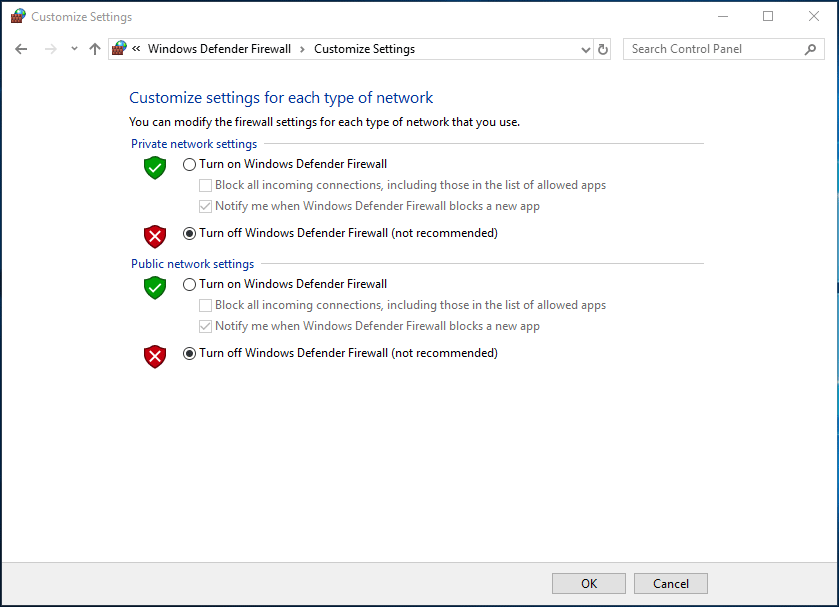
Additionally, the antivirus software running in the background may be also the culprit. The program is designed to stop running any software that leeches your bandwidth in the background. So, you can choose to switch to the gaming mode when streaming Twitch or deactivate the antivirus program.
Check Your Internet Connection
The Internet connection is another factor of Twitch lagging. You should make sure you have a good Internet connection and get a consistent bandwidth.
Related article: Top 4 Ways to Fix Slow Internet Speed on Windows 10
The best way to check the Internet speed is by running a speed test. Just do it by using a professional tool when Twitch is lagging. If the speed is slower than expected, do these things:
- Use a wired connection
- Change WiFi password
- Remove existing users except for your PC
- Disconnect all other devices connected to your network
Use Another Web Browser
If Twitch lagging happens due to unknown reasons, perhaps it is the problem with your browser. Updating it is a good choice or you can also choose to switch to another browser.
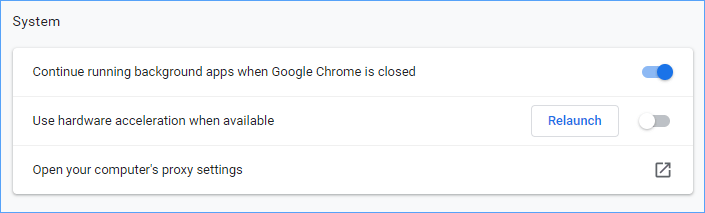
Usually, Twitch keeps stuttering or lagging if you are using Chrome as the only browser since it takes up much memory and leaves little to nothing for your stream. In this case, disable hardware acceleration.
Step 1: Go to Settings > Advanced in Google Chrome.
Step 2: Under the System section, disable the option of Use hardware acceleration when available.
Final Words
Is Twitch lagging in Windows 10? This post is the right place you come and you can get some useful solutions from the article. Just have a try when Twitch stream lagging happens.
About The Author

Position: Columnist
Vera has been working at the MiniTool Team for over 10 years as a technical editor and content writer. She mainly focuses on disk and partition management, data recovery, Windows backup and restore, and PC troubleshooting. Through in-depth software testing and hands-on experience, she has helped users solve a wide range of computer problems and better protect their data on Windows devices.
User Comments :