
Did you ever look forward to an exciting League of Legends game, only to see the error code Van 81? It can be quite frustrating and annoying, as this error prevents you from logging into the game. Fret not; it is a common connection issue. This post from MiniTool provides several feasible fixes to solve it.
About VAN 81 in League of Legends
The VAN-81 error code appears on Riot’s support site as a connection issue. It indicates a problem with Riot Vanguard, the anti-cheat software necessary to connect to the game. Vanguard operates at a kernel level, which means it can encounter numerous issues that hinder its proper functionality due to its extensive access to the computer.
If Riot Vanguard is unable to verify the connection or load correctly, the VAN 81 in League of Legends error will occur, preventing you from accessing League of Legends. The detailed error message of this issue is shown below:
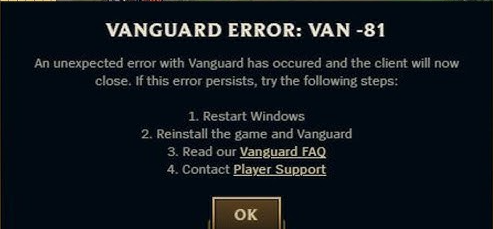
What triggers this error? Keep reading to find more details.
Possible Causes for League of Legends VAN 81
There are several possible explanations for the appearance of the VAN-81 error code:
- Issues with Riot Vanguard: There may be a problem with Vanguard, the League of Legends anti-cheat program, either due to a connection error preventing your Vanguard status from being verified or the program failing to load entirely.
- A failed connection between the device and game servers: A poor internet connection or server issues can disrupt the link between your device and League of Legends’s servers, resulting in the VAN 81 in League of Legends.
- Windows Firewall may block game files: If Windows Firewall restricts League of Legends and its processes, it can prevent the game from launching, leading to the VAN 81 error code.
Understanding the reasons behind the VAN 81 error is crucial for resolving it. By identifying the specific cause, you can take appropriate actions to fix the issue. This way, you can enjoy playing League of Legends without any disruptions.

How to Fix VAN 81 in League of Legends
Solution 1. Restart the League of Legends and Riot Client
Riot explains that this issue usually happens if the game client remains active for over a week or if you’re logged in on multiple devices. To fix the League of Legends VAN 81 error, the first step is to restart both your League of Legends and Riot client.
- To do this, make sure you close all relevant windows. This involves minimizing or exiting any game sessions or menus.
- Then, verify if the app is still running in the background and turn off these background apps.
- Next, find the taskbar located at the bottom of your screen. If you notice an upward-facing arrow icon on the taskbar, click it to reveal the hidden icons.
- Look for the Riot Client or League Client icon in the list that appears. When you spot the icon, right-click it to access the context menu. From the choices given, select Exit to fully shut down the application.
Make sure both clients are closed completely, then reopen them using their desktop shortcuts or from the apps list. Check to see if the problem has been fixed.

Solution 2. Ensuring a Stable Internet Connection
A stable internet connection is essential for playing online games such as League of Legends. To prevent encountering the VAN 81 error, your internet must be consistent. Here are a few suggestions:
- Opt for a wired connection to enhance stability.
- Restart your modem or router to refresh the network connection.
- Reach out to your internet service provider if you experience frequent disconnections or slow internet speeds.
Make sure your internet connection stays consistent. If you encounter problems with your internet connection, you might want to try MiniTool System Booster. This application aims to clear system clutter, improve the internet speed, and optimize your computer for peak performance.
MiniTool System Booster TrialClick to Download100%Clean & Safe
Solution 3. Allow League of Legends Through Windows Firewall
One of the causes for Van 81 in League of Legends is the Windows firewall, blocking the game from running. To allow the program to pass through the firewall, follow the instructions:
Step 1. Press Win + S to open the Windows Search bar, type Windows Defender Firewall in the box, and then press Enter.
Step 2. In the following window, click Allow an app or feature through Windows Defender Firewall.
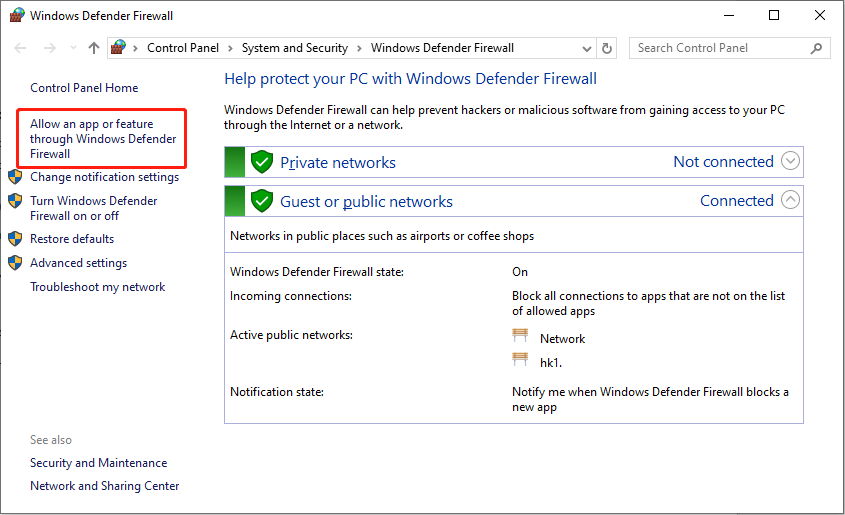
Step 3. Click the Change settings button on the top-right side and then check the Private and Public boxes of League of Legends or Riot executable files.
Step 4. Click OK to save the change.
Fix 4. Start the Service for VGC to Fix League of Legends VAN 81
Initiate the support service for VGC to address and resolve the League of Legends issue associated with Error Code VAN 81. This will involve diagnosing the problem, implementing necessary fixes, and ensuring that players can reconnect smoothly to their gaming sessions.
Step 1. Press Win + R to open the Run dialog box, type services.msc in the box, and press Enter.
Step 2. In the pop-up window, scroll down and locate vgc. Right-click it and select Properties.
Step 3. Select the Automatic option in the Startup type section from the drop-down menu and then click on Start to start the service.
Step 4. Click on Apply and then OK.
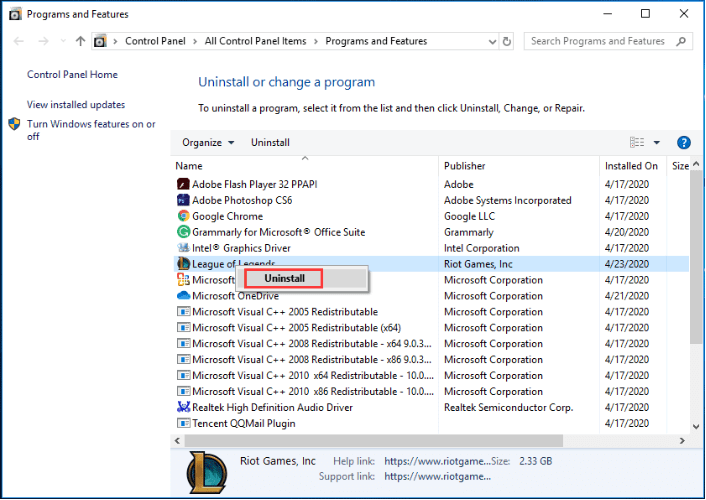
Fix 5. Reinstall Riot Vanguard or League of Legends
Riot Vanguard is an anti-cheat program from Riot Games that runs in the background while playing games like League of Legends and Valorant, monitoring for potential cheating. It can sometimes cause launch errors, which may be resolved by reinstalling Vanguard. If that doesn’t work, try reinstalling League of Legends, which won’t affect your saved data and settings as they are stored on your account and in temporary files.
MiniTool Power Data Recovery FreeClick to Download100%Clean & Safe

Final Words
By trying these methods, you should be able to fix the VAN 81 in League of Legends on PC and enjoy League of Legends again. But if the problem keeps occurring, you should contact Riot Games’ support team to ask for further help.
User Comments :