
If you want to know what Wondershare is and how to fix the high CPU issue caused by wsappservice.exe, then, this post is what you need. Now, you can continue to read this post from MiniTool to get the details about Wondershare Passport.
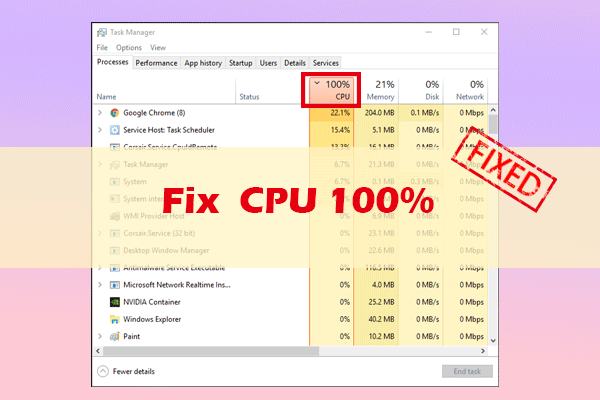
Some people find that their computer becomes slow and find the process WsAppService.exe uses more than 75% of the memory. Now, I will introduce what Wondershare is and how to fix the wsappservice.exe high CPU issue.
What Is Wondershare Passport
What is Wondershare Passport? Wondershare Passport is also called Wondershare AppService or wsappservice.exe. It is a part of Wondershare App Framework or Wondershare Studio software. You may encounter the wsappservice.exe high CPU issue. Then, let’s see how to fix the issue.
How to Fix the Wsappservice.exe High CPU Issue
Method 1: Disable Wondershare Process in Task Manager
There is a Process tab in Task Manager that lists all the applications for the running process of your computer. So, try disabling UpdateLibrary in Task Manager to fix the high CPU issue.
Step 1: Right-click the taskbar and then choose Task Manager.
Alt=Task Manager
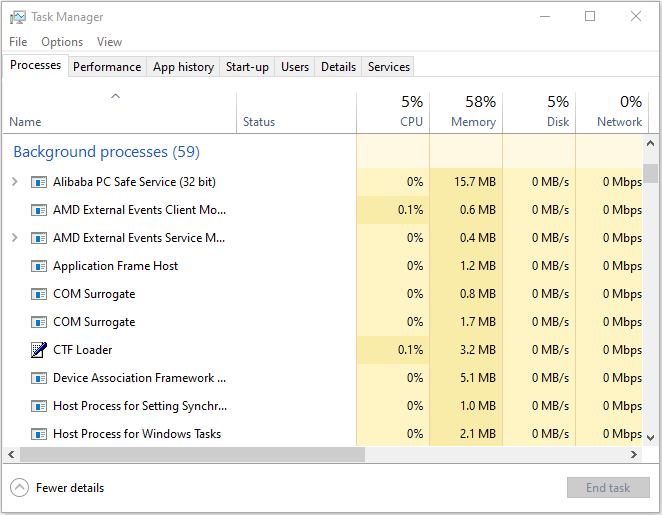
Step 2: Switch to the Process tab.
Step 3: Find Wondershare Passport from the list. Right-click it once you find it and select the End task option.
Step 4: Reboot your computer and then check if the issue has been fixed.
Method 2: Uninstall Wondershare Passport
In most cases, it is not recommended to delete the wsappservice.exe executable. If the wsappservice.exe process always causes high CPU on your computer, you should consider uninstalling Wondershare Passport.
To uninstall wsappservice.exe, you can follow the steps below:
Step 1. Press Windows + R keys to open the Run dialog box. Then type appwiz.cpl in the Run dialog box and press Enter to open Programs and Features.
Step 2. Scroll down to find Wondershare Passportin the application list and then right-click it to select Uninstall.
Step 3. Follow the on-screen instructions to uninstall the program and then restart your computer.
Method 3: Delete Wondershare Registry
You can also use Registry Editor to fix the Wondershare issue. Here is how to do that:
Step 1: Press the Windows + R key at the same time to open the Run dialogue box. Then, type regedit and press Enter to open Registry Editor.
Step 2: Navigate to the Edit tab and click Find….
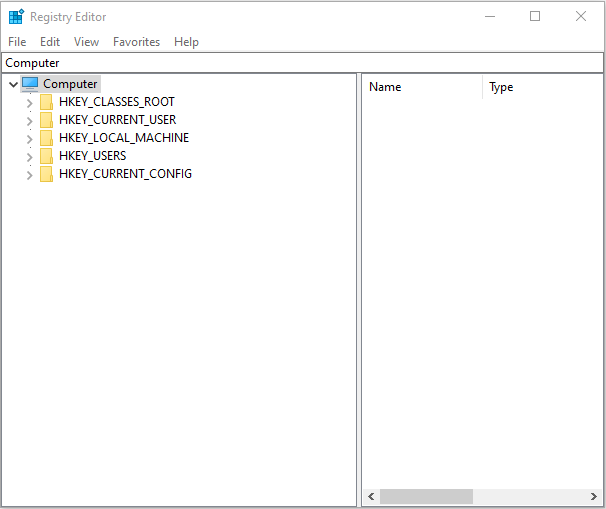
Step 3: Type Wondershare in the search bar so that Windows would list all instances one-by-one.
Step 4: Right-click the related registry entry and select Delete.
Step 5: Then press F3 to find the next entry and repeat the same steps when no related Registry entries will be found.
Step 6: Finally, restart the system and check if the problem has been resolved.
Method 4: Use Anti-malware Software to Scan Your PC
The malware infection could lead to the Wondershare Passport high CPU. If you have the encounter this issue, you can run anti-malware software such as Malwarebytes and Avast to perform a full scan.
After the scanning process is finished, you can check if the Wondershare Passport high CPU usage issue gets fixed.
Final Words
To sum up, this post introduces “what is Wondershare” and how to fix the wsappservice.exe high CPU. If you come across the same error, try these solutions. If you have any better idea to fix it, you can share it in the comment zone.
User Comments :