
When CPU 100% usage occurs on your computer, try ending unnecessary processes, scanning for a virus, checking for overheating, changing the power plan, and trying other methods. To get more information, read the post from MiniTool.
Based on user reports from Reddit and Microsoft forums, CPU usage 100% often occurs in Windows 11/10. It is commonly caused by background processes, resource-heavy programs, Windows services, and malware.
Quick Fixes for 100% CPU Usage
Try these quick fixes:
- Restart the PC
- End unnecessary background tasks
- Disable startup apps
- Update drivers
- Disable Windows service like SysMain
- Run a malware scan
- Cool down your CPU
- Restart WMI Provider Host
- Change Power Plan
Is 100% CPU Usage Always Bad
It is not always bad. In some cases, temporary spikes in CPU usage are normal, especially during resource-intensive tasks.
- Gaming
- Video rendering
- Large file transfers
- Windows updates
However, if CPU usage stays at 100% when nothing is running, there may be a problem.
Consistently high CPU usage during low-demand tasks may indicate software, malware, or system issues. Over time, this can result in overheating, slow performance, freezes, or application crashes.
Here is a table to help identify whether high CPU usage is normal or a sign of a potential problem.
| CPU Usage Situation | Is it normal |
| Gaming at 90-100% | Sometimes (sustained high CPU usage + unusually high temperatures/severe lag during gameplay are abnormal) |
| Idle at 100% | No |
| Windows Update running | Temporary |
| Rendering videos | Normal |
| Opening many Chrome tabs | Common |
Why Is My CPU Usage So High?
100% CPU usage is commonly caused by:
- Too many background processes
- Resource-intensive tasks
- Windows update issues
- Virus or malware infection
- Outdated drivers
- WMI Provider Host
- Overheating
- Windows services
Back Up Important Files Before Fixing 100% CPU Usage
Some troubleshooting methods may involve:
- Driver updates
- Windows repair operations
- System configuration adjustments
To avoid unexpected data loss, it is recommended to back up your important files before applying fixes.
MiniTool ShadowMaker is a Windows backup software that allows you to create backups for files, folders, disks, partitions, and operating systems.
MiniTool ShadowMaker TrialClick to Download100%Clean & Safe
Follow these steps for data backup.
Step 1: Launch MiniTool ShadowMaker and navigate to the Backup tab.
Step 2. Open this software and select Backup from its left panel.
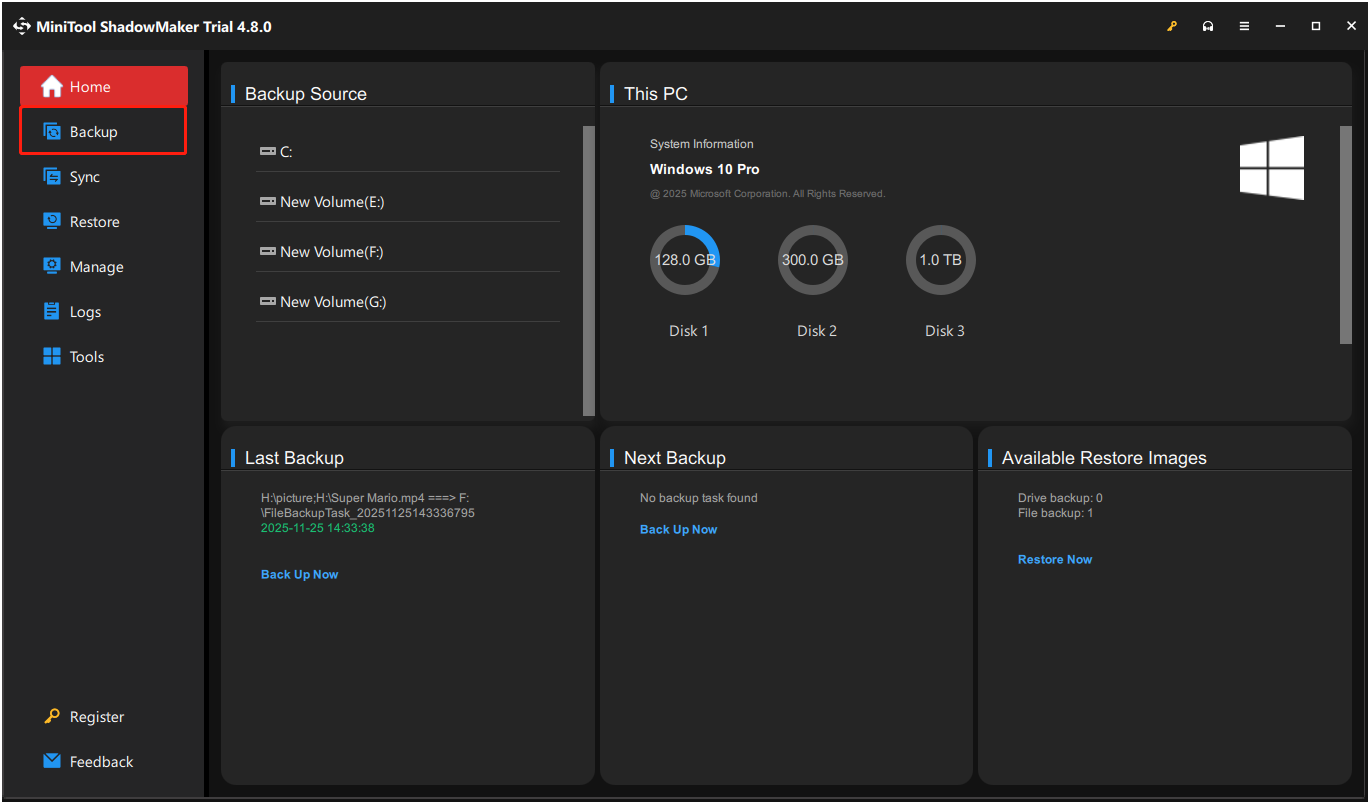
Step 3. Go to SOURCE and select Folders and Files. Then, check the files that you want to back up and click OK.
Step 4. Go to DESTINATION, choose a target location to store the backup files, and then click OK.
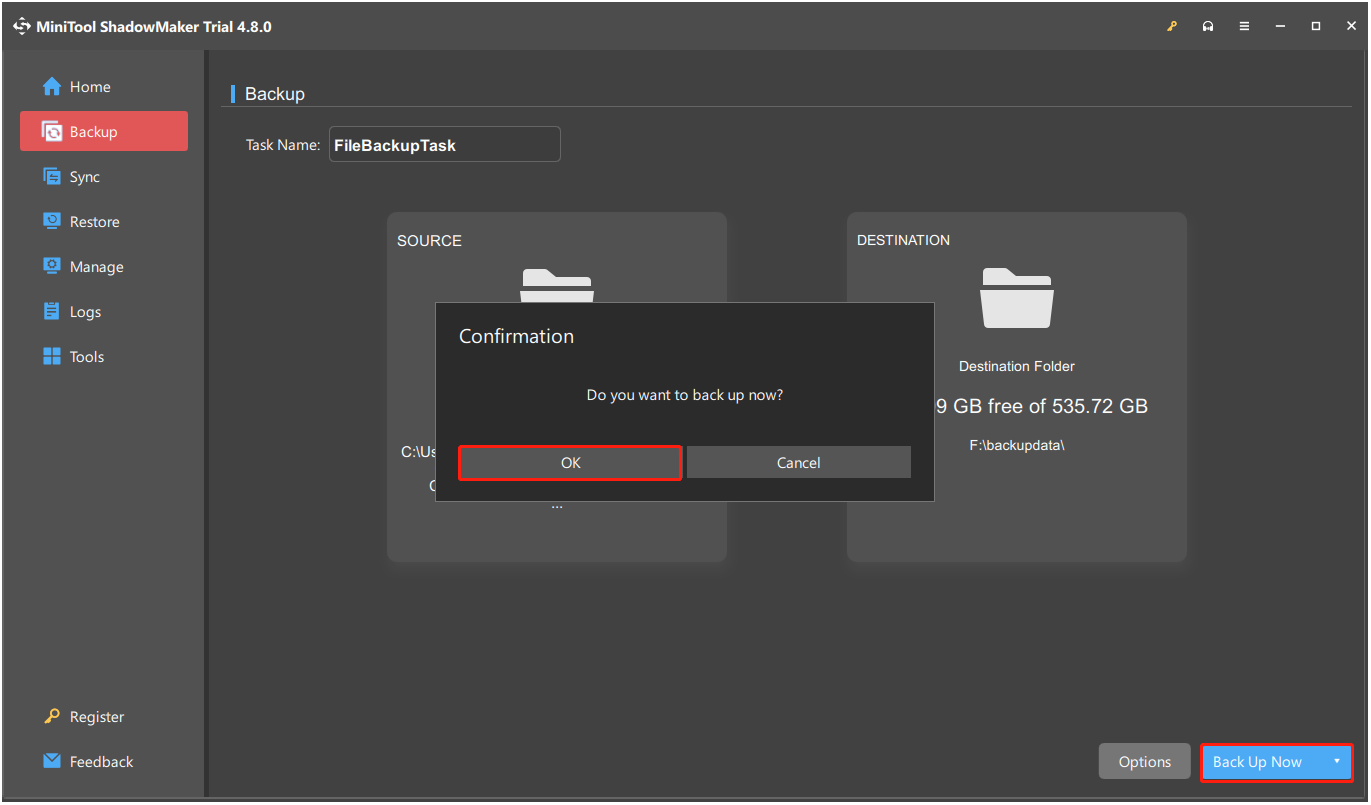
Step 5. Click the Back Up Now button in the bottom right corner. Then, click OK to confirm.
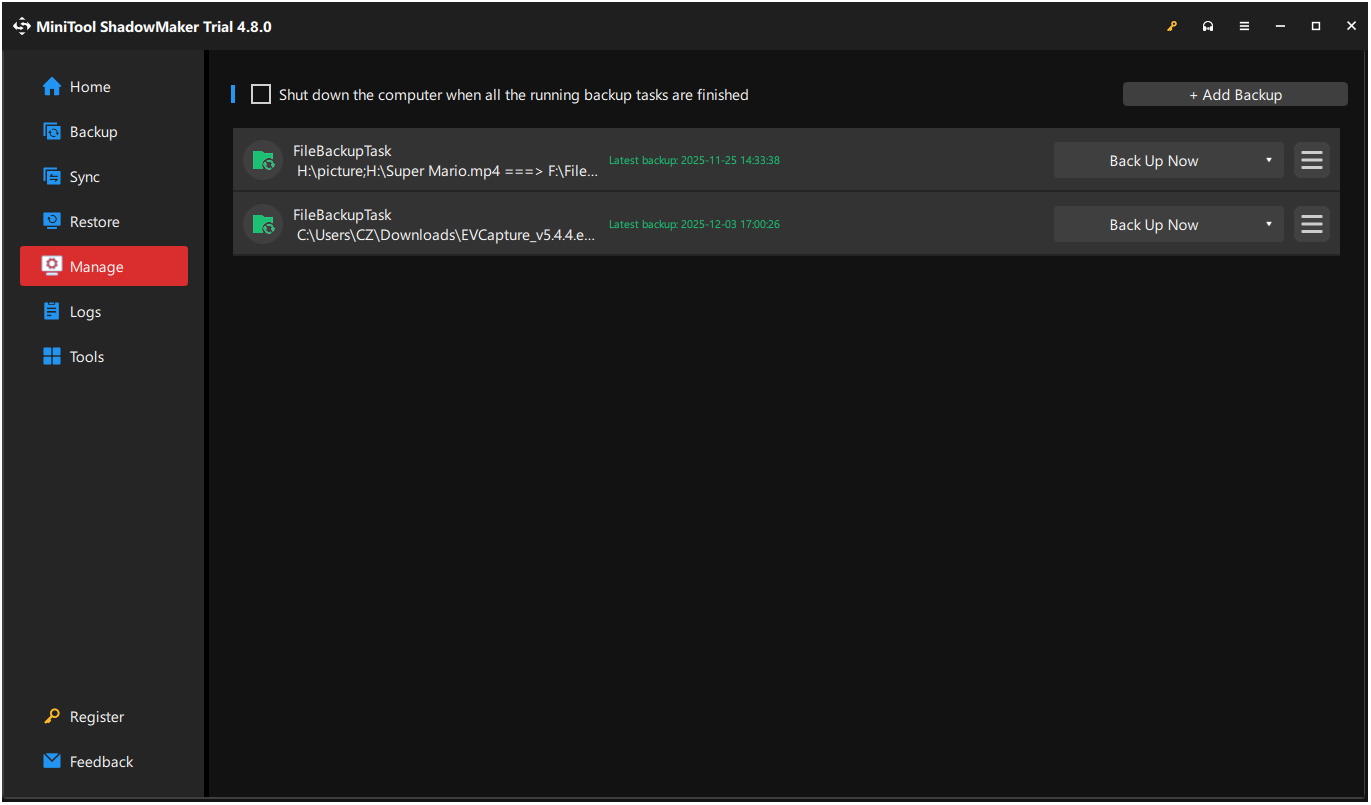
Step 6. Now, the backup process will show in the Manage page. Once the process is complete, all selected files have been backed up successfully.
How to Fix CPU Usage at 100 on Windows 10/11
Here is a video guide:
Fix 1: End High CPU Usage Processes
When to use:
- Your PC turns slow after opening specific software.
- CPU usage spikes randomly.
- One app suddenly consumes excessive CPU.
Step 1. Open Task Manager.
Step 2. Under the Processes tab, click the CPU column to sort the processes by CPU usage.
Step 3. Right-click the process that utilizes high CPU usage and click End task to terminate the process.
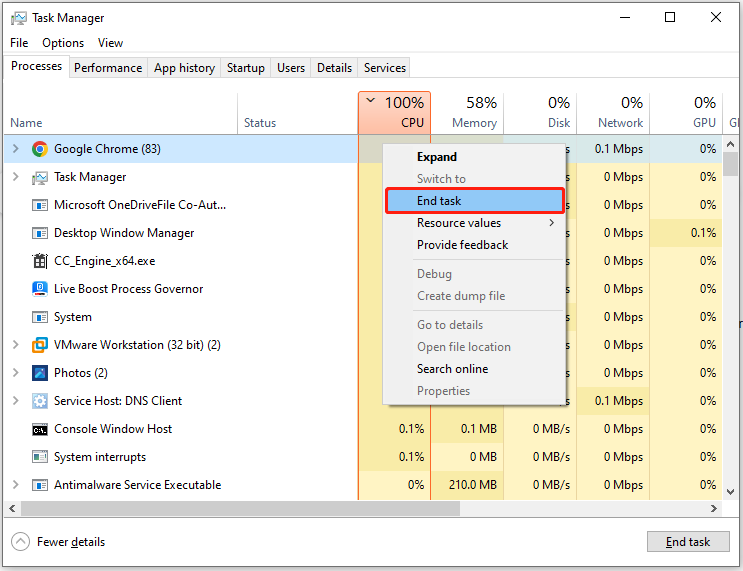
Step 4. Identify the unnecessary programs from the list and end them.
Fix 2: Disable Startup Applications
When to Use
- CPU usage is high immediately after startup.
- Windows boots slowly.
- Many programs open automatically.
Go to the Startup tab.
Right-click the program that you want to disable and select Disable.
Fix 3: Run a Malware Scan
When to use:
- CPU usage is at 100 when idle.
- Fans run loudly even when nothing is running.
- Unknown processes appear in Task Manager.
Step 1. Open Settings.
Step 2. Navigate to Update & Security > Windows Security, and click Virus & threat protection in the right panel.

Step 3. In the prompted window, click Scan options.
Step 4. Choose your scan type and click Scan now.

Step 5. Once the process is complete, click the Protection history link in the Virus & threat page to see the results.
Then, expand one listed item, click Action, and choose one operation for the found threat, such as Restore, Remove, Turn on, Sign in, and other options.
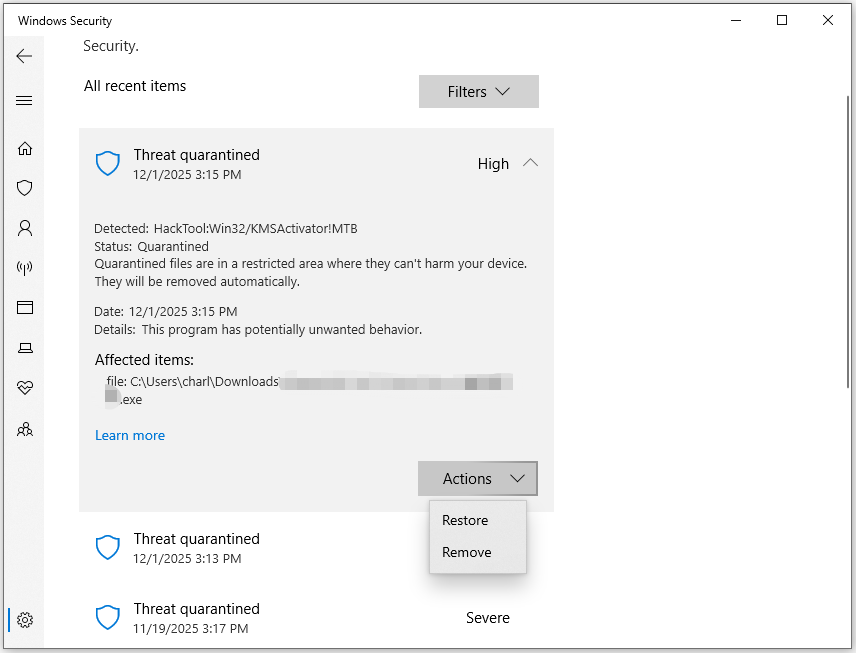
Step 6. Repeat the above step to choose proper actions for all found threats. Then, check if the CPU is still running at 100%.
Furthermore, third-party antivirus software may conflict with your Windows OS and cause 100% CPU usage. In this circumstance, try disabling that program.
Fix 4: Disable Windows Services
When to Use
- CPU and disk usage are both high at the same time.
- Windows Update or SysMain consumes excessive resources.
Step 1. Press Win + R to open Run, type services.msc in the box, and press Enter.
Step 2. In the Services window, find SysMain (or Superfetch), right-click it, and select Properties.
Step 3. Click Stop under the Service status section, and set the Startup type to Disabled. Next, click Apply and OK to save the changes.
Step 4. Do the same for other services like Windows Update or Background Intelligent Transfer Service, but keep in mind that this will stop Windows updates.
Step 5. Once the process is complete, check if the CPU 100% usage issue has been resolved.
Moreover, restarting the Windows Management Instrumentation service to fix the high CPU usage issue is worth a try. To do that:
Step 1. Open the Services window.
Step 2. Find Windows Management Instrumentation, right-click it, and select Restart.
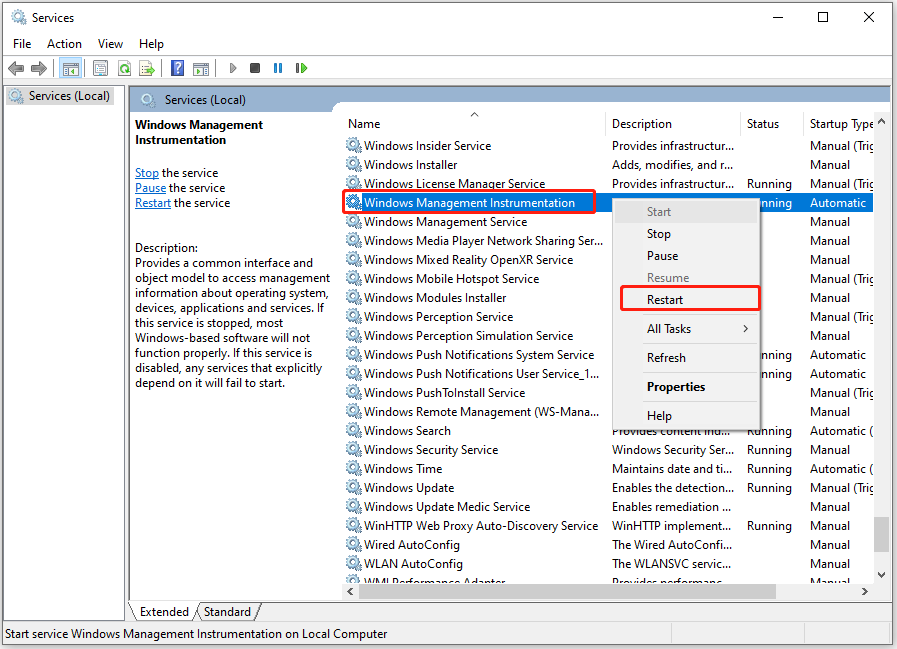
Once the operation is complete, check if you have lowered the CPU usage. If not, try other methods.
Fix 5: Restart WMI Provider Host
When to use:
- WMI Provider Host constantly uses high CPU.
- CPU usage spikes randomly
- WMI errors are reported in Event Viewer.
WMI Provider Host (WmiPrvSE.exe) is a core Windows component, but it is often incorrectly triggered by third-party software, causing high CPU usage.
Try to restart this process:
Step 1: Open the Services window.
Step 2: Locate Windows Management Instrumentation.
Step 3: Right-click on it and choose Restart.
Fix 6: Update Drivers
When to Use
- CPU usage increased after a Windows update.
- Gaming performance dropped.
- Hardware behaves abnormally.
Step 1. Press Win + X to open the Quick Link menu, and select Device Manager.
Step 2. Expand one category, right-click a driver here, and select Update Driver.
Step 3. In the pop-up Update Drivers window, choose Search automatically for drivers.
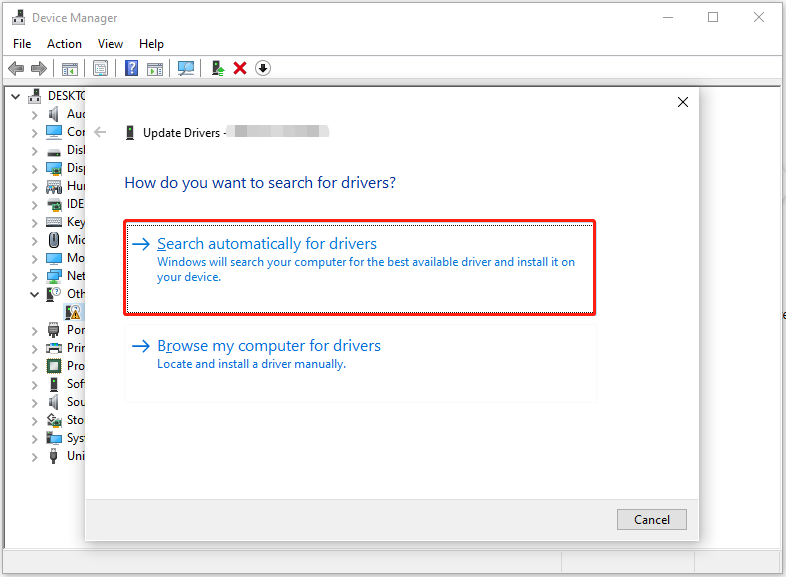
Step 4. Follow the on-screen instructions to complete the process. Then, repeat the above steps to update all outdated drivers.
Step 5. After updating, check if the issue is solved.
Additionally, disabling the High Precision Event Timer (HPET) in Device Manager may also be helpful for fixing CPU usage 100%. Here’s how to perform that:
Step 1. Open the Device Manager window.
Step 2. Find and expand the System devices category.
Step 3. Looking for anything that says High precision event timer, right-click it, and select Disable device.
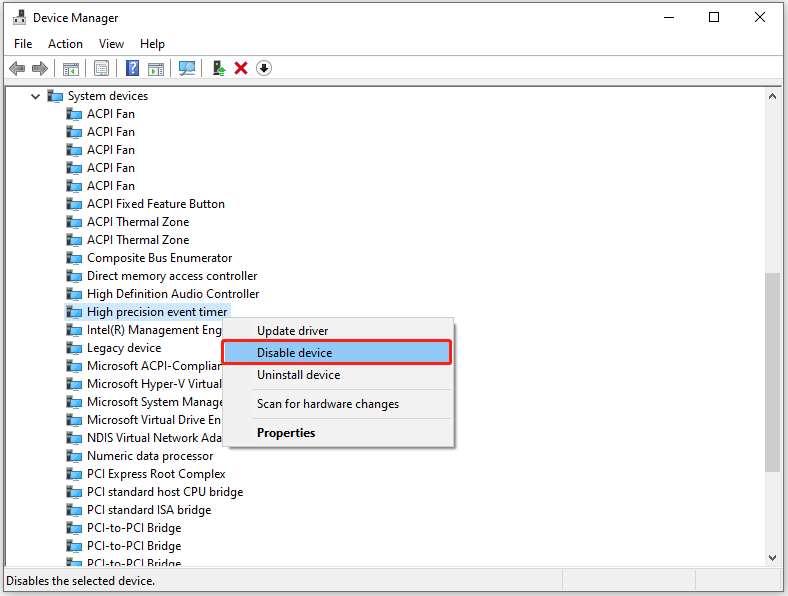
Step 4. A window will pop up and ask if you confirm to disable the driver. Click Yes to continue.
Once disabled, check if the issue has been solved.
Fix 7: Cool Down CPU
When to use:
- CPU usage spikes during gaming.
- Your PC overheats.
- Fans run constantly.
Overheating can increase CPU load and reduce performance. Follow these steps:
Step 1: Open the computer case.
Step 2: Clean out dust and debris
Step 3: Optimize airflow and fans.
Step 4: Reapply thermal paste if needed.
Fix 8: Change Power Plan
When to Use
- CPU continues running at a high frequency even during light tasks.
- Your laptop battery drains quickly.
- The high-performance option is enabled.
Step 1. Press Win + S to open the Search window, type control panel and press Enter to open Control Panel.
Step 2. Set View by to Large icons and select Power Options.
Step 3. In the Power Options window, choose Balanced (recommended) if your computer is on other plans.
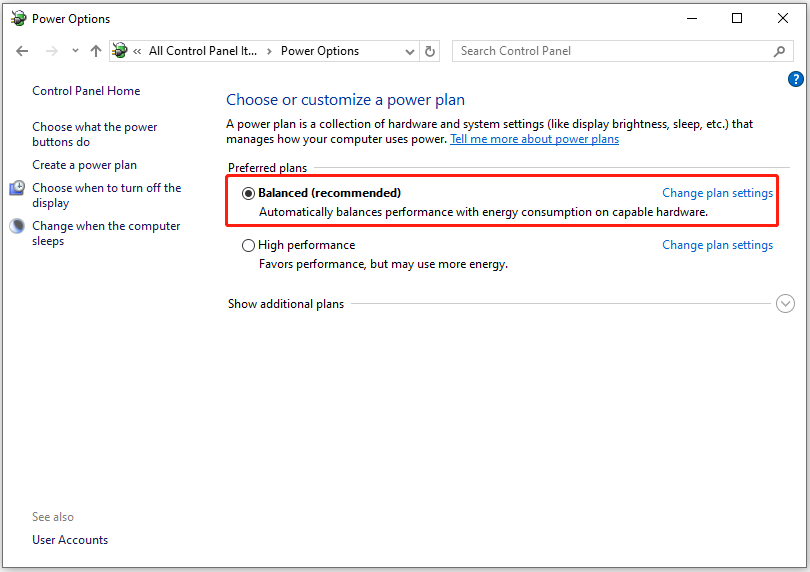
Step 4. Click Change plan settings, which is next to Balanced.
Step 5. Click Restore default settings for this plan. Then, click Yes in the prompted window.

Additionally, using CMD to change power plan settings may also resolve CPU running at 100%. Here’s how to do that:
Step 1. Open the Search window and type cmd in the search box.
Step 2. Find Command Prompt under Best match, right-click it, and select Run as administrator.
Step 3. Execute the following command one by one:
- PowerCfg /SETACVALUEINDEX SCHEME_CURRENT SUB_PROCESSOR IDLEDISABLE 000
- PowerCfg /SETACTIVE SCHEME_CURRENT
Step 4. Once done, open Task Manager and check if the CPU running at 100% issue is fixed.
100% CPU Usage While Gaming
CPU usage at 100 when gaming indicates the processor is running at or near full capacity to handle the game’s demands. This often causes lag or frame drops.
To resolve this issue, try these fixes:
- Lower graphics settings
- Limit frame rate
- Update GPU drivers
- Close background applications
- Enable game mode
- Improve cooling
CPU Usage 100% When Idle
Idle CPU usage should normally stay below 10%.
If CPU usage remains high while no major programs are running, the possible causes include malware, background tasks, corrupted system files, or Windows services.
Try these fixes:
- Run a full malware scan
- Restart the WMI service
- Disable SysMain service
- Disable unnecessary startup programs and background apps
Conclusion
This post lists the possible causes for CPU usage 100% and provides some effective methods to troubleshoot the issue. Moreover, to avoid data loss, this post recommends MiniTool ShadowMaker to you.
If you encounter issues while using MiniTool ShadowMaker, contact us by sending an email to [email protected].
CPU 100% FAQ
1. Unusual noises, like grinding or rattling sounds
2. Inconsistent fan speeds
3. A complete lack of spin
4. System overheating
5. Frequent crashes
6. Unable to boot up the PC
1. Frequent BSODs and freezes
2. Unexpected random system reboots
3. Constant overheating and loud fans
4. Graphical glitches
5. No POS/black screen
For tough grime, use a soft brush and cotton swabs with a small amount of ethanol, then let it dry completely before reassembling.
The common reasons include:
1. Low graphic settings
2. Outdated GPU drivers
3. Background bloatware
4. Unbalanced Hardware
5. Games or apps that rely more heavily on the CPU than the GPU
About The Author

Position: Columnist
Vera has been working at the MiniTool Team for over 10 years as a technical editor and content writer. She mainly focuses on disk and partition management, data recovery, Windows backup and restore, and PC troubleshooting. Through in-depth software testing and hands-on experience, she has helped users solve a wide range of computer problems and better protect their data on Windows devices.
User Comments :