
Windows 11 24H2 Hanging RDP
RDP, short for Remote Desktop Protocol, refers to a network protocol built into Windows to allow users to remotely access and control another computer. However, perhaps you often encounter RDP issues.
In fact, there were the first reports about hanging RDP session in mid-January 2025. In February, it seems that the same issue appears again. RDP issues always exist now and then since the release of Windows 11 24H2. The following are the common symptoms:
Windows 11 24H2 RDP hangs on login – Upon connecting via RDP, the session hangs at logon. Usually, you may notice the “please wait” screen or a perpetually spinning top bar.
Sometimes an initial connection seems normal but a freeze occurs when reconnecting to a previously disconnected session. At times the RDP service runs normally but the connections don’t work.
Currently, we don’t know the root reason for these problems. Potentially, something is off with how Windows 11 24H2 handles the network detection. Or the default RDP port (3389) may be problematic.
Then, what should you do if Windows 11 24H2 RDP login hangs? Apply the following possible fixes.
Tip 1: Connect to Another Account
According to some users, connecting to the server via another account sometimes works. Try this via these steps:
Step 1: Open RDP via the Search box.
Step 2: Delete the saved server connection and manually input the IP address into the Computer section, then connect to it again.
Step 3: In Event Viewer, go to Applications and Services Logs > Microsoft > Windows > TerminalServices-RemoteConnectionManager > Operational, and check if any error for the remote session appears.
Step 4: Open Services and restart Terminal Services.
If Windows 11 24H2 RDP hangs on login again after the fix, move to the next solution.
Tip 2: Edit Group Policy
By adjusting how Windows handles network detection for RDP sessions, the hanging issue should be addressed in Windows 11 24H2.
Step 1: In Search, type in gpedit.msc and press Enter to open Local Group Policy Editor.
Step 2: Access the following path: Local Computer Policy > Computer Configuration > Administrative Templates > Windows Components > Remote Desktop Services > Remote Desktop Session Host > Connections.
Step 3: Locate Select network detection on the server, double-click on it to open the Properties window, select Enabled, choose Turn off Connect Time Detect and Continuous Network Detect under Options, and click Apply > OK.
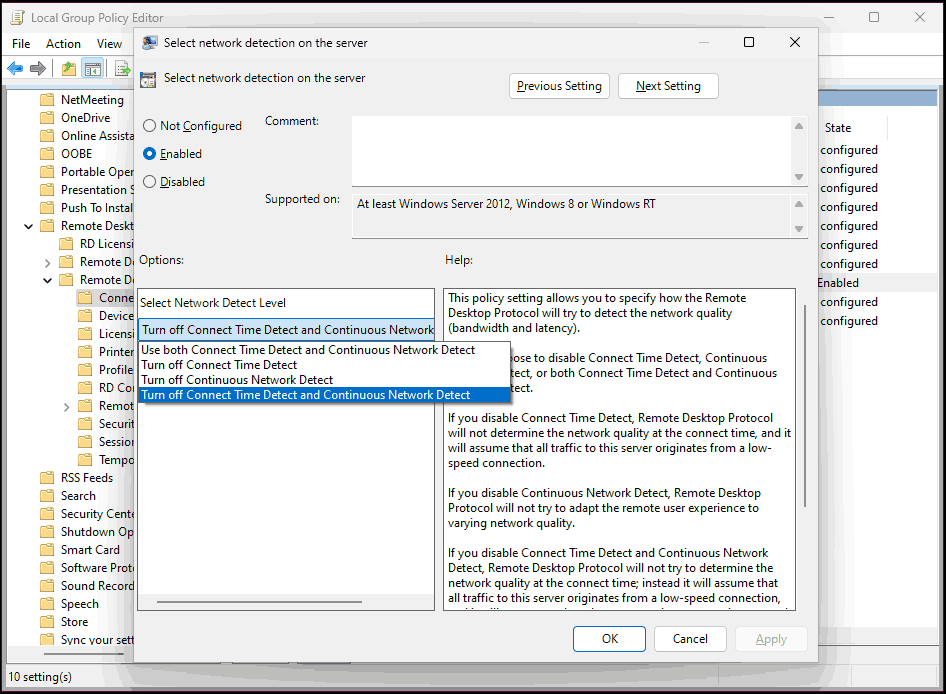
Step 4: Later, open Command Prompt and execute this command – gpupdate /force to perform a reboot to apply the Group Policy changes.
The configuration of this policy tells the operating system not to continuously probe for network changes when reconnecting an RDP session, thereby blocking Windows 11 24H2 hanging RDP.
An Alternative Way
If you prefer a Windows registry solution, you can try to use the following script if RDP hangs on login after Windows 11 24H2.
# Define the registry path
$RegPath = “HKLM:\SOFTWARE\Policies\Microsoft\Windows NT\Terminal Services”
# Ensure the registry path exists
if (!(Test-Path $RegPath)) {
New-Item -Path $RegPath -Force | Out-Null
}
# Set the registry values to disable continuous network detection
Set-ItemProperty -Path $RegPath -Name “fServerNetworkDetect” -Type DWord -Value 1
Set-ItemProperty -Path $RegPath -Name “fTurnOffTimeDetect” -Type DWord -Value 1
Set-ItemProperty -Path $RegPath -Name “fTurnOffNetworkDetect” -Type DWord -Value 1
# Confirm changes are applied
Write-Host “Network detection policies applied. A reboot may be required for changes to take effect.”
Open Notepad, save the above script with the .reg extension, and run it as an administrator.
![[9 Ways] - Fix Remote Desktop Black Screen on Windows 11/10?](https://images.minitool.com/minitool.com/images/uploads/2023/02/remote-desktop-black-screen-thumbnail.png)
Tip 3: Change RDP Port
One Reddit user noted changing the RDP port from the default (3389) to something else worked. The thread wrote this user had two PCs from the same manufacturer and the same models and with the same Windows 11 Pro with 24H2 update.
Try changing the port to see if this works for you.
Roll Back to 23H2 from 24H2
If all of these solutions cannot help and Windows 11 24H2 RDP login hangs again, you had better go back to the previous version. By far, this major update always has many issues besides RDP issues, making you frustrated. Wonder about the rollback guide? Refer to this post on how to downgrade/rollback/uninstall Windows 11 24H2.
By the way, if you insist on using Windows 11 24H2, we recommend having a habit of backing up your computer. With backups in hand, you have a chance to restore the PC to a working state in case system issues happen. For PC backup, run the backup software, MiniTool ShadowMaker, go to Backup, choose the backup source & target, and begin the backup process.
About The Author

Position: Columnist
Vera has been working at the MiniTool Team for over 10 years as a technical editor and content writer. She mainly focuses on disk and partition management, data recovery, Windows backup and restore, and PC troubleshooting. Through in-depth software testing and hands-on experience, she has helped users solve a wide range of computer problems and better protect their data on Windows devices.
User Comments :