
Why computer does not have A and B drive. What and where are the Windows A and B drives? Check the answers and explanations in this post. MiniTool software designs professional hard drive data recovery software, hard drive partition manager, drive backup and clone software, and more.
Many of you have noticed that Windows computer doesn’t have A and B drives, and the drive letter starts from C. So where are the Windows A and B drives, and if they are existed, what are the Windows A: and B: drives used for? This tutorial provides answer for this question.
Still, you can also gain a free data recovery software and a free disk partition manager to recover data from hard drive, and manage hard drive partitions with ease.
What Are the Windows A: and B: Drives Used For?
Question:
In Windows you have a C drive, other drives or partitions labeled beyond that is with the following letter. So the second drive is D. If you insert a USB flash drive, its drive letter becomes the following letter, and so on and so forth. But then, what and where are A and B drives?
Answer:
Windows-based system typically has the following drive letter assignments.
- A: — Reserved for floppy disk drives, and possibly other types of disk drives, if present.
- B: — Reserved for a second floppy drive (if present on your PC).
- C: — First hard disk partition is labeled C.
- D: to Z: — Other disk partitions are labeled from D to Z.
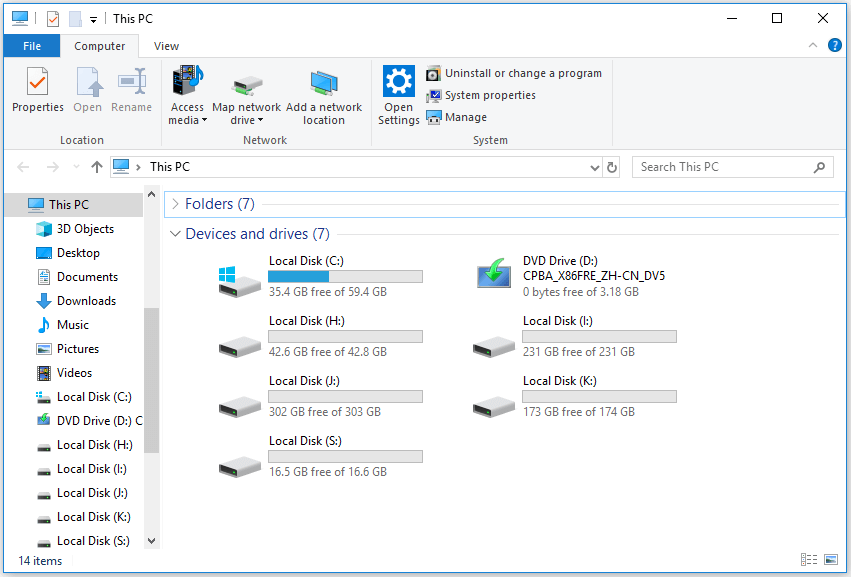
A: and B: drives are reserved for floppy drives. If your computer does not have floppy drive, the A: and B: drives will be missing.
The primary hard drive on your Windows computer is always be the C: drive. If you partition hard drive to multiple partitions, then you have additional drive letters for each partition.
If you have a CD-ROM drive, it is often D: or E:, but may be different drive letter. It depends on how many drives and partitions your computer has set up.
If your computer doesn’t have floppy disk drives, you can assign A and B letter to drives like removable USB flash drives. But you should never assign the primary/boot drive to A: or B: since Windows will not index the drive.
Recover Data from Corrupt Drive
Generally you can read the data on a drive, but if the drive is corrupt, formatted or has errors, then the drive might not be opened.
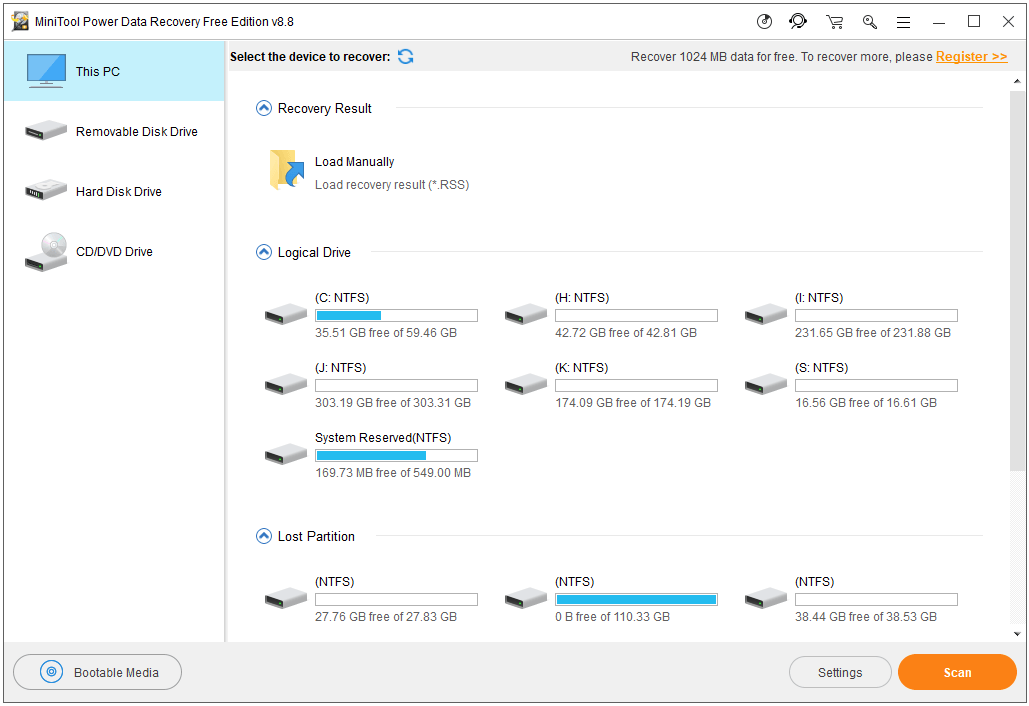
To access the data on the drive, you can utilize a free data recovery software like MiniTool Power Data Recovery to easily recover data from hard drive.
MiniTool Power Data Recovery is professional data recovery application for Windows. You can download and install it on your Windows PC or laptop, and use it to recover any deleted/lost files from Windows computer, external HDD or SSD, USB flash drive, SD card, memory card, and more.
Only 3 simple steps to recover data: connect device to computer and select the device, scan the data on the device, save recovered files.
Best Free Drive Partition Manager for Windows 10
If you want to repartition a hard drive or manage disk partitions, you can use a free disk partition manager like MiniTool Partition Wizard. This program allows you to create/delete/resize/extend/format/wipe partition, convert partition, check and fix disk errors, and more.
Conclusion
If you are wondering what are the A and B drives, why is there no A or B drive, why drive name starts with C, and alike questions, hope this post helps you figure out.
User Comments :