
If you want to know what Windows.edb is or if you encounter the Windows.edb huge issue, you can refer to this post. This post from MiniTool provides detailed information about Windows.edb. Besides, here are some useful methods to fix Windows.edb huge issue.
What Is Windows.edb
What is Windows.edb? The Windows.edb is the Windows Search service’s database file. It provides you with content indexing, property caching, and search results for files, e-mail, and other content. Windows 10/8 will index your documents to speed up the search by default. All data related to the index is stored in this edb file.
In some cases, the size of the edb file tends to become larger in Windows Vista and Windows 7/8 and Windows 10. It will consume large disk space. Thus, you can continue to read the following part to get some methods to fix the “Windows.edb system files huge” issue.
How to Fix Windows.edb Huge Issue
Method 1: Defragment the Index
You can defragment the index in Windows Search Service to fix the Windows.edb file issue. Follow the steps below to do that.
Step 1: Type Command Prompt in the Search box and right-click it to choose Run as administrator.
Step 2: Input the following commands one by one. After each one, you should press the Enter key.
Sc config wsearch start=disabled
Net stop wsearch
esentutl.exe /d %AllUsersProfile%MicrosoftSearchDataApplicationsWindowsWindows.edb
Sc config wsearch start=delayed-auto
Net start wsearch
Method 2: Delete and Rebuild Windows.edb File
If the first method can’t fix Windows.edb issue, you can also try to delete and rebuild Windows.edb file to fix the issue. Steps are as follows:
Step 1: Terminate SearchIndexer.exe in Task Manager
1. Press the Ctrl+Alt+Delete keys and open Task Manager.
2. Then, click the Processes tab.
3. Select the SearchIndexer.exe process and click End Task.
Step 2: Delete Windows.edb file
1. Press the Windows + R keys to open the Run box and type services.msc. Then, press the Enter key.
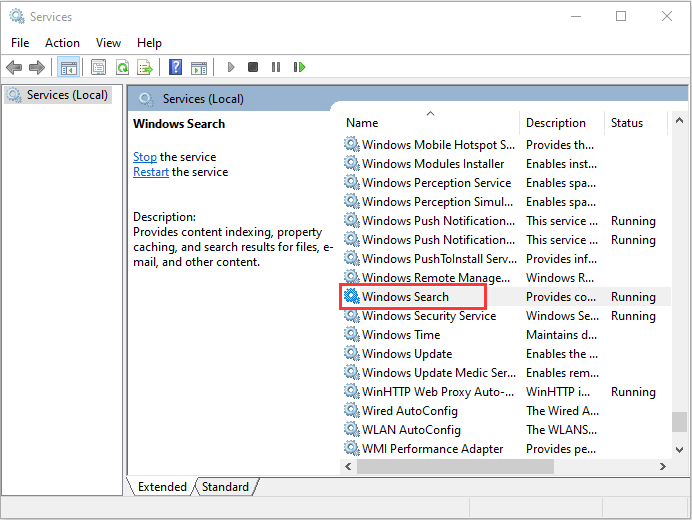
2. Navigate to the Windows Search service. Then right-click it to choose Stop to stop the Windows Search service.
3. Now, right-click the Windows.edb file folder to delete it.
Method 3: Disable Windows Search
You can fix Windows.edb file huge issue by disabling Windows Search in Control Panel. Here’s how to disable Windows Search in Control Panel:
Step 1: Open Control Panel and click Program and Features.
Step 2: Then, click Turn Windows features on or off and uncheck the Windows Search option.
Now, the Windows.edb file huge issue should be fixed.
Method 4: Change Windows.edb File Location
If the issue still exists, it is necessary to change the edb file’s location. Here’s how to change Windows.edb file location:
Step 1: Open Control Panel and click Indexing Options.
Step 2: Click the Advanced tab and go to the Index Settings tab. Then, click Select new.
Step 3: Make a new folder and set it as the new location for Windows.edb file’s folder.
Method 5: Perform the Windows Update
The last method for you is to update your Windows to the latest version. Windows updates can help you fix a lot of system issues and bugs. Here is how to do that:
Step 1: Right-click the Start menu and choose Settings.
Step 2: On the Settings window, select Update & Security.
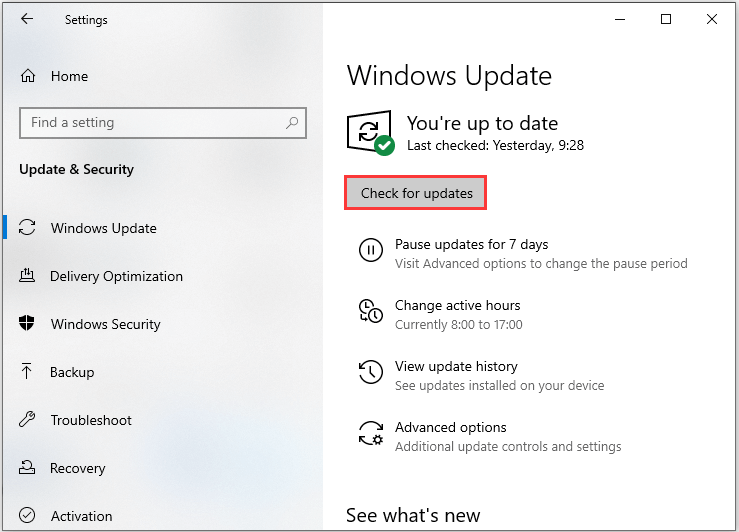
Step 3: Under the Windows Update section, click the Check for updates button to check if there are any new updates. Then Windows will search for available updates. Just follow the on-screen instructions to finish the process.
After installing the latest Windows updates, restart your computer and check if the “Windows.edb system files huge” error gets fixed.
![[SOLVED] Windows Update Cannot Currently Check for Updates](https://images.minitool.com/minitool.com/images/uploads/2018/11/windows-update-cannot-currently-check-for-updates-thumbnail.jpg)
Final Words
This post has introduced some information about Windows.edb. If you want to learn about it, you can refer to this post. Besides, if you encounter Windows.edb huge issue, you can also read this post.
User Comments :