
Windows Search may sometimes stop working, fail to load, or become unresponsive due to system glitches, corrupted search components, or configuration issues. This article explains the common causes of Windows Search bar not working and provides practical solutions to help you restore it.
Why Is Windows Search Not Working Properly?
Windows Search allows you to quickly find files, apps, settings, and other content on your Windows PC. However, it may sometimes stop working, fail to load, or return no results due to system errors, corrupted components, or incorrect settings.
The common causes of Windows Search not working include:
- Temporary system glitches: Background processes or Windows components may fail unexpectedly and prevent Search from working properly.
- Windows Search service issues: The Windows Search service may stop running or encounter errors, causing the search bar to become unresponsive.
- Corrupted search index: A damaged or incomplete search index can prevent Windows from finding files, apps, or settings correctly.
- Windows update problems: Some Windows updates may introduce compatibility issues that affect Search functionality.
- Corrupted system files: Damaged Windows system files can interfere with Search-related components.
- Third-party software conflicts: Recently installed programs or security software may block or affect Windows Search.
- Microsoft Edge WebView2 issues: Missing or corrupted WebView2 components may cause certain Windows Search interfaces to fail.
- Incorrect settings: Changes to language, permissions, or system configurations may affect Search behavior.
After identifying the possible causes, you can try the solutions below to restore Windows Search functionality.
Methods to Fix Windows Search Bar Not Working on Windows 11/10
The following methods cover common and advanced solutions to help you restore Windows Search functionality on Windows 11/10.
- Restart your computer and install the latest Windows updates.
- Restart Windows Explorer and Windows Search services.
- Run the Search and Indexing troubleshooter.
- Rebuild or reset Windows Search settings.
- Regenerate the Windows Search AppData folder.
- Reinstall Microsoft Edge WebView2 Runtime.
- Remove recently installed software that may cause conflicts.
- Change Windows display language settings.
- Repair corrupted system files with SFC and DISM.
- Temporarily disable third-party antivirus software.
- Reset Windows to restore system settings.
Here is a quick video guide to fix Windows Search bar not working on Windows 11 or Windows 10:
#1. Quick Fixes
Fix 1: Restart Your Computer
For many minor problems on computers, a simple restart can fix them easily. Windows Search crashing can be regarded as a relatively common problem. If you encounter it, don’t panic, restarting your computer should do the trick.
To do so: click on Start > select the Power icon > hit Restart.
If you still cannot use the Windows Search tool, try the next method then.
Fix 2: Check for Windows Update
The latest Windows update can help resolve the problem and make the Search tool work well again. Check if your system is up-to-date or if there are any available updates.
To do so: select Start > Settings > Update & Security > Windows Update > Check for updates.
If it requires an update, download and install it at once. Then restart your machine and fire up Windows Search again.
Fix 3: Restart Windows Explorer
When the search bar is not working on Windows 10/11, you can also try restarting it. It’s an easy operation, and here are the steps to do that:
- Press Ctrl + Shift + Esc to launch Task Manager.
- Go to the Processes section and scroll down until you find Windows Explorer.
- Right-click on it and choose Restart from the shortcut menu.
After these steps, check if you can use Windows Search normally.
However, if these quick fixes don’t work, you need to use some advanced solutions.
#2. Restart Search Components
Fix 1: Restart Windows Search Service
When your Windows Search service is stuck, the search bar won’t load properly. In this case, you can try to restart the search service to resolve the problem.
Here’s how to do it:
- Fire up the Run dialog by pressing Win + R.
- Type services.msc and hit Enter.
- In the Service window, look for Windows Search, right-click on it, and choose Restart from the context menu.
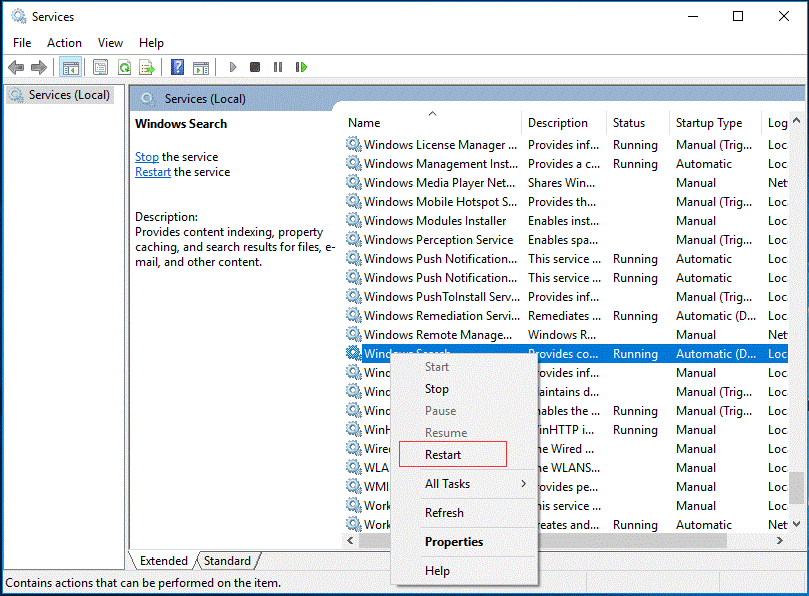
Upon completion, restart your computer to check if the search bar works fine.

Fix 2: Restart Windows Font Cache Service
The Windows Font Cache Service is responsible for managing and optimizing the font cache on your computer. In some cases, it can cause conflicts with the search function. Restarting it can resolve the search problem.
Here’s how to restart the Windows Font Cache Service:
- Type service.msc in the Run dialog (Win + R) and hit OK.
- Scroll down the list to find Windows Font Cache Service.
- Right-click on the service and hit Restart.
Fix 3: Run Search and Index Troubleshooter
Windows PC is equipped with a dedicated troubleshooting tool, which is designed to diagnose and solve problems related to search and indexing features. It should be a good option to fix the Windows 10 search bar not working issue.
Proceed with the following instructions:
1. Launch Control Panel and find Troubleshooting.
2. In the Troubleshooting window, choose View all in the left pane.
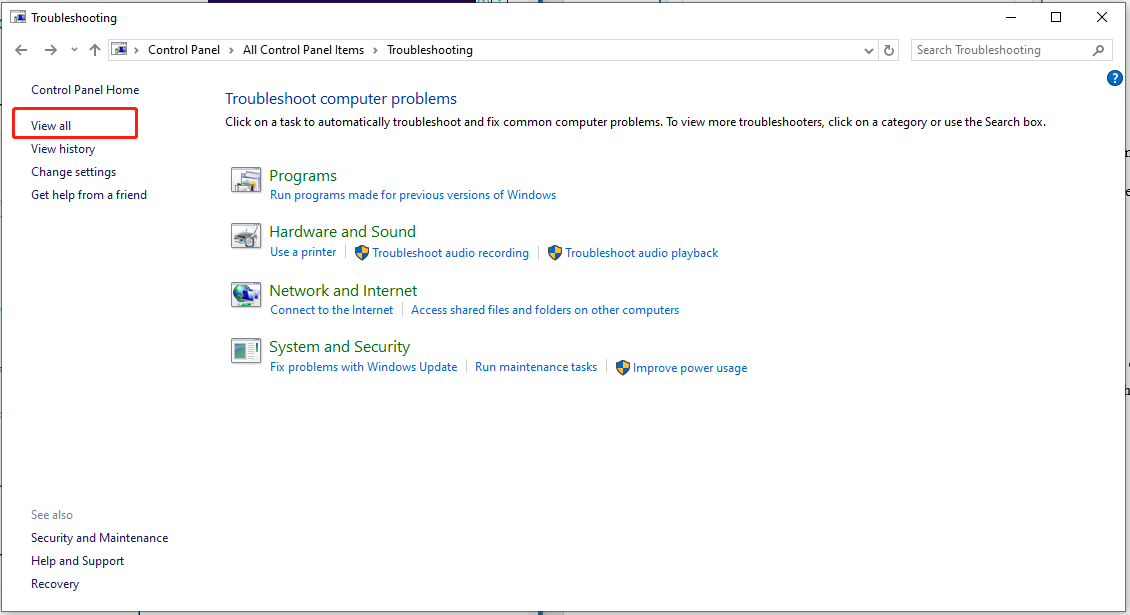
3. Navigate to Search and Indexing and click Next in the newly popped-up window.
4. Check the problems you have encountered and hit Next.
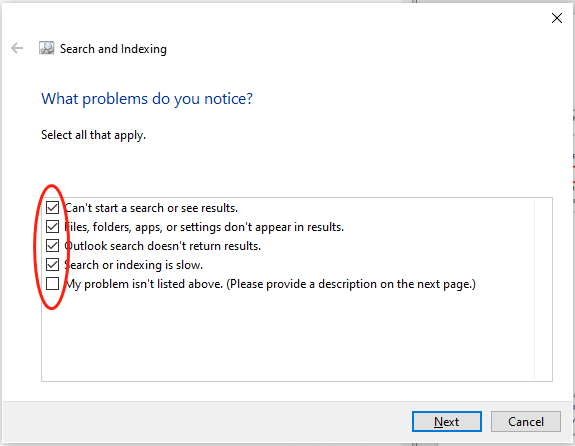
5. Then the Windows troubleshooter will run automatically, detecting and fixing the problems.
When the troubleshooting is finished, reboot the device and use your search bar again.
#3. Repair Search Index & Settings
Fix 1: Rebuild the Search Index
If the search bar still fails, you can rebuild the Windows Search Index. By doing so, this process will update the index of the search function, enabling the search to locate files and data within your system. At the same time, it can also solve the problem.
To do that:
1. Launch the Run window, type Control Panel, and then hit OK.
2. Then navigate to Indexing Options.
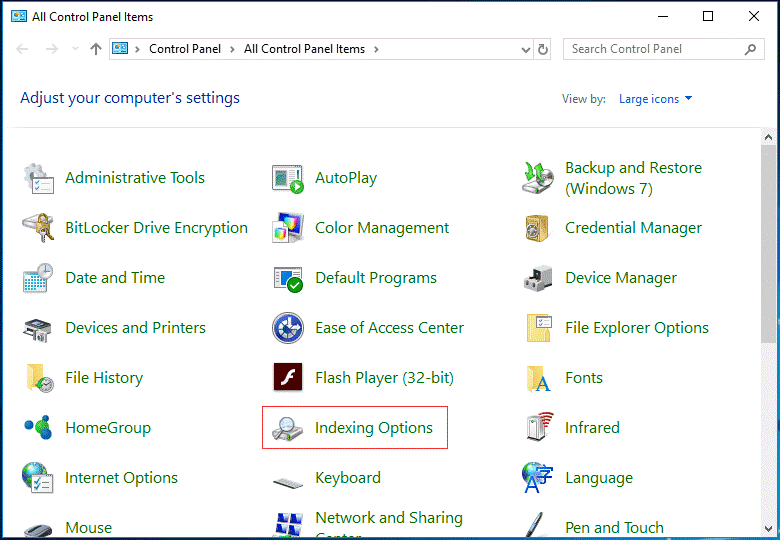
3. In the Indexing Options window, select Advanced and click Rebuild from the Troubleshooting table.
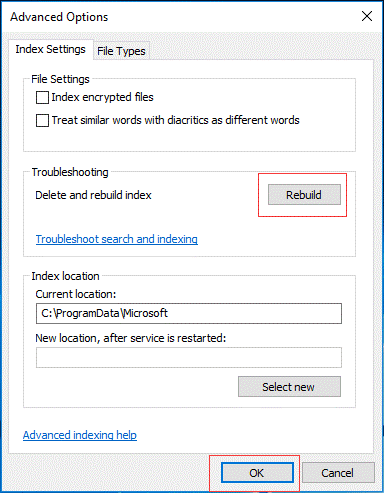
4. It will remind you that the rebuilding process will take a long time. Tap OK to confirm.
Once done, restart your PC.
Fix 2. Reset Windows Search
Windows Search may stop working due to corrupted settings or configuration. Resetting Windows Search can restore its default settings and help fix problems such as the Windows Search bar not responding, missing search results, or Search failing to load.
If your Windows 10 or Windows 11 Search bar is not working, follow these steps to reset Windows Search:
- Download the ResetWindowsSearchBox.ps1 script from Microsoft.
- Right-click the downloaded script and select Run with PowerShell.
- Follow the on-screen instructions to complete the reset process.
- Restart your computer and check whether Windows Search works properly.
Fix 3. Regenerate Windows Search AppData Folder
A corrupted Microsoft.Windows.Search package folder can prevent Windows Search from loading correctly. Regenerating this folder forces Windows to create a new Search package folder and may resolve issues such as a blank search window or an unresponsive Search bar.
Follow this guide to regenerate the Microsoft.Windows.Search package folder:
- Press Win+R to open the Run dialog box.
- Enter %localappdata%\Packages and press Enter.
- Find this folder: Microsoft.Windows.Search_cw5n1h2txyewy.
- Rename the folder or delete it.
- Restart your computer.
Windows will automatically recreate the Search package folder after restarting. Then check whether Windows Search returns to normal.
#4. Fix Related Components
Fix 1. Reinstall Microsoft Edge WebView2 Runtime
Microsoft Edge WebView2 Runtime is used by some Windows features to display web-based interfaces. If WebView2 is missing, outdated, or corrupted, Windows Search may fail to open, show a blank window, or become unresponsive.
You can reinstall Microsoft Edge WebView2 Runtime with these steps:
- Press Win+R to open Run, then type cmd.
- Press Ctrl + Shift + Enter to open Command Prompt as administrator.
- Run this command: winget install Microsoft.EdgeWebView2Runtime.
- Wait for the installation process to complete.
- Restart your computer and check Windows Search again.
Alternatively, you can also uninstall Microsoft Edge WebView2 Runtime from Settings > Apps > Installed apps and reinstall the latest version if needed.
Fix 2. Uninstall Recently Installed Programs
Some newly installed applications may interfere with Windows Search services or related components. If Windows Search stopped working after installing a new program, uninstalling it may help resolve the issue.
Follow these steps:
- Go to Settings > Apps > Installed apps.
- Sort apps by Install date.
- Find the recently installed program that may cause the problem.
- Click the three-dot menu and select Uninstall.
- Restart your computer and check whether Windows Search works again.
Fix 3. Change Windows Display Language
Incorrect language settings may sometimes affect Windows Search components and prevent the Windows Search bar from working properly. Some users reported that changing the Windows display language helped fix Search-related issues, such as Windows Search not working.
Try changing your Windows display language:
- Go to Settings > Time & language > Language & region.
- Change Windows display language to another available language.
- Restart your computer.
- Use the same method to change the language back to your preferred option if needed.
After restarting, check whether Windows Search works normally.
#5. Repair Windows System Files
Run System File Checker & DISM tool
Corrupted system files on your computer could result in the Windows search bar failing to work. To address this Windows Search issue, it’s necessary to run the System File Check/DISM tool.
Follow the detailed steps:
1. Go to Task Manager and click the File tab in the top left corner.
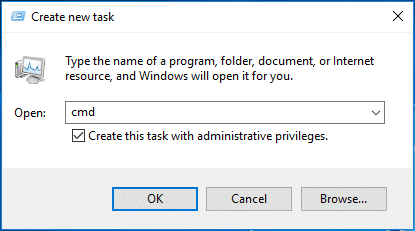
2. Choose Run new task, type cmd in the new box, check Create this task with administrative privileges, and then hit OK to continue.
3. In the Command Prompt window, input sfc /scannow and hit Enter.
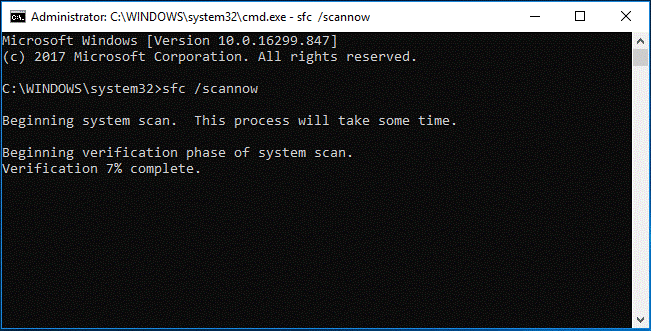
When the scanning process is completed, restart your PC to check if the issue is gone. If not, run the following DISM commands:
- DISM.exe /Online /Cleanup-image /Scanhealth
- DISM.exe /Online /Cleanup-image /Restorehealth
Similarly, reboot the PC and check the result.
#6. Last Resort Solutions
Fix 1: Disable Antivirus Temporarily
Sometimes, third-party antivirus software can interfere with Windows search. You can turn off your firewall or antivirus to verify if it’s causing the Windows Search issue.
To do so:
#How to Disable Windows Firewall?
1. Open Control Panel through the Run dialog (Win + R).
2. Look for Windows Defender Firewall and click Turn Windows Defender Firewall on or off from the left menu.
3. Choose Turn off Windows Defender Firewall under Private network settings & Public network settings.
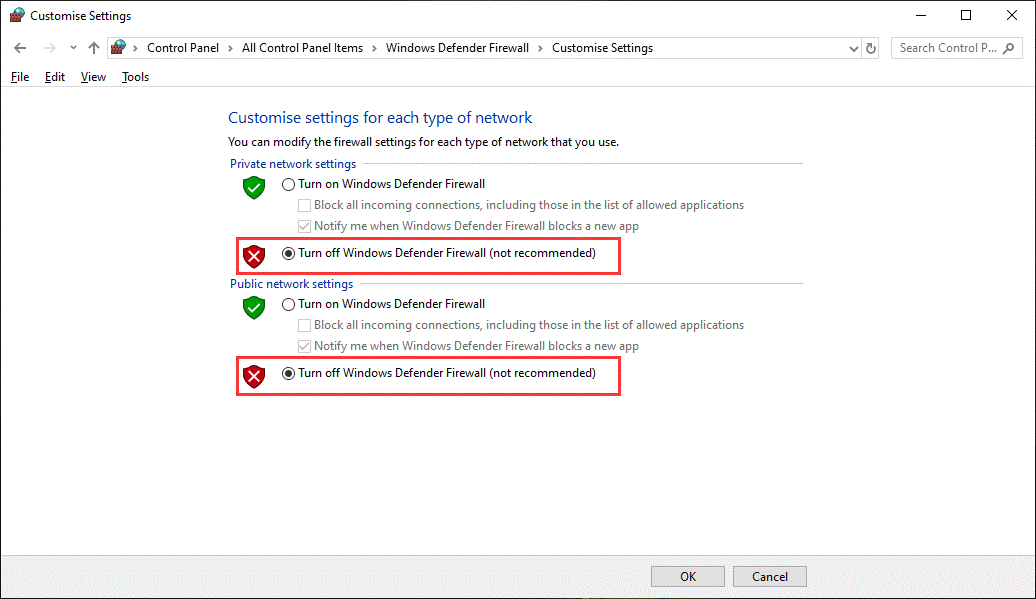
4. Then tap on OK to save the changes.
#How to Turn off Windows Antivirus?
1. Press Win + I to bring up Windows Settings.
2. Go to Update & Security > Windows Security > Virus & threat protection.
3. Locate Virus & threat protection settings and click Manage settings.
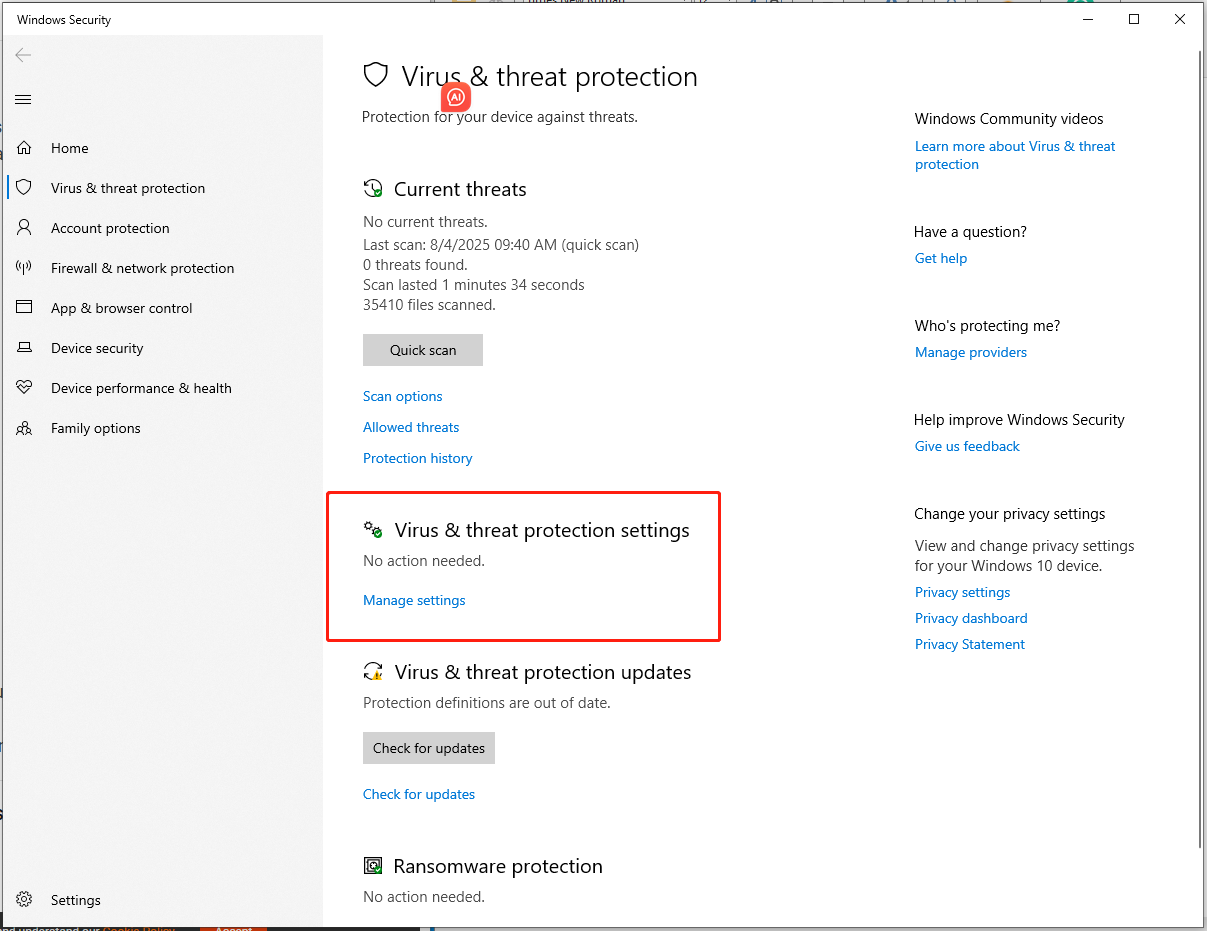
4. Toggle off the Real-time protection option.
Fix 2: Reset Your Windows PC
If none of the solutions work for you, then you need to reset your PC to solve the Windows search not working issue.
Important Notice:
It’s strongly suggested that you back up important files before resetting your computer. This is to prevent the occurrence of accidental data loss during the resetting process. When it comes to data backup, MiniTool ShadowMaker is a good choice.
It is a professional backup software, allowing you to back up files from the desktop, library, Users, and computer. Meanwhile, system backup, disk backup, and partition backup are also supported.
Furthermore, MiniTool ShadowMaker also has abundant features. Examples include creating automatic backup schedules, modifying the image compression level, cloning HDD to SSD, cloning an SSD to a larger SSD, setting password protection, etc.
Now, let’s see how to create a backup with MiniTool ShadowMaker.
1. Download, install, and then launch this program.
MiniTool ShadowMaker TrialClick to Download100%Clean & Safe
2. In the Backup page, highlight the SOURCE section > Folder and Files to choose the items you want to back up.

Then, go to DESTINATION to pick a storage path for the backup.
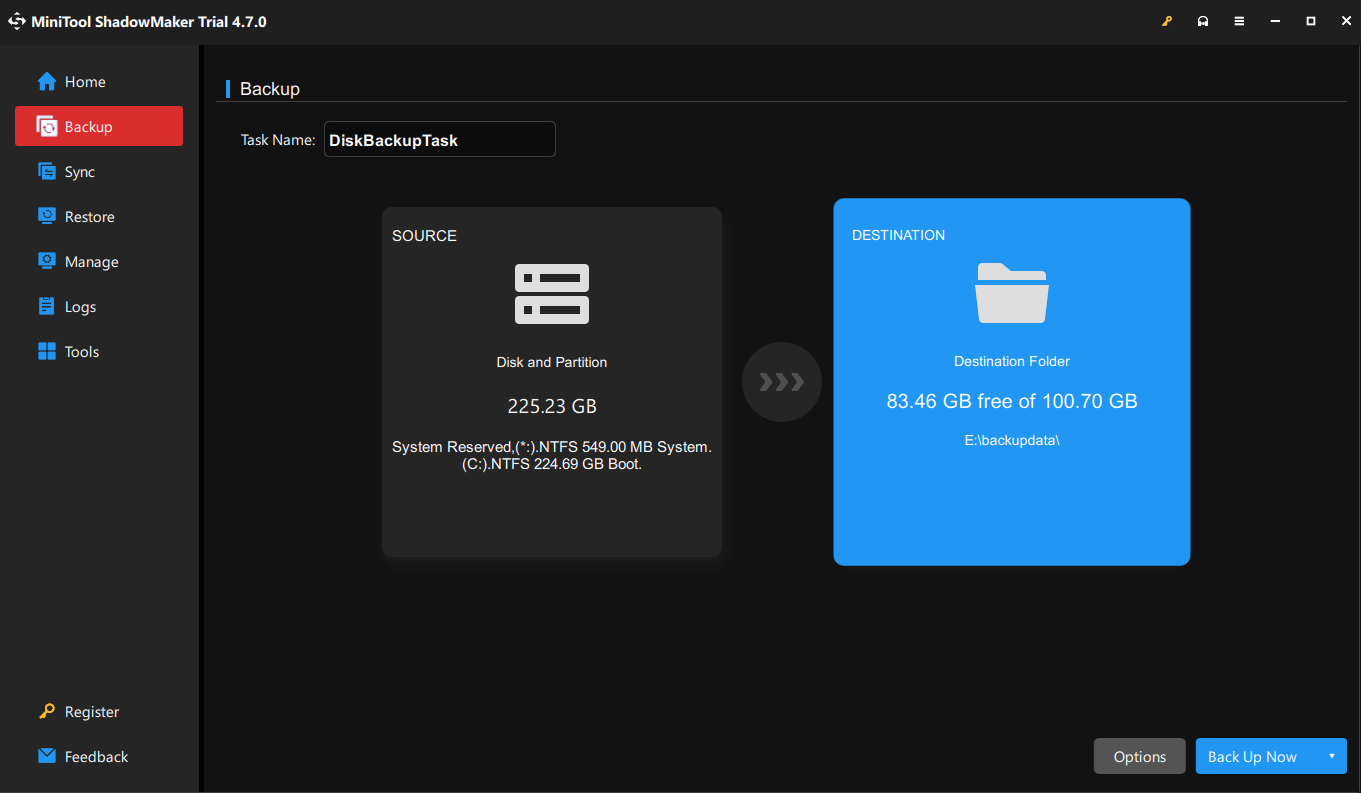
Create an automatic file backup: go to Options > Schedule Settings > set the task on a regular basis.
Encrypt the backup image: go to Option > Backup Options > Password > Enable Password Protection.
3. Click on Back Up Now to start the backup process immediately.
With the backups in hand, you can restore your data in the event of system crashes, malware infection, hard drive failure, and more.
Now, you can safely perform a PC reset. Follow the instructions:
- Open Settings through the left side of the Start menu.
- Select Update & Security > Recovery.
- Click on Get started under Reset this PC.
- Choose Keep my files, and then follow the prompts on the screen to complete the reset.

Windows Search Not Working FAQ
Wrapping Things Up
To sum up, we introduce a series of methods to solve the Windows Search not working problem. Just try them one by one until you find the one that works for you.
Please don’t hesitate to contact us via [email protected] if you experience any problems with MiniTool ShadowMaker.
About The Author

Position: Columnist
Stella has been working in MiniTool Software as an English Editor for more than 8 years. Her articles mainly cover the fields of data recovery including storage media data recovery, phone data recovery, and photo recovery, videos download, partition management, and video & audio format conversions.
User Comments :